IDmelon Agent
IDmelon Agent
IDmelon Agent delivers simple, fast, and secure sign-ins to virtual desktops and cloud apps using employee badges, smartphones, biometrics, or security keys. It automates sign-in, session launch, and user switching for Microsoft, Citrix, and VMware environments.
The agent supports two modes:
- VDI Mode: For virtual desktop environments such as Citrix and Horizon.
- Kiosk Mode: For Microsoft Entra ID sign-in to cloud apps, followed by opening the configured URL after successful authentication. Ideal for shared, multi-user environments such as retail, healthcare, manufacturing, and education, where Tap-to-Login and Tap-to-Logout keep sessions secure and prevent them from being left open.
Supported Platforms
- Windows 10 and 11
- Linux Ubuntu 22.04 and later
- IGEL OS 12
- Dell ThinOS 2508
App Configuration
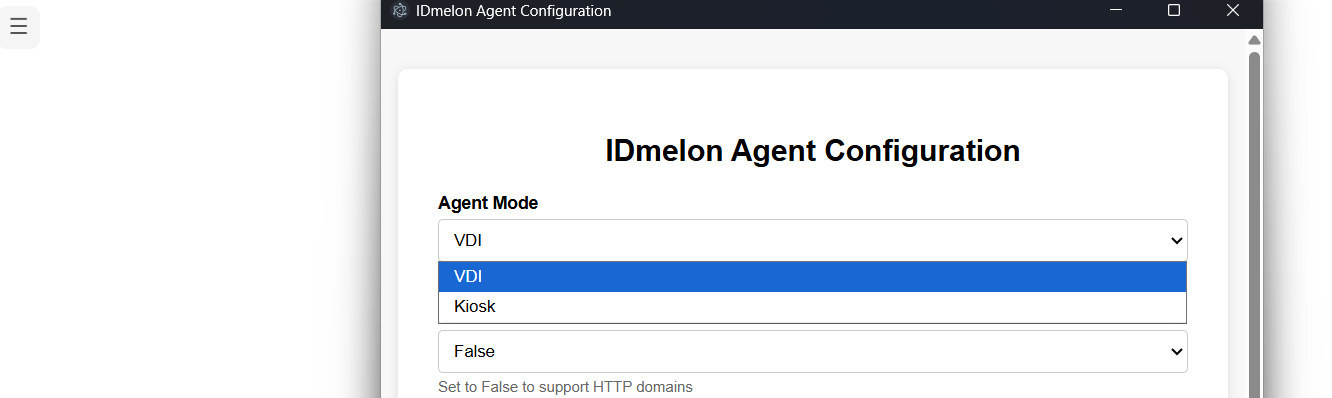
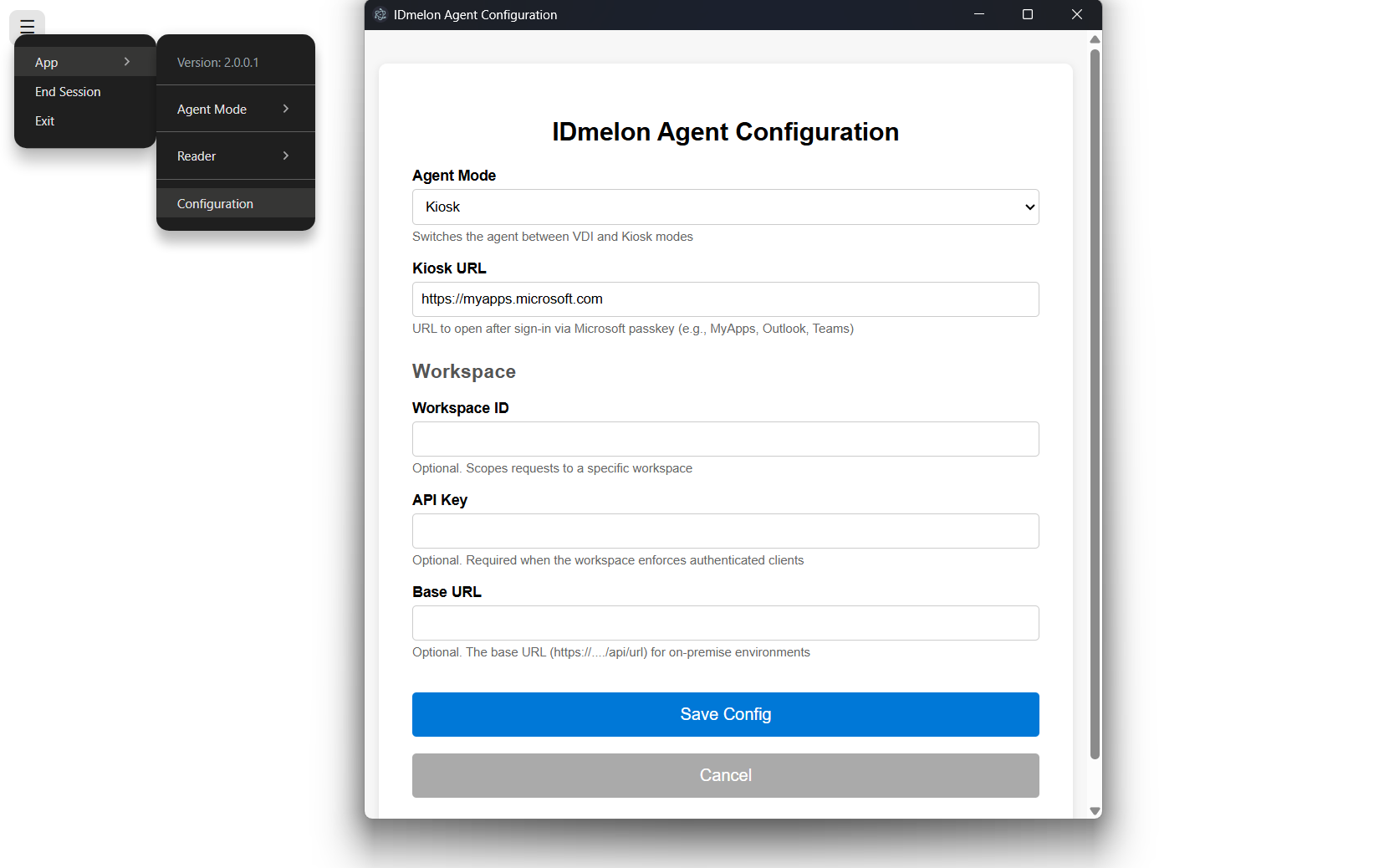
On Windows and Linux, open the app menu and select Configuration.
Agent Mode
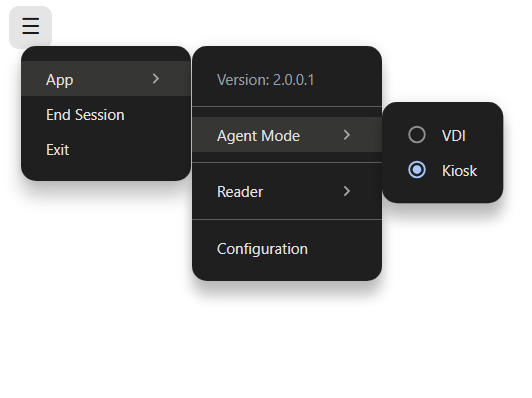
Use Agent Mode to choose how the device will be used.
Changing the mode is possible from agent settings and the drop-down menu in configuration. This restarts the app so the new flow can load.
Badge Reader Mode
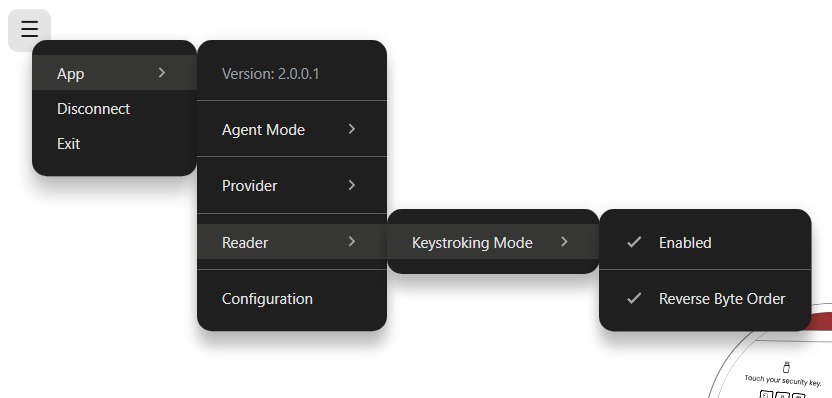
The agent can read badges directly from PC/SC NFC and rfIDEAS readers. If your reader sends badge IDs as keyboard input, enable Keystroking Mode from the app menu.
If the badge ID is read in the wrong order, enable Reverse Byte Order.
Shared Configuration Fields
- Workspace ID: Optional. Use this when requests should be scoped to a specific IDmelon workspace.
- API Key: Optional. Required only when your workspace enforces authenticated clients (Admin Panel > Authentication > API Key Management (API Key Type: Clients)).
- Base URL: Optional. Use this for on-premise environments.
VDI Mode
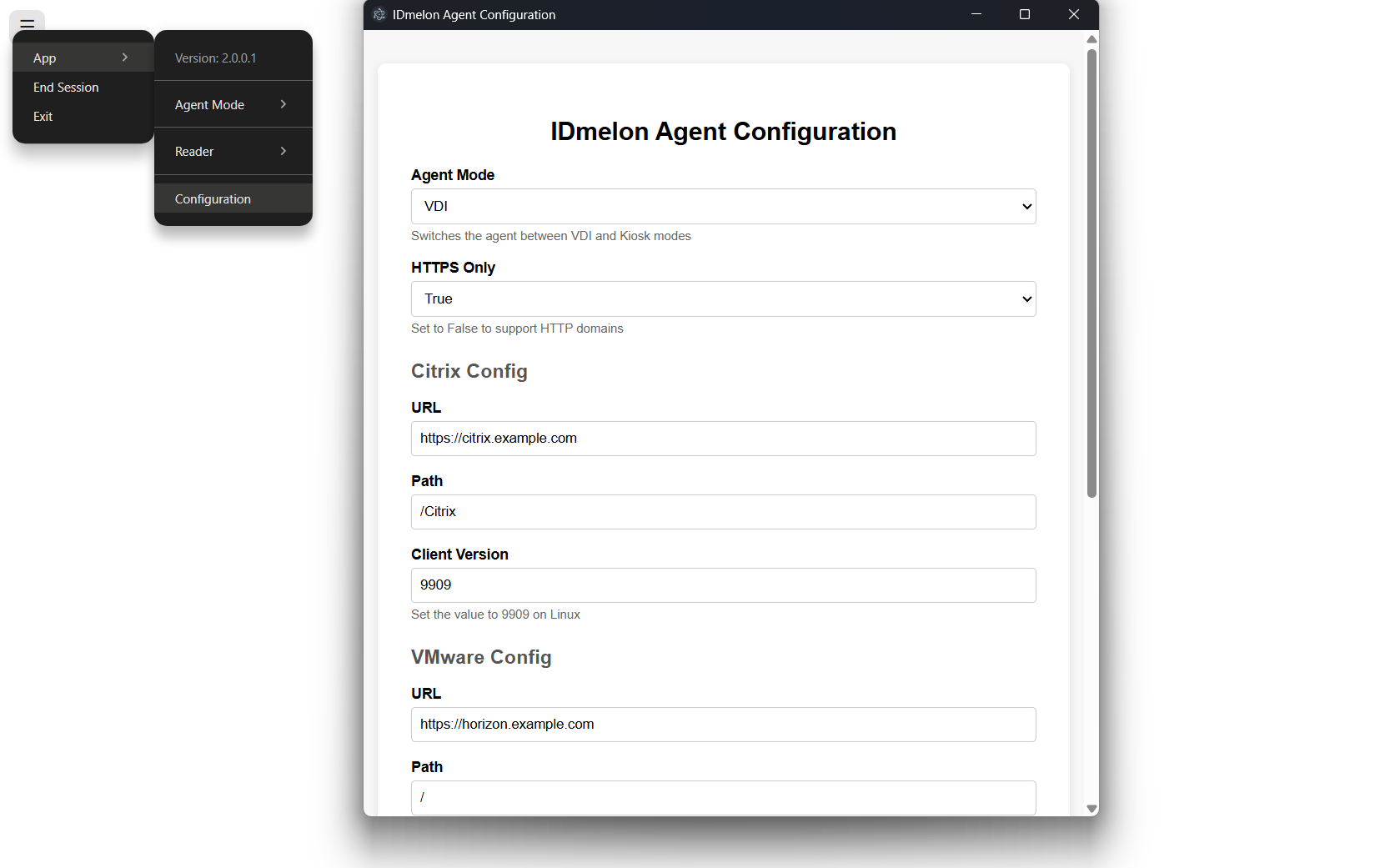
Use VDI Mode when the device should launch a virtual desktop session after the user taps their badge.
Supported VDI Providers
- Citrix
- Omnissa Horizon (VMware Horizon)
Note: To use a VDI provider, install the matching client on the device first: Citrix Workspace App for Citrix, or Omnissa Horizon Client for Horizon.
VDI Configuration
Select the provider from the app menu:
- Citrix
- Horizon
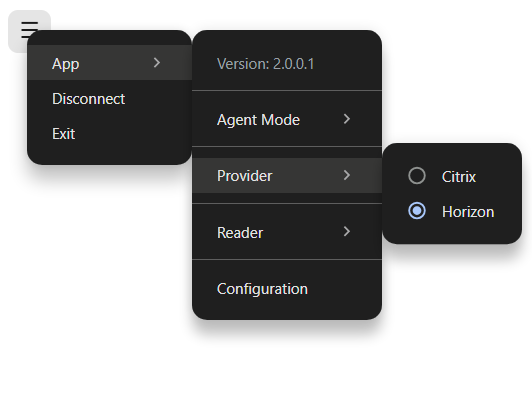
Configure the provider settings:
- HTTPS Only: Set to
Falseonly if your provider environment uses HTTP or a self-signed certificate. - Citrix URL: The base URL of your Citrix environment.
- Citrix Path: The Citrix StoreFront virtual path, such as
/Citrix/[StoreName]. For more information - Citrix Client Version: The Citrix Workspace App version installed on the device. Use
9909on Linux. - VMware URL: The base URL of your Horizon environment.
- VMware Path: Leave this value as
/.
VDI User Experience
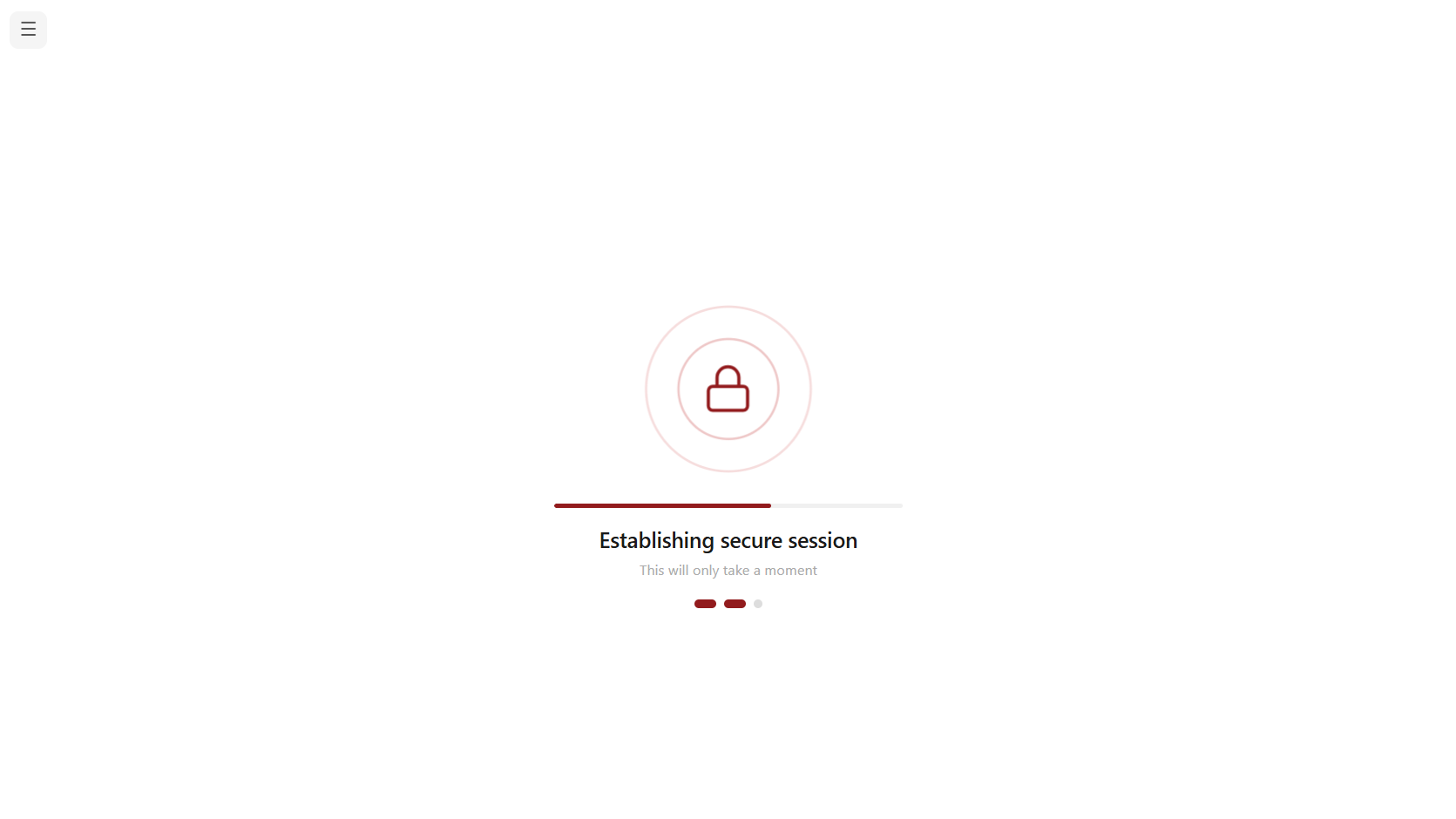
When the app opens in VDI Mode, the user sees the tap screen.
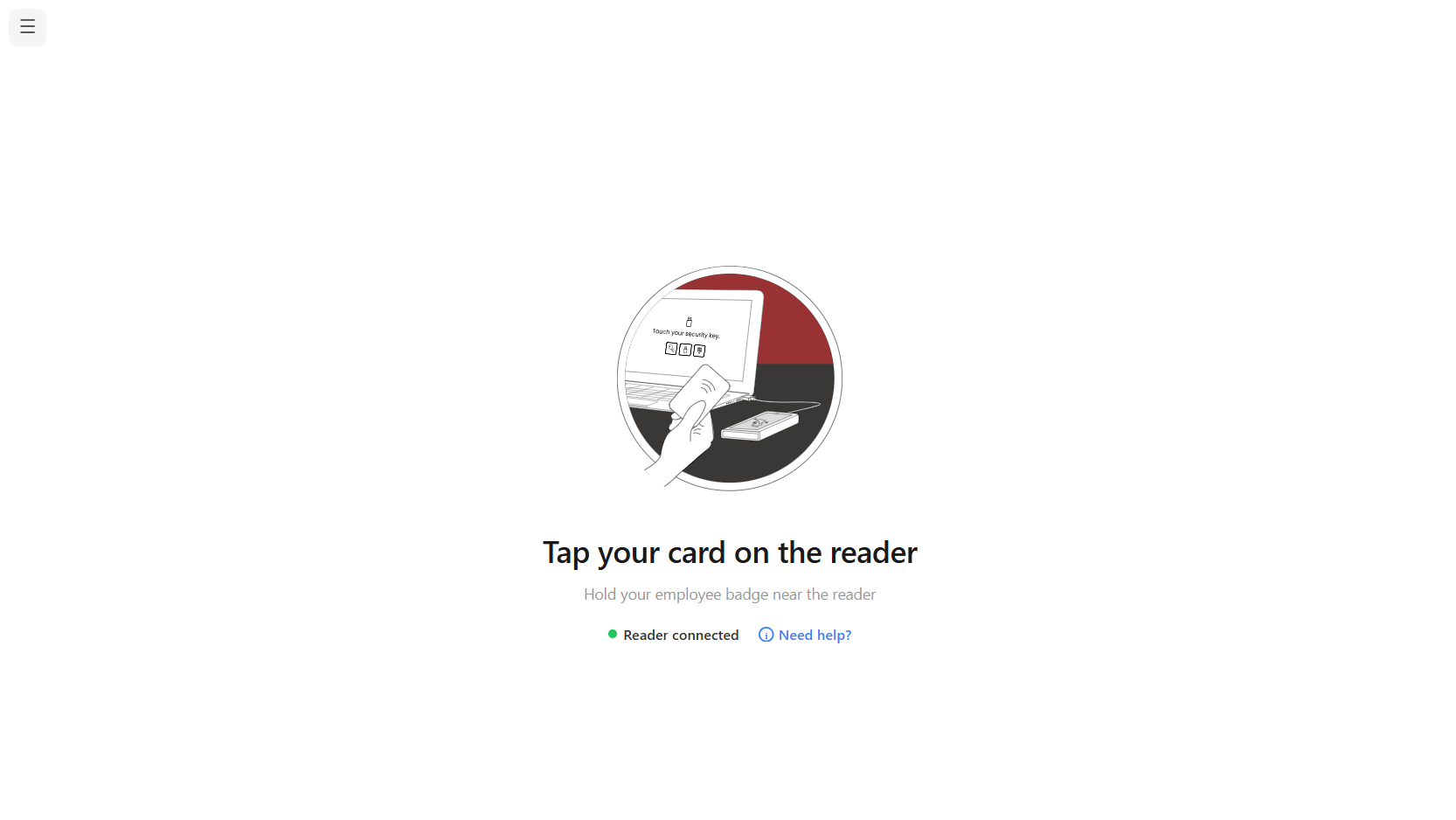
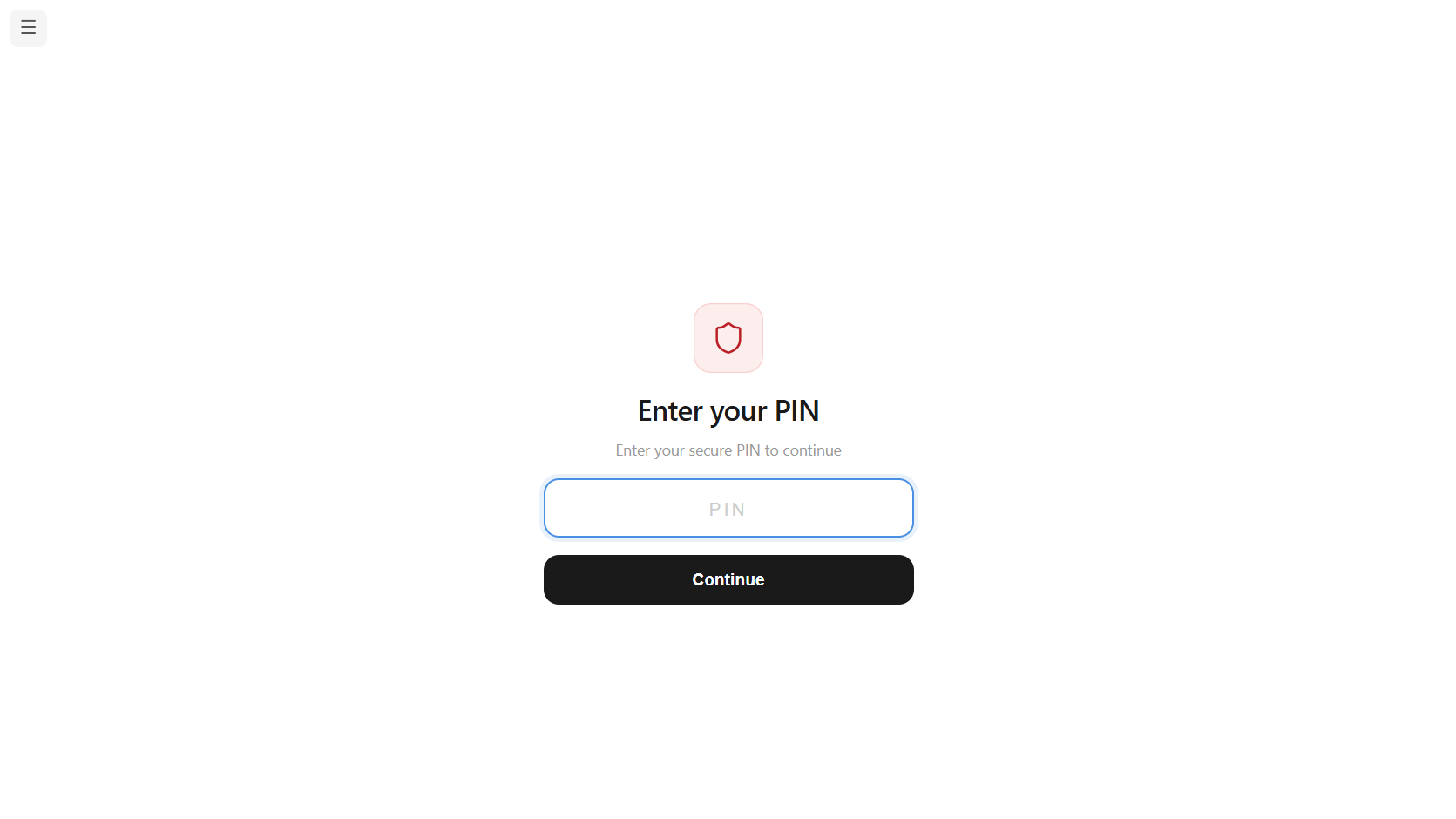
The user taps their badge on the reader. If a PIN is required, the agent asks for it before continuing.
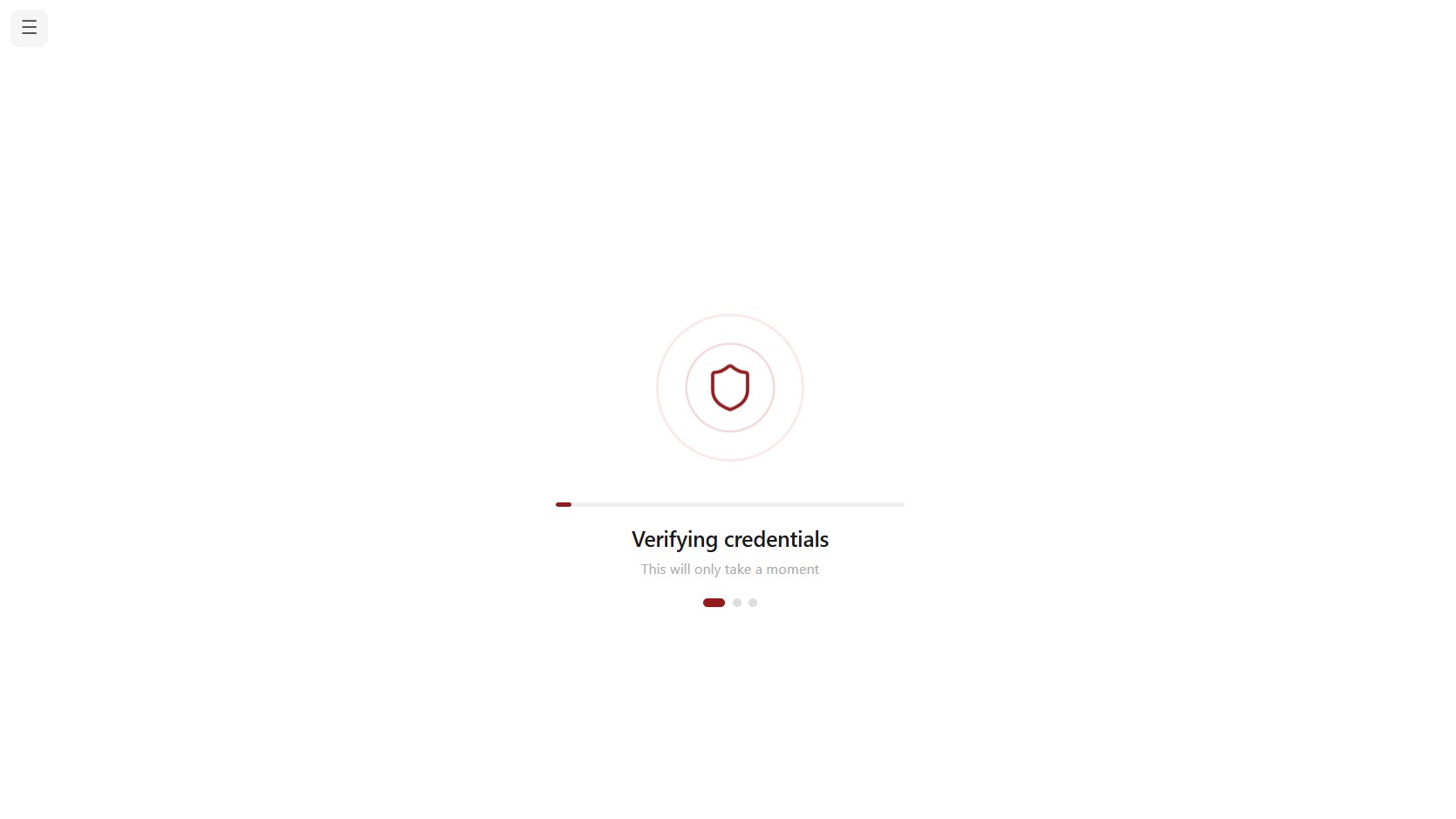
After the badge is verified, the agent completes the passkey sign-in flow and launches the configured Citrix or Horizon desktop.
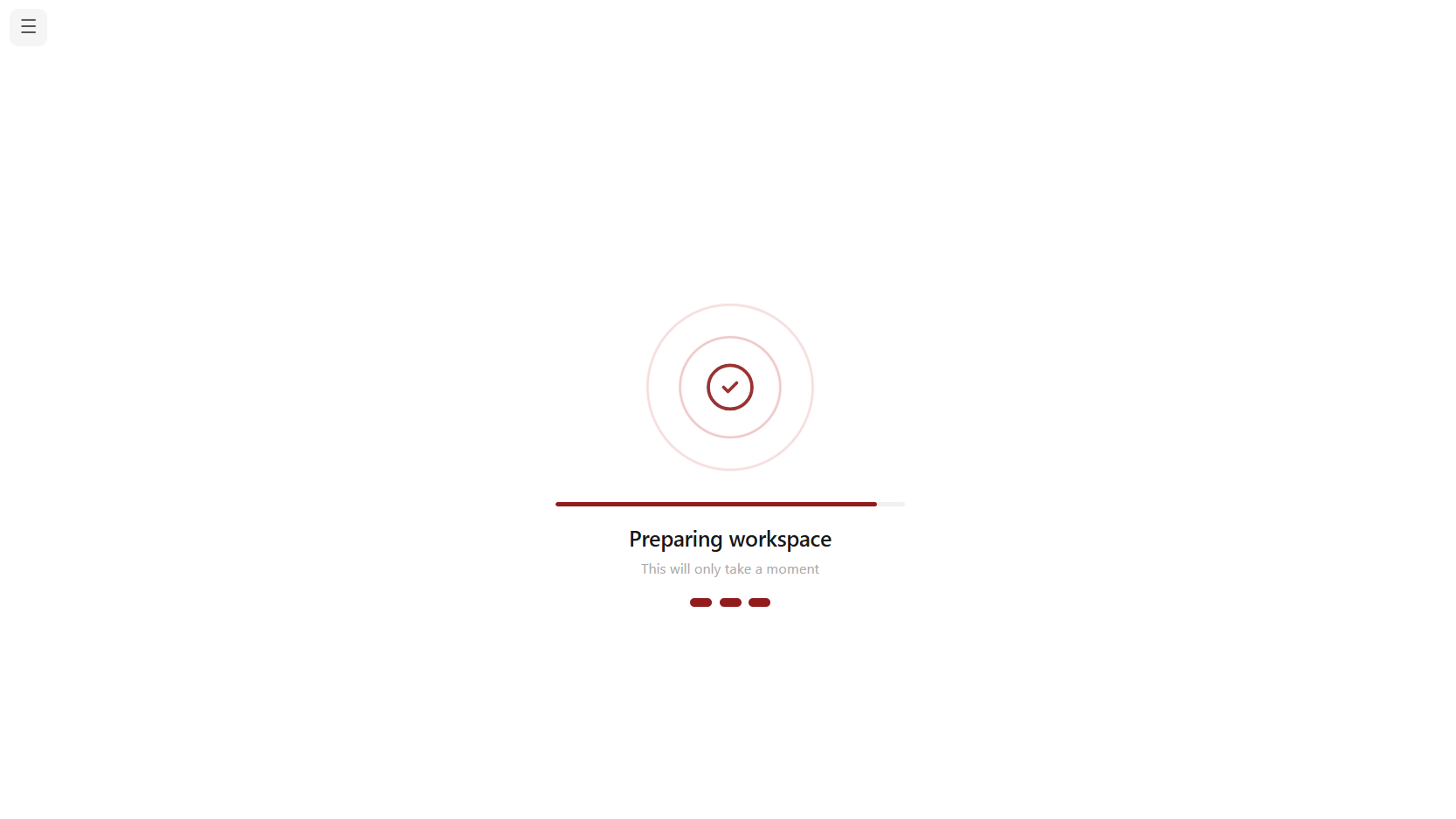
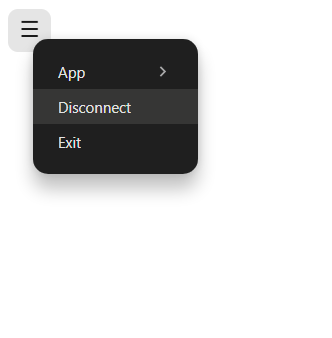
After the remote session is active, the user can tap the badge again to disconnect from the session.
Alternatively, use Disconnect from the app menu.
SSO Integration with IDmelon
To support passwordless login, first integrate your VDI provider with IDmelon SSO.
Enabling Passkey Login mode
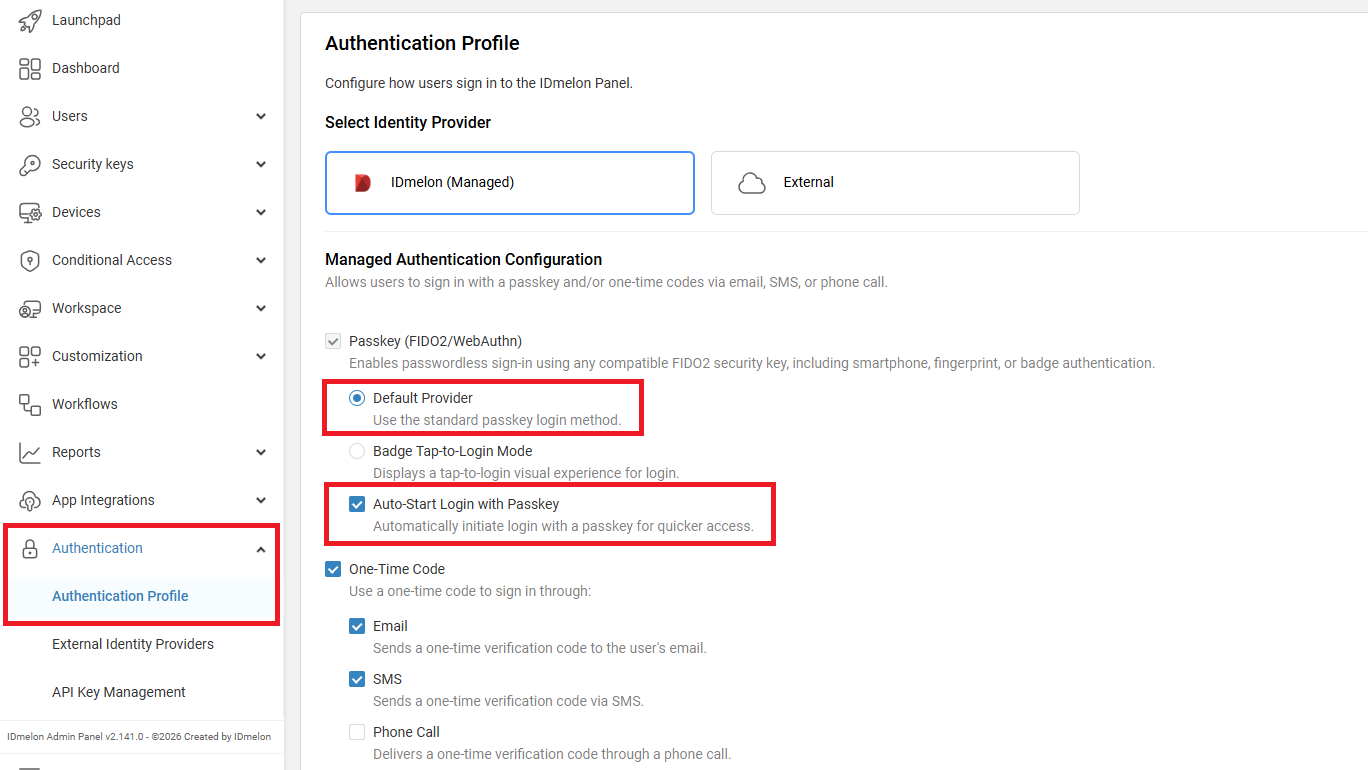
Enable Default Provider and Auto-Start Login with Passkey from the IDmelon Admin Panel:
Authentication > Authentication Profile > Managed Authentication Configuration > Default Provider
Authentication > Authentication Profile > Managed Authentication Configuration > Auto-Start Login with Passkey
Kiosk Mode
Use Kiosk Mode when the device is shared by multiple users and should open a browser-based workspace after badge sign-in. The Kiosk URL does not control the authentication flow. The agent always uses the Microsoft Entra ID login process first, then loads the configured URL after successful authentication.
Supported Platforms
- Microsoft Entra ID login using passkeys
- Microsoft apps such as MyApps, Outlook, and Teams
- Any other website that uses Microsoft SSO login.
Kiosk Configuration
- Kiosk URL: The URL to open after successful Microsoft Entra ID authentication. This URL is the post-login destination, not the login provider.
Kiosk User Experience
In Kiosk Mode, the user follows the same tap card, enter PIN, and loading process as VDI Mode. The agent signs the user in through the Microsoft Entra ID login process with IDmelon passkey authentication, and after authentication succeeds, it loads the configured Kiosk URL.
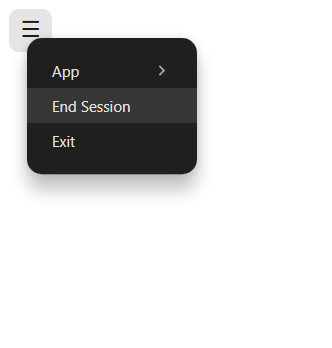
When the user is finished, they tap the badge again or select End Session from the app menu. The agent clears the browser session and returns to the tap screen for the next user.
IGEL
On IGEL OS, settings are managed from the IGEL profile instead of the local app menu.
Open the configuration from:
IGEL Setup > Apps > IDmelon Agent > Agent Settings
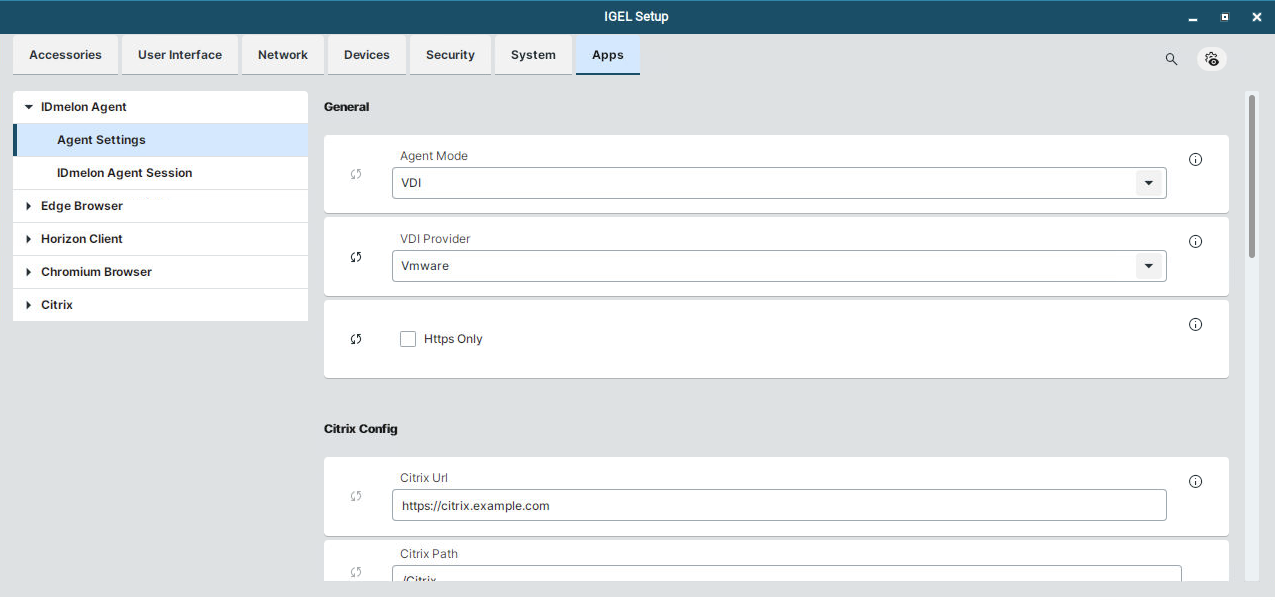
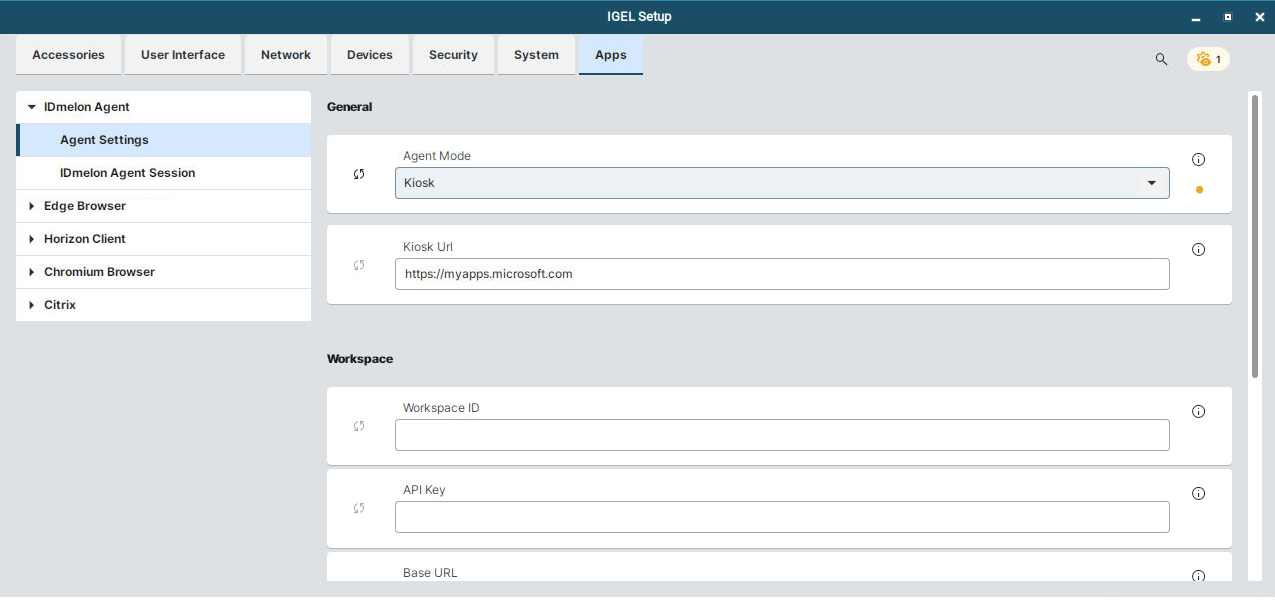
The app menu on IGEL is read-only for settings. It shows the current mode, provider, and reader state, and still allows users to disconnect or exit.