Deploy VDI Session
IDmelon VDI Session
IDmelon VDI Session runs inside the virtual desktop. It receives badge taps from the IDmelon Agent on the endpoint, through the IDmelon VDI Bridge, so applications in the virtual desktop can react to them. See Badge Taps in the Virtual Desktop.
Use it to:
- Sign in with FIDO inside the remote session: The badge tap signs the user in to applications and websites in the virtual desktop.
- Run automations: The badge tap runs workflows from the IDmelon Workflow Automation app in the virtual desktop.
Installer Details
Use these values in every deployment mode below.
| Item | Value |
|---|---|
| Installer file | IDmelonVDISession-<version>.exe, for example IDmelonVDISession-1.1.0.1.exe |
| Silent install | IDmelonVDISession-<version>.exe /S |
| Install folder | C:\Program Files\IDmelon\VDI Session |
| Silent uninstall | "C:\Program Files\IDmelon\VDI Session\uninstall.exe" /S |
| Windows service | IDmelonVDISession (IDmelon VDI Session Service) |
| Installed version | Registry value DisplayVersion under HKLM\SOFTWARE\WOW6432Node\Microsoft\Windows\CurrentVersion\Uninstall\IDmelon VDI Session |
The installer registers and starts the service. No reboot is needed.
Note: The installer does not upgrade silently over an existing version. Uninstall the old version first. All modes below do this for you.
Choose a Deployment Mode
| Mode | How it works | Use when |
|---|---|---|
| Mode A: Configuration Manager Application | Configuration Manager installs the application and reports the result for each desktop. You create a new application for each version. | You already deploy software with Configuration Manager and want install status for each desktop in the console. |
| Mode B: Scheduled Task | A scheduled task on each desktop runs the install script from a file share. A new version only needs a new file on the share. | You want a simple setup for a few desktops or a golden image, and updates without a restart. |
| Mode C: Group Policy | A Group Policy startup script runs the same install script from the file share at each restart. | Your desktops are joined to an Active Directory domain, and you want every desktop covered without changing the golden image. |
Pick one mode per machine. Do not combine modes on the same machine.
Mode A: Configuration Manager Application
Use this mode if Configuration Manager already manages your virtual desktops. You need a working Configuration Manager site, distribution points, and device collections for the desktops.
Create two device collections: a small pilot collection to test with, and a production collection.
Step 1: Create the Application
- Go to Software Library > Application Management > Applications and select Create Application.
- Select Manually specify the application information.
- Enter the name, publisher, and version, for example
IDmelon VDI Session 1.1.0.1. Create a separate application for each version. - Add a deployment type and select Script Installer.
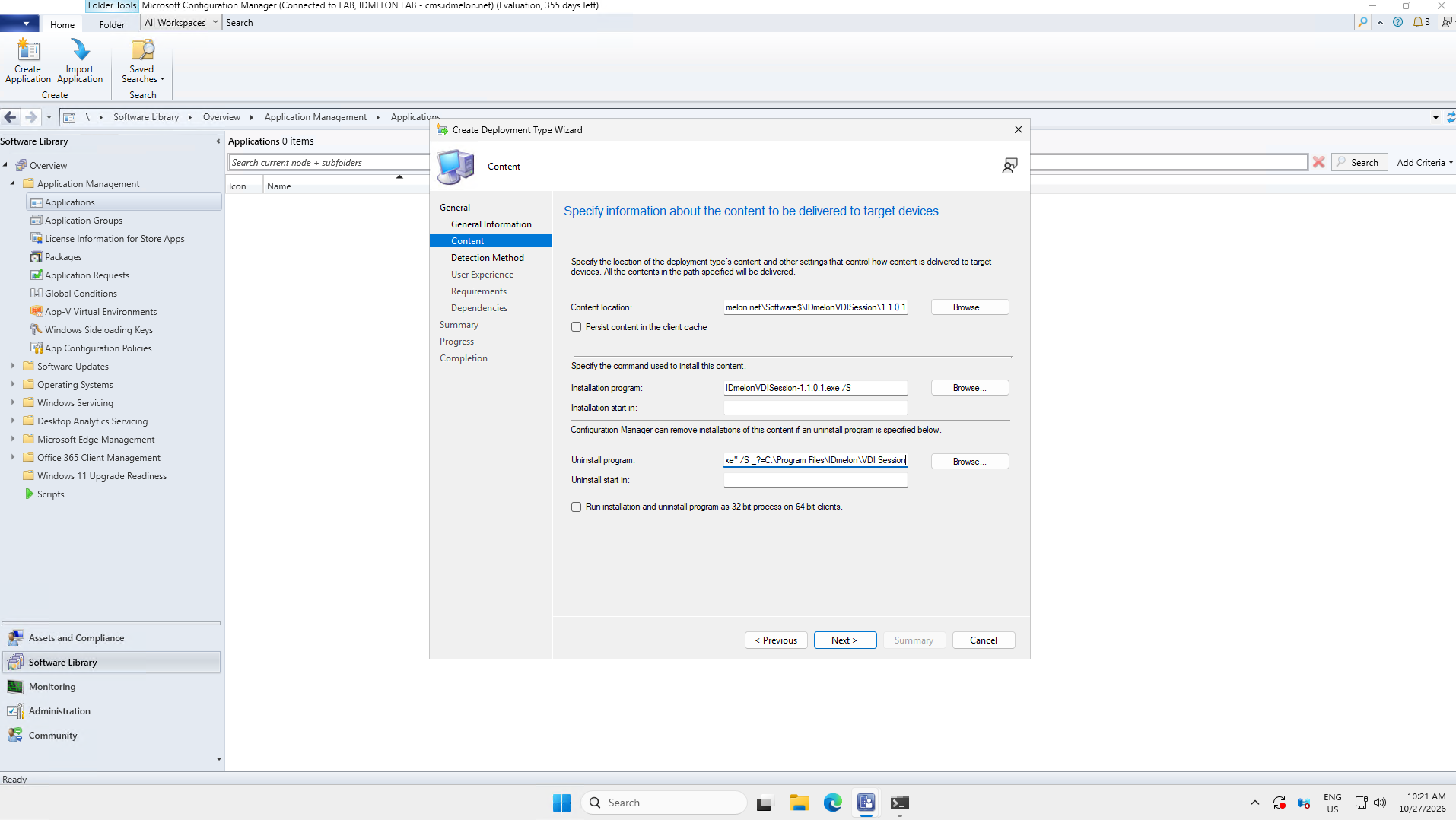
- Set Content location to a shared folder that contains only this version’s installer, for example
\\fileserver\Software\IDmelonVDISession\1.1.0.1. - Set the programs:
- Installation program:
IDmelonVDISession-1.1.0.1.exe /S - Uninstall program:
"C:\Program Files\IDmelon\VDI Session\uninstall.exe" /S
- Installation program:
Step 2: Set the Detection Method
The detection method tells Configuration Manager whether the right version is already installed.
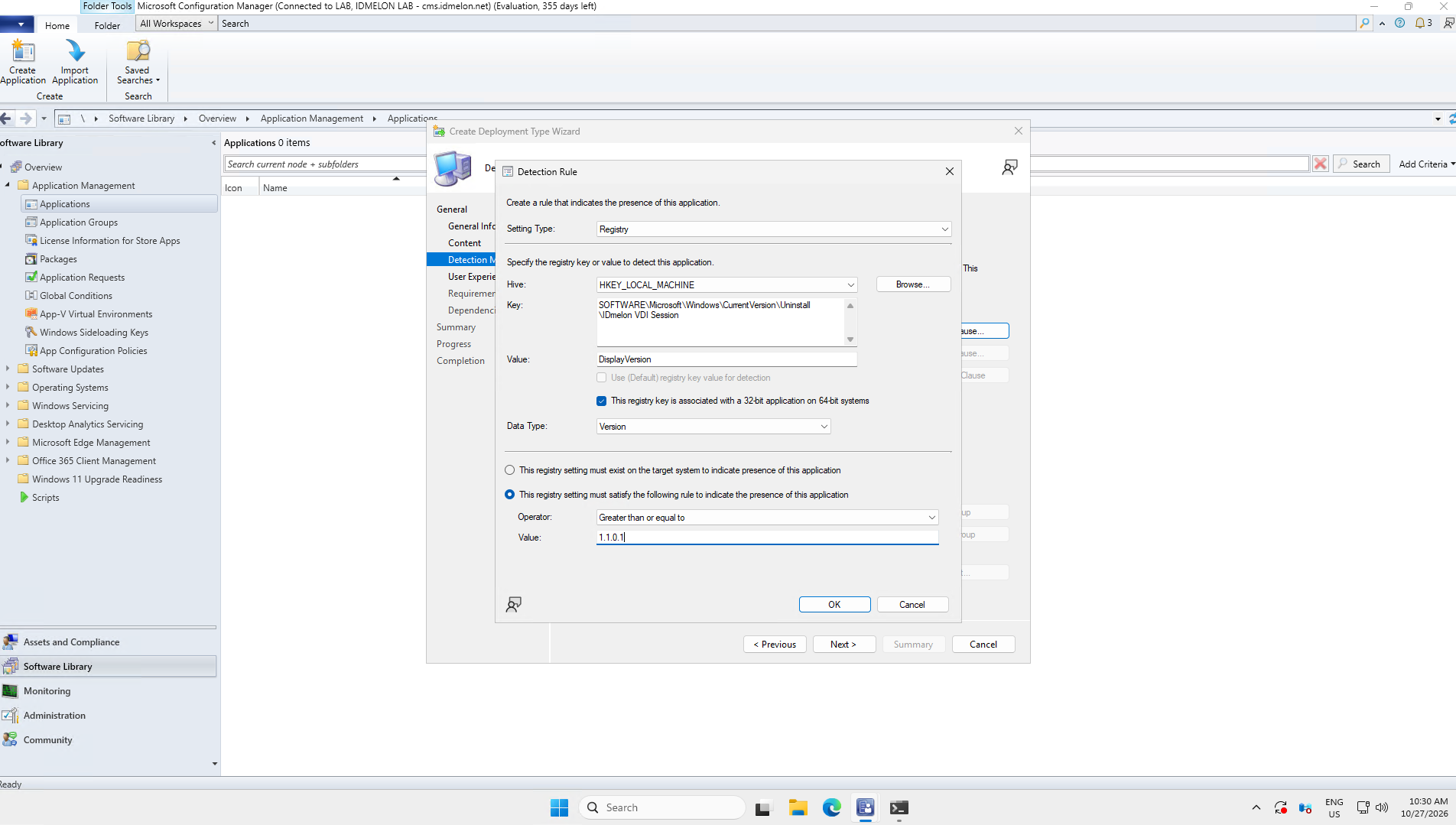
- On Detection Method, add a rule:
- Setting Type: Registry
- Hive:
HKEY_LOCAL_MACHINE - Key:
SOFTWARE\Microsoft\Windows\CurrentVersion\Uninstall\IDmelon VDI Session - Value:
DisplayVersion - Check This registry key is associated with a 32-bit application on 64-bit systems.
- Data Type: Version
- Operator: Greater than or equal to, Value:
1.1.0.1
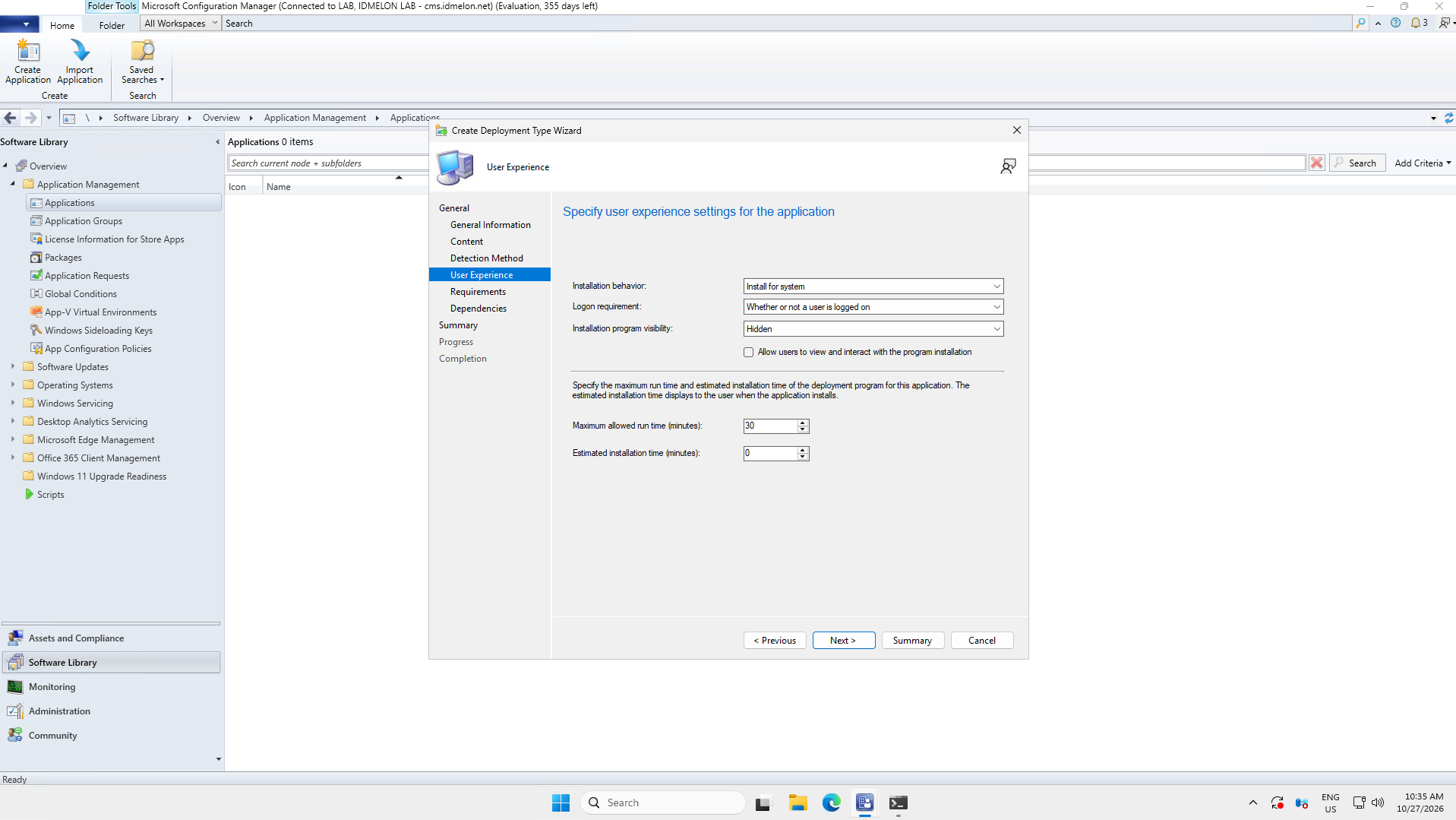
- On User Experience, set:
- Installation behavior: Install for system
- Logon requirement: Whether or not a user is logged on
- Installation program visibility: Hidden
Step 3: Deploy to the Pilot Collection
- Select the application and choose Distribute Content. Select the distribution points that serve your virtual desktops.
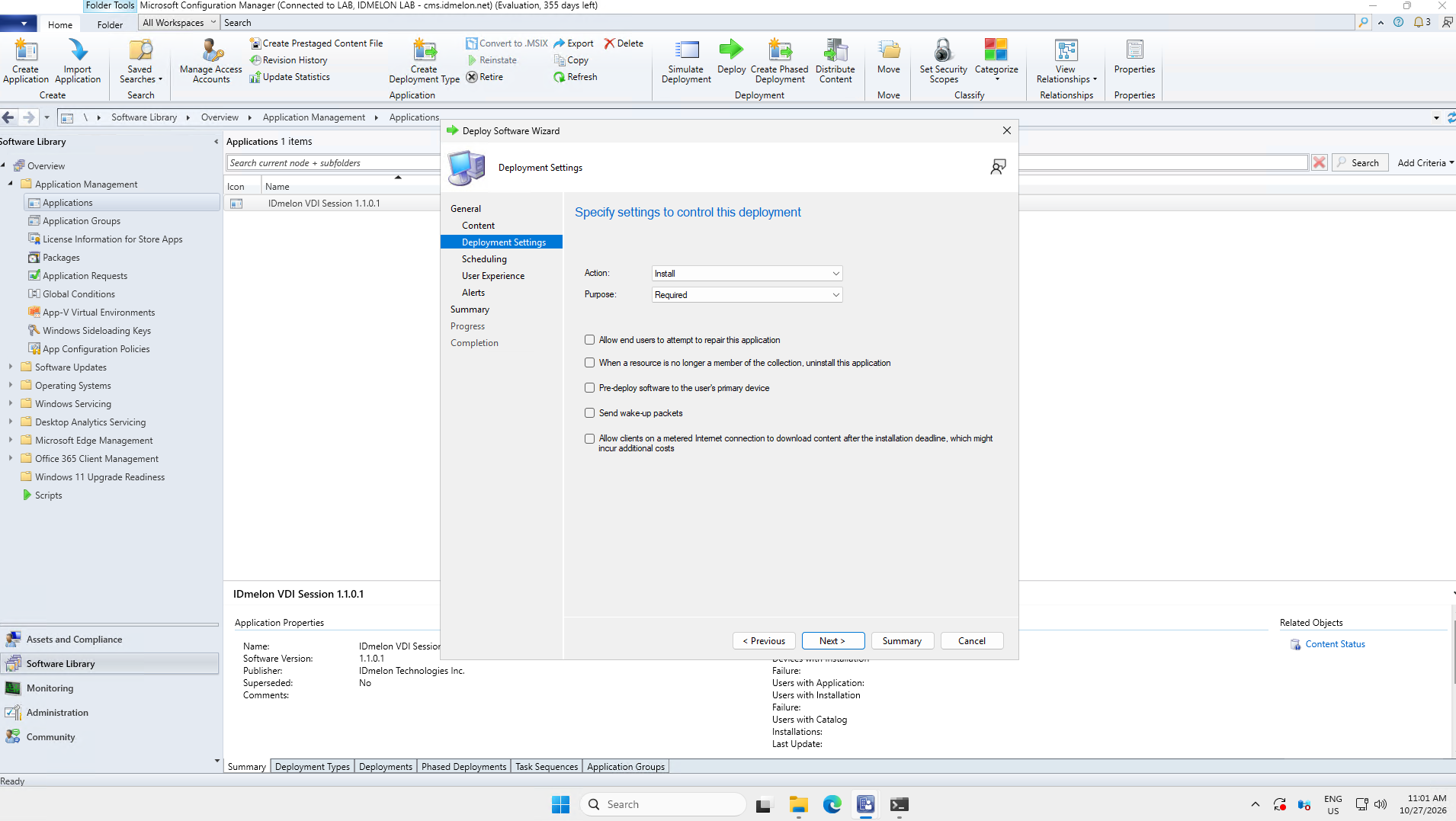
- Choose Deploy and select the pilot collection.
- Set Action to Install and Purpose to Required.
- Set the schedule to your approved maintenance window.
- On User Experience, set User notifications to Hide in Software Center and all notifications.
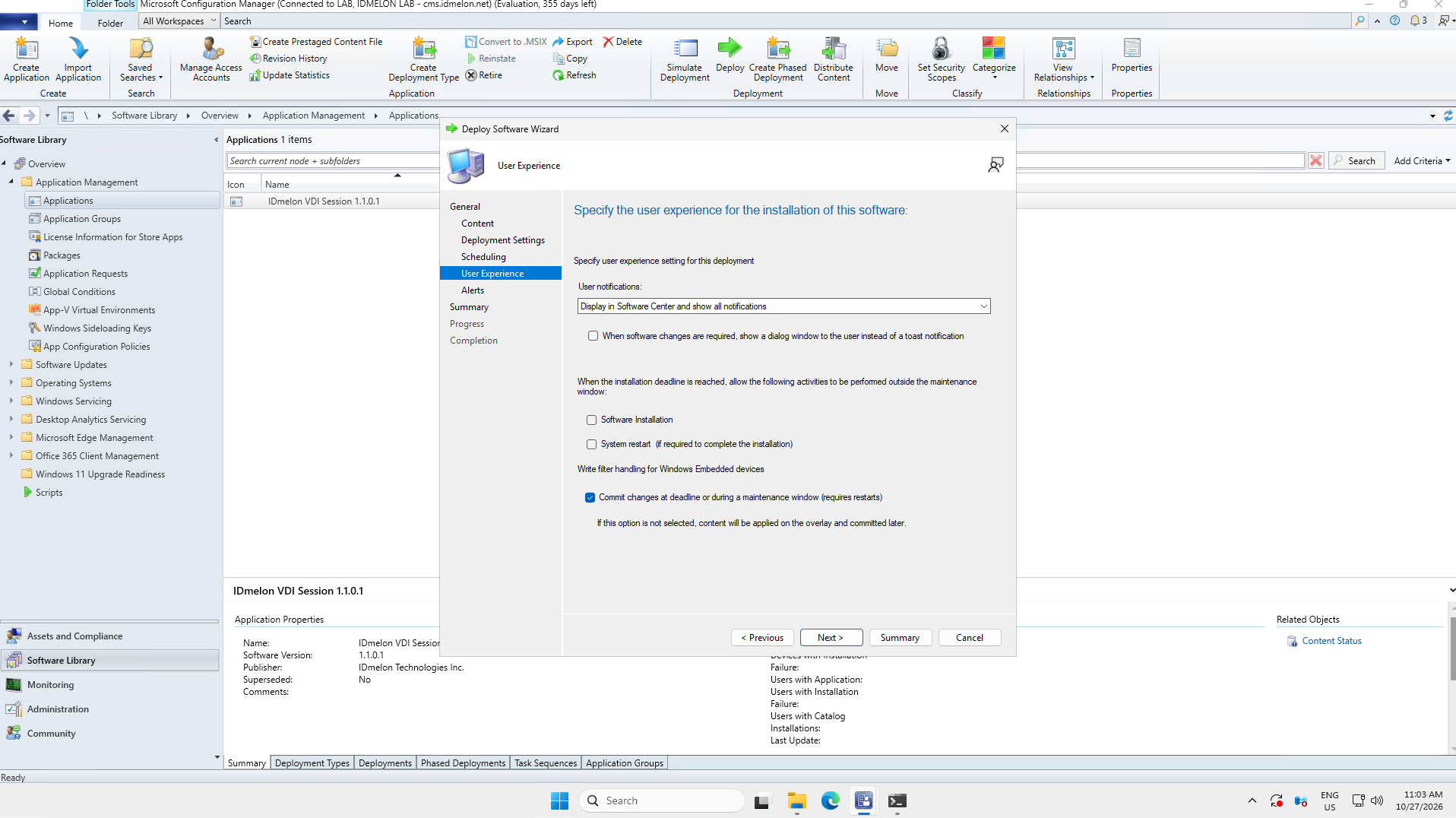
Note: The installer restarts the service, which affects every user on that desktop. Deploy during a maintenance window, or when no users are signed in.
Step 4: Check and Roll Out
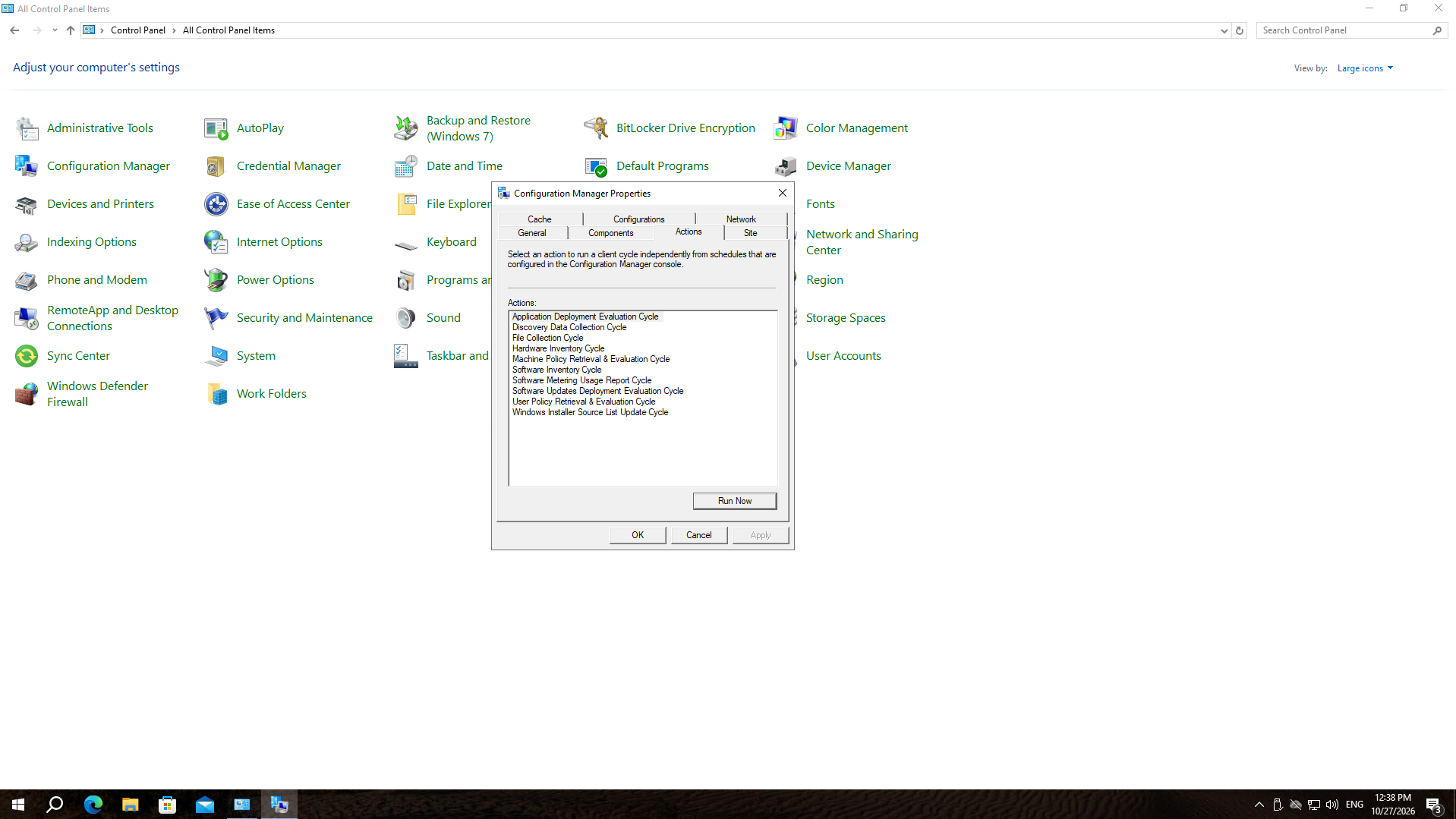
To install on a pilot desktop without waiting for the next client cycle, open Control Panel > Configuration Manager on that desktop and go to the Actions tab. Select Machine Policy Retrieval & Evaluation Cycle and click Run Now, then do the same for Application Deployment Evaluation Cycle.
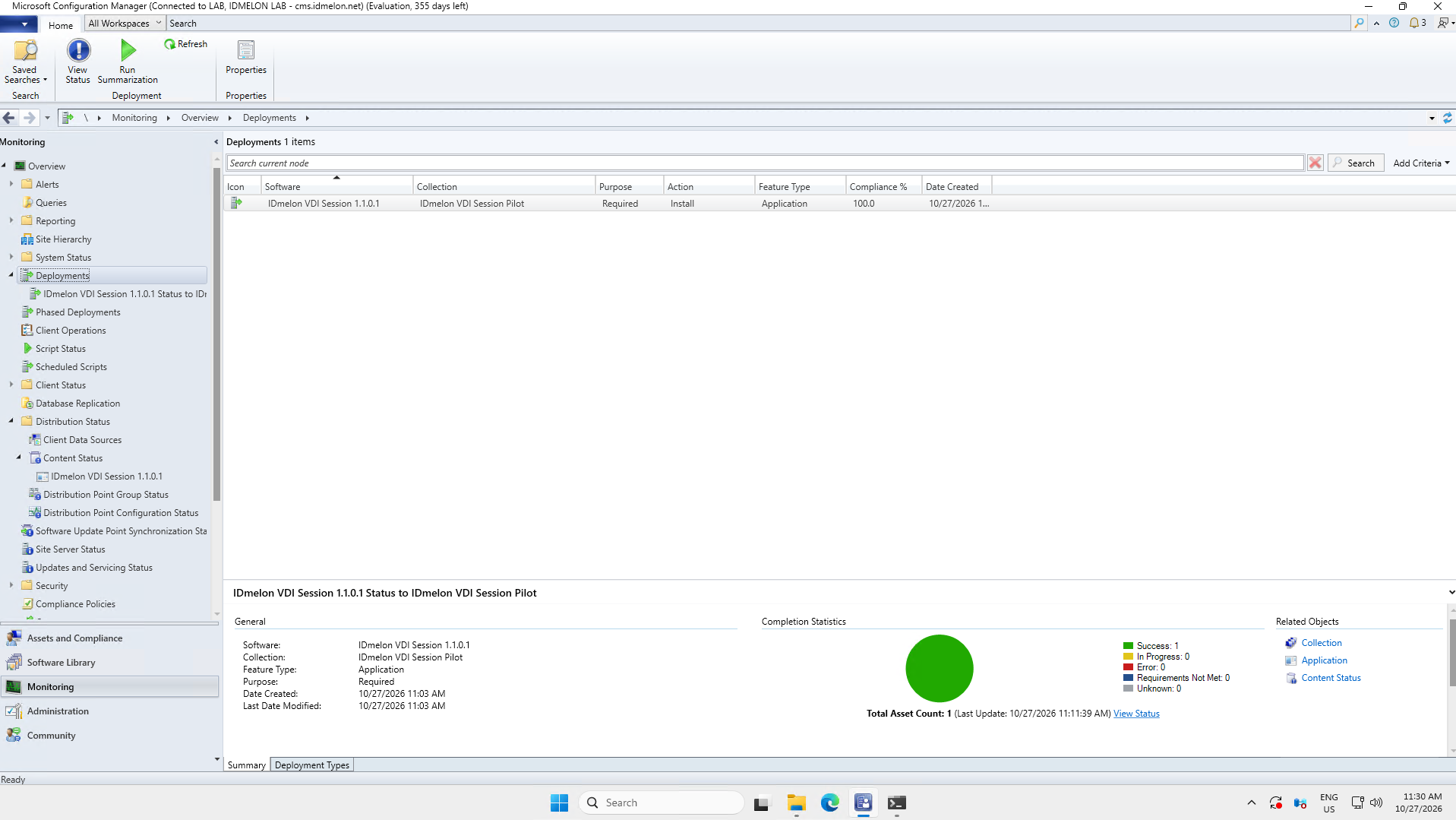
Go to Monitoring > Deployments and check that the deployment succeeded.
On a pilot desktop, run
Get-Service IDmelonVDISessionand check that the service is Running. Restart the desktop and check again.Sign in, tap a badge, and confirm the application in the virtual desktop receives it.
Sign in to the same desktop with two users at the same time, from two endpoints. Tap a badge in each session and confirm each session receives its own tap. Then disconnect one session, reconnect, and tap again.
When the pilot works, deploy the same application to the production collection.
If something fails, check the Configuration Manager client logs in C:\Windows\CCM\Logs, especially AppEnforce.log.
Install a New Version
Create a new application for the new version, for example
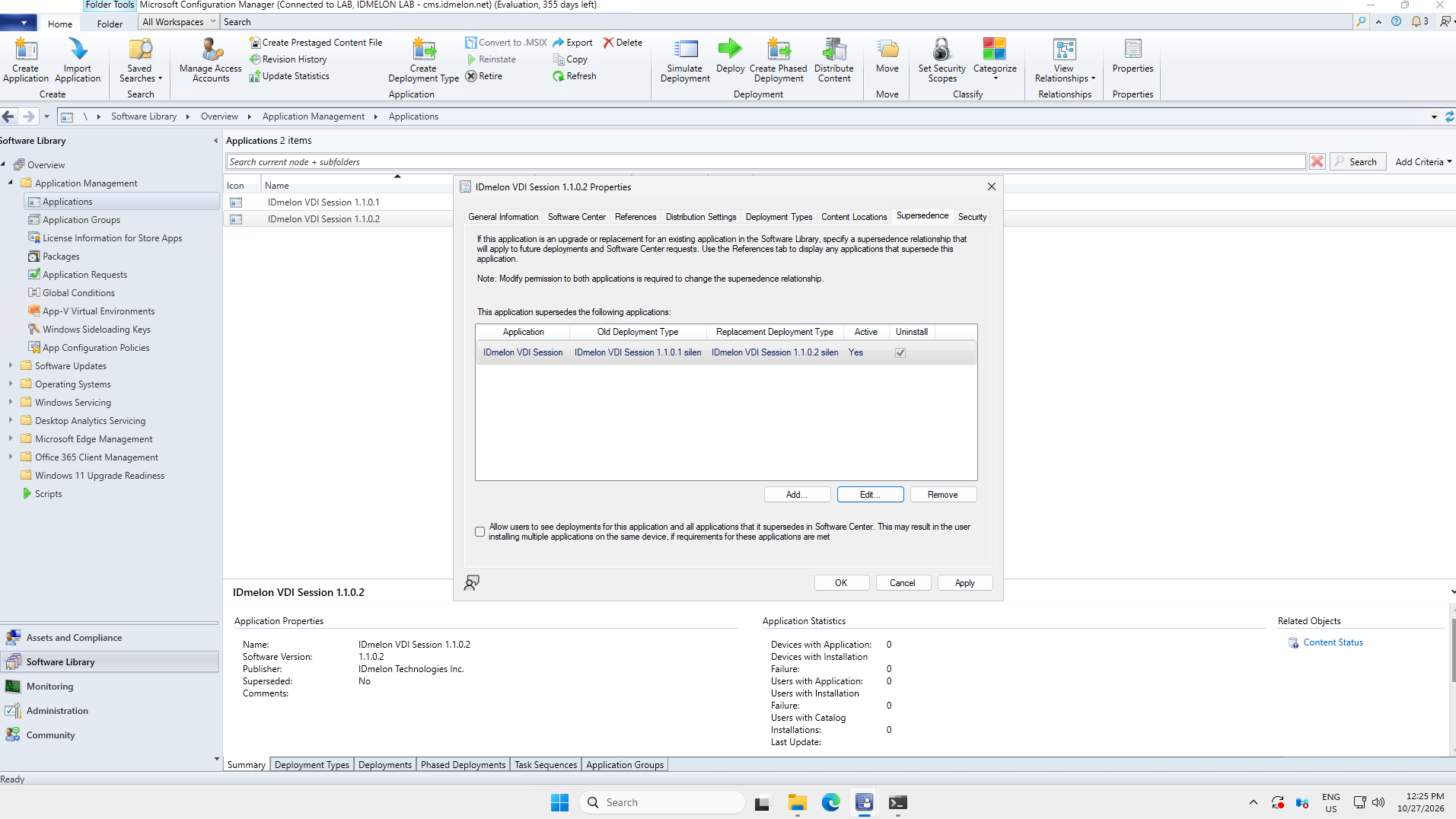
IDmelon VDI Session 1.1.0.2(repeat steps 1 and 2 with the new file name and version).On the new application’s deployment type, open Supersedence, add the previous application (
IDmelon VDI Session 1.1.0.1), and check Uninstall.Note: Uninstall must be checked. The installer does not support a silent in-place upgrade. If the old version is still installed, the
1.1.0.2installer stops on an “already installed” prompt. The prompt is hidden, so no one can answer it, and the deployment hangs instead of completing.Deploy the new application to the pilot collection, test, then deploy to production.
Go Back to an Older Version
Supersedence does not roll back. The detection rule (Greater than or equal to) also treats a newer version as installed, so deploying the older application does nothing on desktops that already have the newer one.
- Remove the deployment of the newer application, so it does not install again.
- Uninstall the newer version on the affected desktops, for example by deploying the newer application with Action set to Uninstall.
- Deploy the older application again.
Prepare the Share (Modes B and C)
Modes B and C install from a file share on the Configuration Manager server, using the same install script. Skip this section for Mode A.
Share the Installer
On the Configuration Manager server, create C:\Software and share it as Software$. The $ hides the share from network browsing. Run PowerShell as Administrator:
New-SmbShare -Name 'Software$' -Path C:\Software -ReadAccess 'Domain Computers'
icacls C:\Software /grant 'Domain Computers:(OI)(CI)RX'
Both lines are needed: the first sets the share permission, the second the folder permission.
Note: The scheduled task (Mode B) and the startup script (Mode C) run as the computer account, not as a user. The share must give read access to Domain Computers, or nothing gets installed. If
Domain Computersis not found, add the domain name, for example'CONTOSO\Domain Computers'.
To limit access to specific desktops, grant read access to their computer accounts instead of Domain Computers, for example CONTOSO\CITRIXPC$. Computer account names end with $.
Warning: The install script runs as
SYSTEMon every targeted desktop. Anyone who can change files inC:\Softwarecan run code on all of them. Give write access only to administrators, and give the desktops read access only.
Copy the installer into the folder, for example C:\Software\IDmelonVDISession-1.1.0.1.exe.
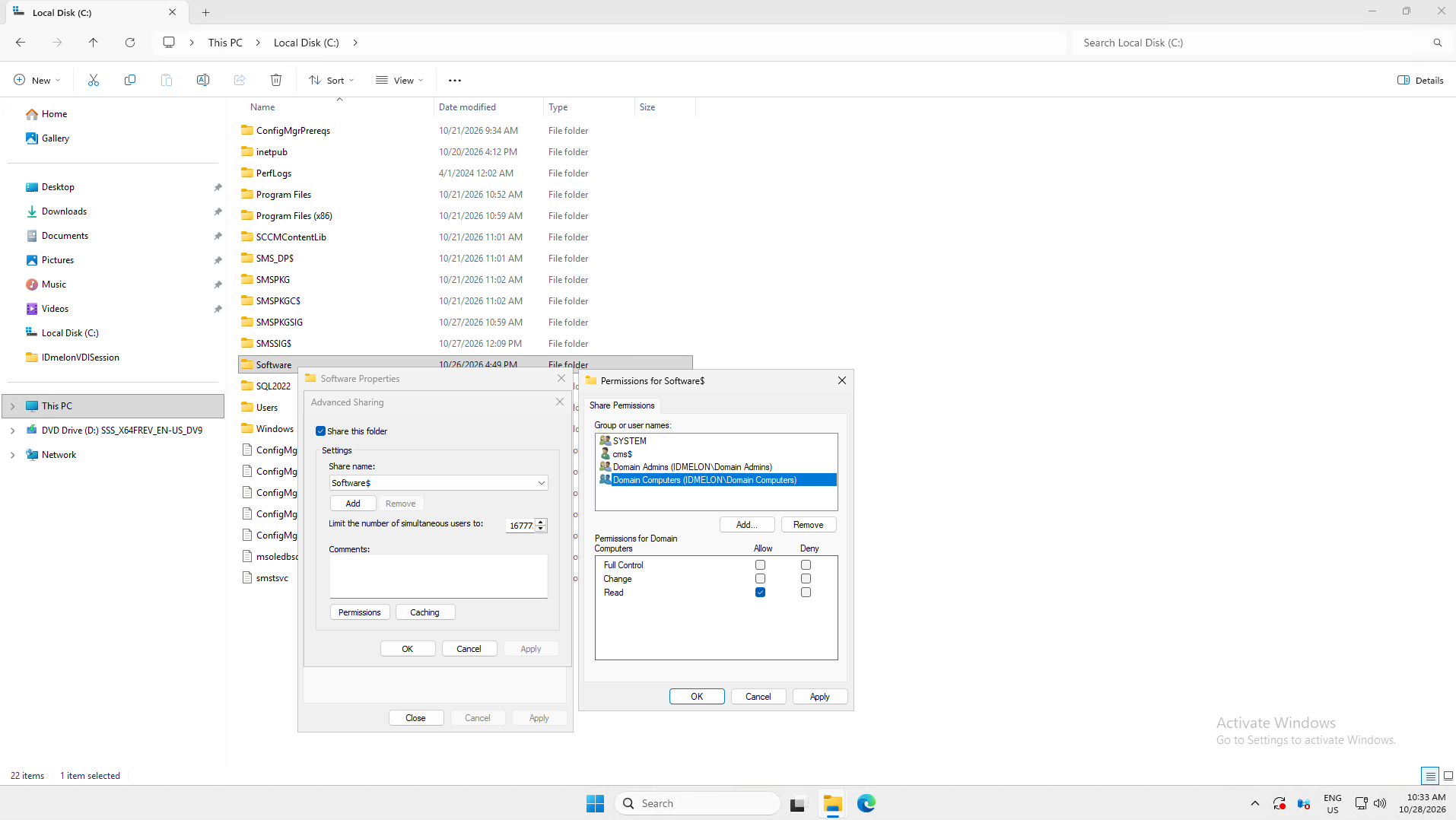
Check the permissions. In the folder’s Properties, open Sharing > Advanced Sharing > Permissions: Domain Computers or the desktop computer accounts should have Read.
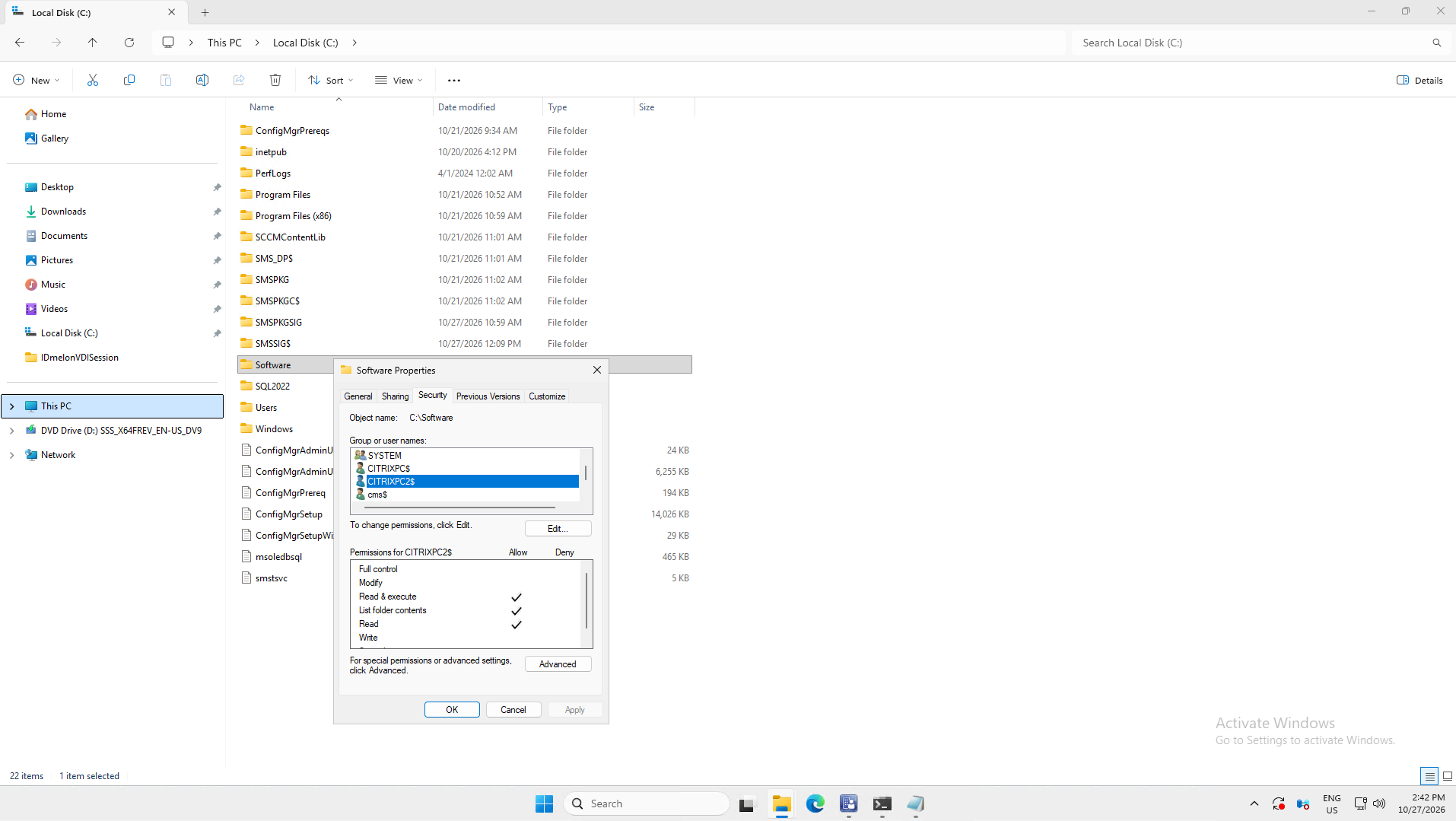
Then open the Security tab: the same accounts should have Read & execute, List folder contents, and Read.
Or check both from PowerShell:
Get-SmbShareAccess -Name 'Software$'
icacls C:\Software
Create the Install Script
Save this script as C:\Software\Install-VDIAgent.ps1:
$src       = '\\cms\Software$'
$installer = 'IDmelonVDISession-1.1.0.1.exe'
$target    = '1.1.0.1'
$service   = 'IDmelonVDISession'
$log       = "$env:ProgramData\VDIAgentDeploy.log"

function Log($m) { "$(Get-Date -f s)  $m" | Add-Content $log }

function Get-Installed {
    foreach ($k in @(
        'HKLM:\SOFTWARE\WOW6432Node\Microsoft\Windows\CurrentVersion\Uninstall\IDmelon VDI Session',
        'HKLM:\SOFTWARE\Microsoft\Windows\CurrentVersion\Uninstall\IDmelon VDI Session')) {
        $p = Get-ItemProperty $k -ErrorAction SilentlyContinue
        if ($p) { return $p }
    }
}

try {
    $cur  = Get-Installed
    $have = $null
    if ($cur -and [version]::TryParse($cur.DisplayVersion, [ref]$have) -and
        $have -ge [version]$target) { exit 0 }

    Log "Installing $target (currently: $(if ($cur) { $cur.DisplayVersion } else { 'none' }))"

    if ($cur) {
        $unins = $cur.UninstallString -replace '"', ''
        $dir   = $cur.InstallLocation
        if (Test-Path $unins) {
            $u = Start-Process $unins -ArgumentList '/S', "_?=$dir" -Wait -PassThru
            Log "Uninstaller exited $($u.ExitCode)"
        }
    }

    $local = Join-Path $env:TEMP $installer
    Copy-Item "$src\$installer" $local -Force
    $p = Start-Process $local -ArgumentList '/S' -Wait -PassThru
    Log "Installer exited $($p.ExitCode)"
    Remove-Item $local -Force

    $now = (Get-Installed).DisplayVersion
    $svc = (Get-Service $service -ErrorAction SilentlyContinue).Status
    Log "Result: version=$now service=$svc"
    if ($now -ne $target) { Log "WARNING: expected $target" }
}
catch { Log "FAILED: $_" }
Edit the first lines to match your environment:
- $src: The share from Share the Installer. Replace
cmswith the Configuration Manager server name (run$env:COMPUTERNAMEon that server). - $installer: The exact file name of the installer in the share.
- $target: The installer version, for example
1.1.0.1.
Leave $service and $log as they are.
The script installs only when the desktop has no version or an older one. Before installing, it uninstalls the old version.
Mode B: Scheduled Task
A scheduled task on each desktop runs the install script from the share as SYSTEM, at startup and once a day. The task runs as the computer account, so it can read the share without user credentials.
Complete Prepare the Share first.
Create the task by hand on each desktop, or once in the golden image, with steps 1 and 2 below. To create it on many desktops at once, see Create the Task with Group Policy.
Step 1: Create the Task
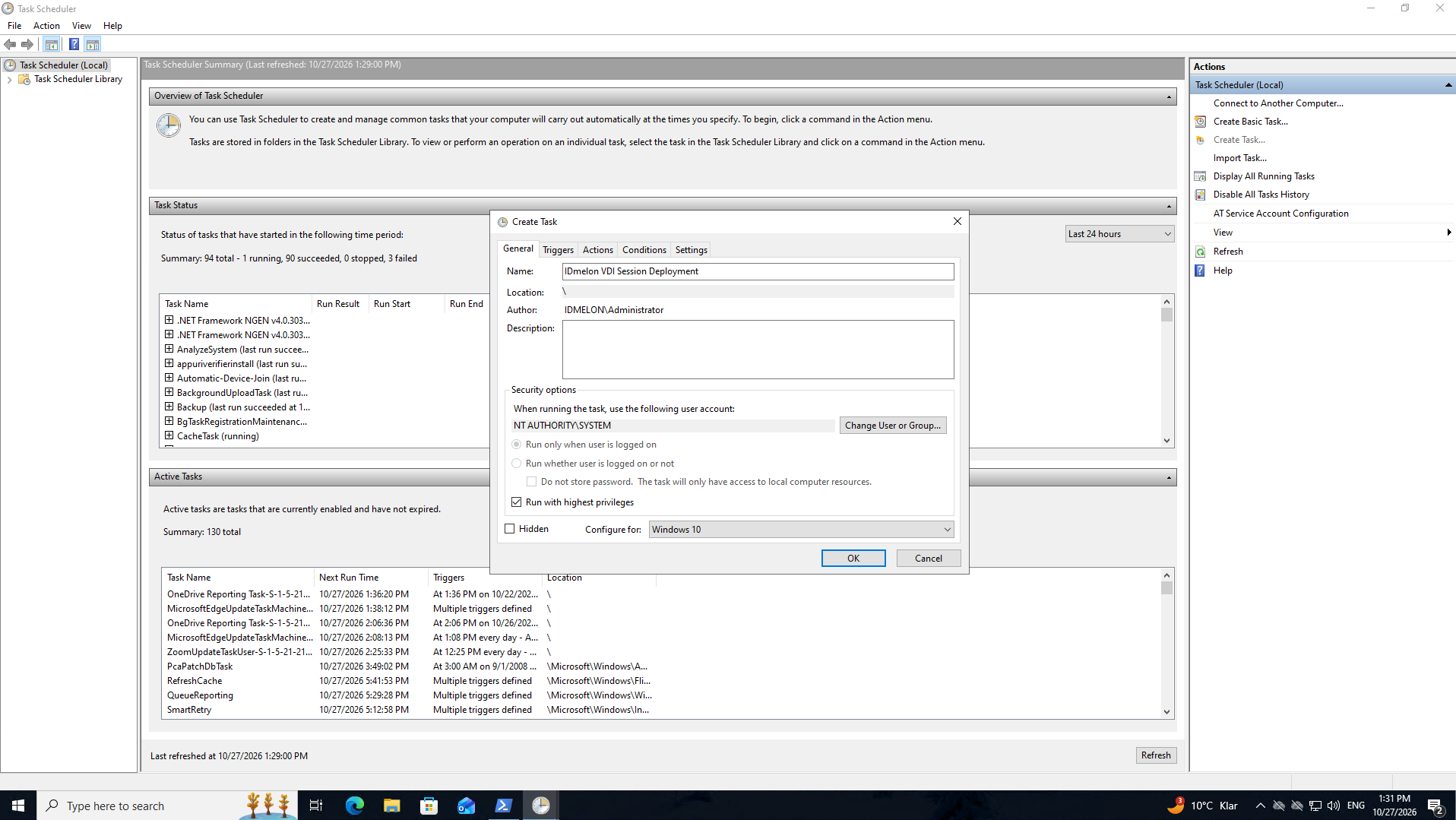
On the desktop, open Task Scheduler and select Create Task (not Create Basic Task).
On the General tab:
- Name:
IDmelon VDI Session Deployment - Click Change User or Group, type
SYSTEM, and click OK. The account shows asNT AUTHORITY\SYSTEM. - Check Run with highest privileges.
- Name:
On the Actions tab, click New and set:
- Action: Start a program
- Program/script:
C:\Windows\System32\WindowsPowerShell\v1.0\powershell.exe - Add arguments:
-ExecutionPolicy Bypass -NoProfile -File \\cms\Software$\Install-VDIAgent.ps1
Replace
cmswith the Configuration Manager server name.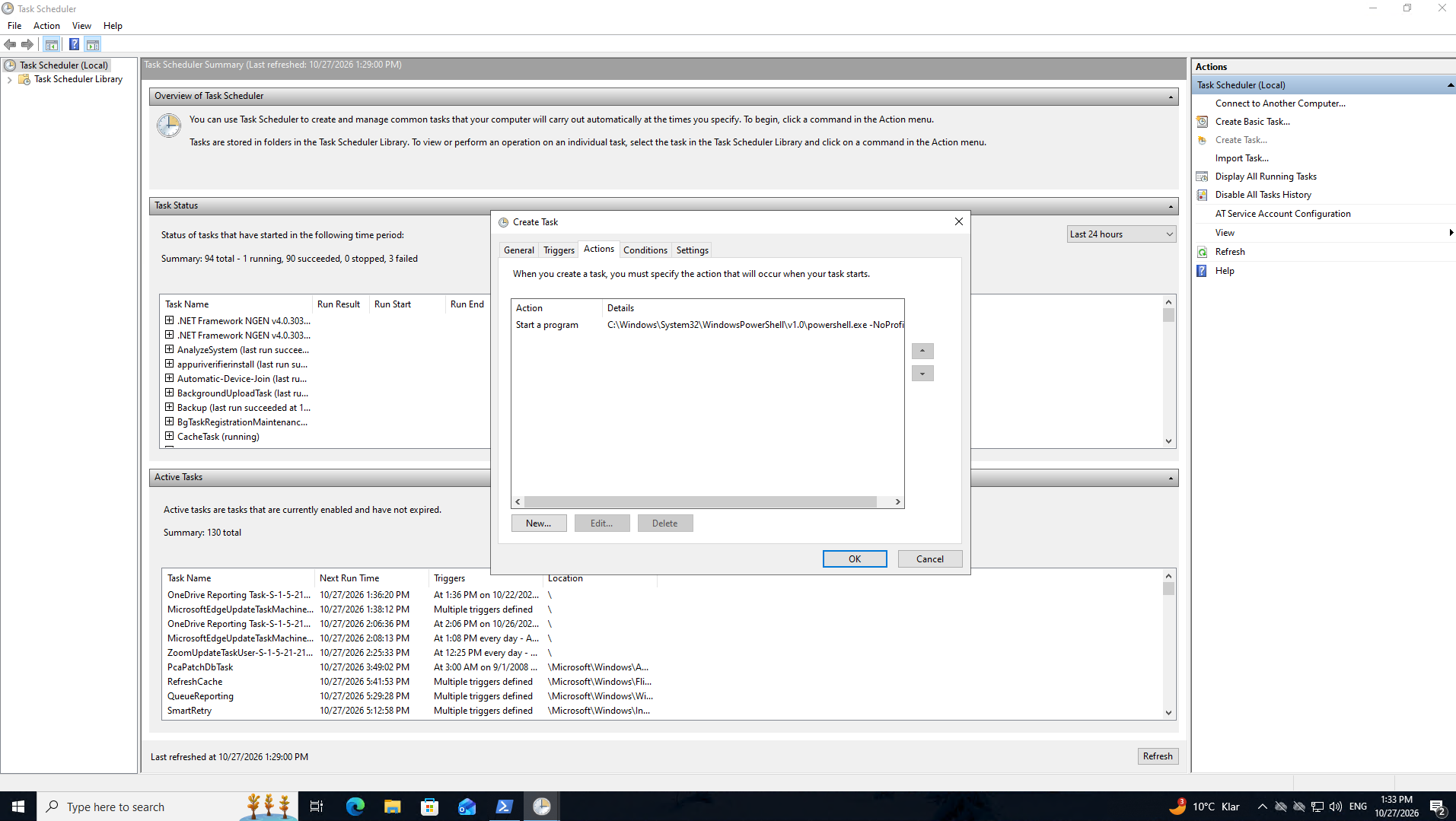
Step 2: Set When the Task Runs
On the Triggers tab, add two triggers. Click New for each:
- At startup, with Delay task for set to 1 minute, so the network is ready before the task reads the share. This installs the app on desktops that do not have it yet.
- Daily, at your maintenance time, for example 3:00 PM. This installs new versions without waiting for a restart.
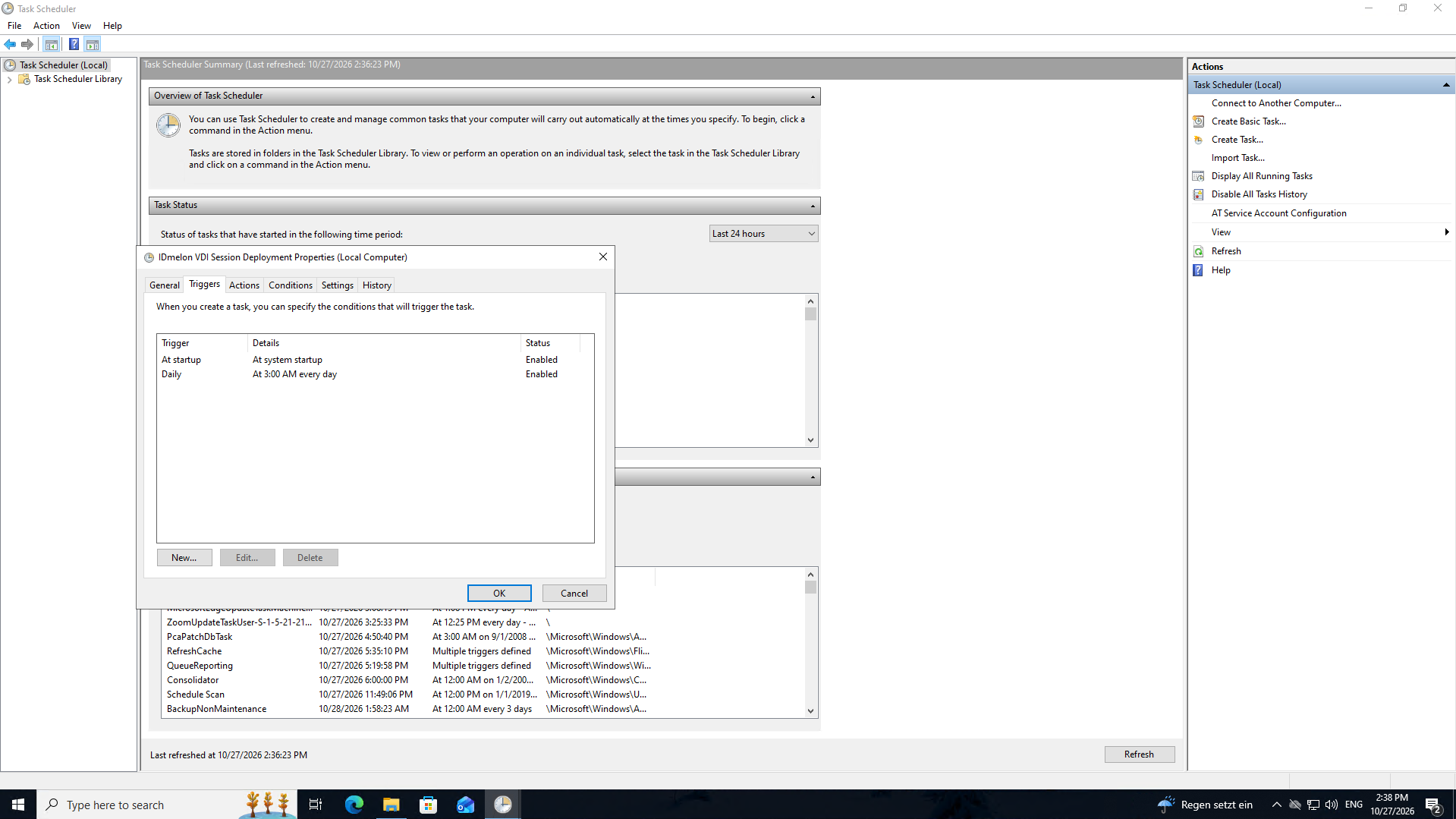
Note: The installer restarts the service, which affects every user on that desktop. Set the daily trigger to a time when no users are signed in, or to your maintenance window.
On the Settings tab, set If the task is already running to Do not start a new instance. Leave the other settings at their defaults.
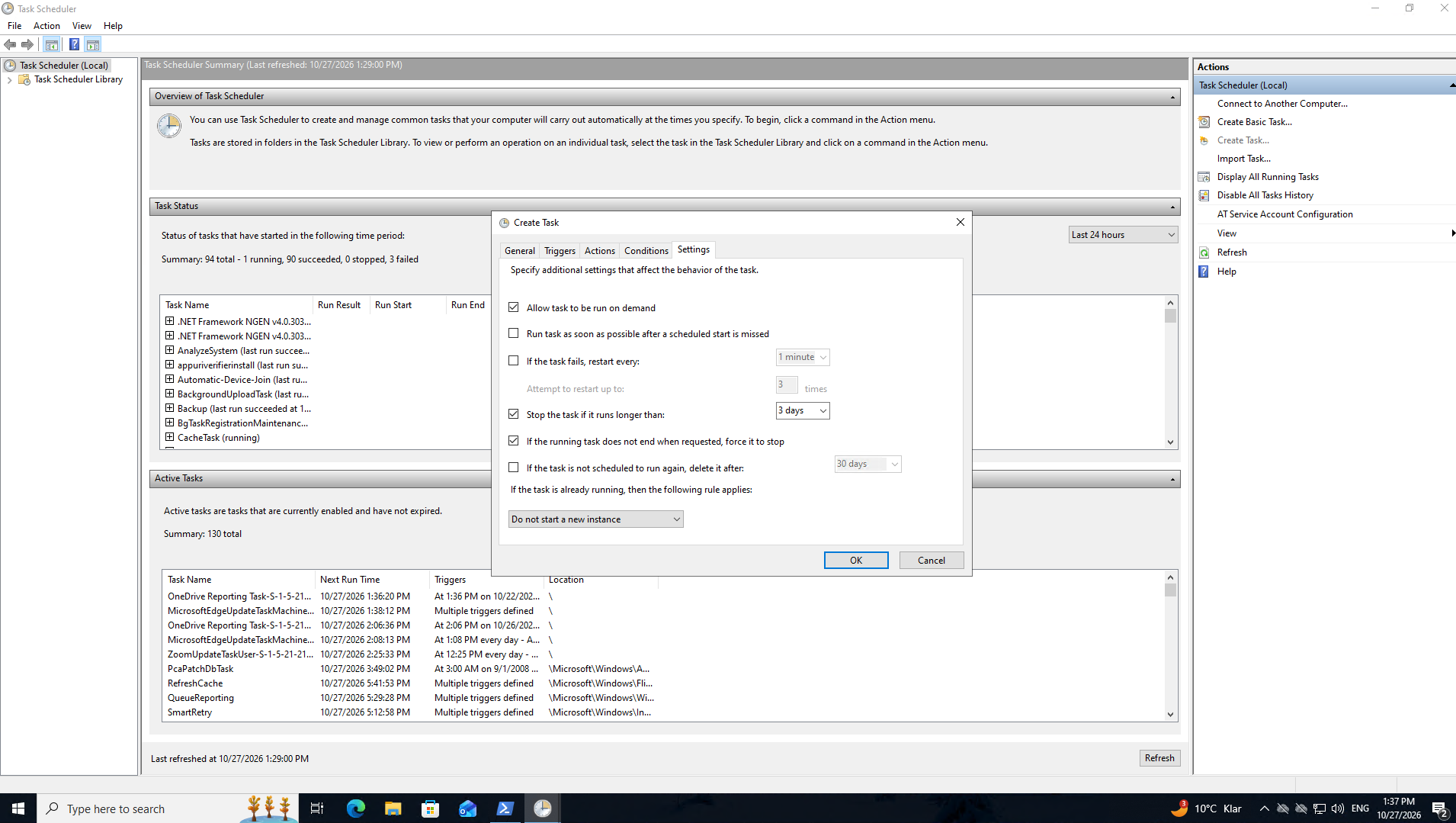
Click OK.
Step 3: Test on One Desktop
In Task Scheduler Library, right-click IDmelon VDI Session Deployment and select Run. This runs the task now, without waiting for a restart. Then check the log and the service:
Get-Content C:\ProgramData\VDIAgentDeploy.log
Get-Service IDmelonVDISession
The log shows a Result: line with the installed version, and the service is Running.
On later runs the script finds the version is already installed and does nothing, so the log stops growing. This is expected.
Restart the desktop and check the service again, to confirm the startup trigger works.
When the test works, create the task on the other desktops.
If the Task Does Not Install
In Task Scheduler Library, select the task and check Last Run Result:
- The operation completed successfully (0x0): The task ran. Check
C:\ProgramData\VDIAgentDeploy.logfor aFAILEDorWARNINGline. - The task has not yet run (0x41303): Run it by hand, or check the triggers.
- Any other value: The task could not run the script. Check the path on the Actions tab, and check that the share gives Read to Domain Computers or to this desktop’s computer account.
The task runs as the computer account. If you can open the share in your own session, that does not prove the task can. For more detail, open the task’s History tab. If it is empty, select Enable All Tasks History in the Actions pane and run the task again.
Create the Task with Group Policy (Optional)
Instead of creating the task by hand on each desktop, you can let Group Policy create it. The desktops must be joined to an Active Directory domain.
- Create a Group Policy for the desktops, as in Mode C, steps 1 to 4: install Group Policy Management, create and link the policy, limit it to your desktops, and give Domain Computers read access.
- Right-click the policy and select Edit.
- Go to Computer Configuration > Preferences > Control Panel Settings, right-click Scheduled Tasks, and select New > Scheduled Task (At least Windows 7).
- On the General tab, set Action to Update. This creates the task on desktops that do not have it, and updates it on desktops that do.
- Fill in the rest of the tabs as in step 1 and step 2: the name, the
SYSTEMaccount, Run with highest privileges, the action, both triggers, and Do not start a new instance. - Click OK.
Each desktop creates the task the next time it refreshes Group Policy, within about 90 minutes, or right away after gpupdate /force. The task then runs at the next startup or daily trigger.
Note: Removing or unlinking the policy does not delete the task from the desktops. To remove it, change Action to Delete and leave the policy in place until every desktop has refreshed.
Install a New Version
- Copy the new installer to the share, for example
C:\Software\IDmelonVDISession-1.1.0.2.exe. - Update
$installerand$targetinC:\Software\Install-VDIAgent.ps1, for example toIDmelonVDISession-1.1.0.2.exeand1.1.0.2.
Each desktop installs the new version at the next daily trigger or restart, whichever comes first. You do not need to change the task. The script never downgrades. To go back to an older version, uninstall the newer one on those machines first.
Mode C: Group Policy
A Group Policy startup script runs as SYSTEM before any user signs in. It runs the same install script, so it installs only when the desktop has no version or an older one. Every targeted desktop picks it up on its next restart.
This mode does not touch the golden image or template. Use it when desktops are full clones, built by hand, or have no way to update the image: an image change only reaches newly provisioned desktops, while the policy reaches every desktop on its next restart.
The desktops must be joined to an Active Directory domain. Group Policy does not depend on Configuration Manager. This guide uses the Configuration Manager server only because it holds the share; you can manage the policy from any domain-joined server with Group Policy Management installed. This works on Citrix, Horizon, and Remote Desktop, for persistent and non-persistent desktops.
Complete Prepare the Share first.
Step 1: Install Group Policy Management
On the Configuration Manager server, run PowerShell as Administrator:
Install-WindowsFeature GPMC
Sign in with an account that can create and link Group Policy objects in the domain, for example a member of Domain Admins.
Step 2: Create the Wrapper
Save this line as C:\Software\script-session.cmd, next to the .ps1 file:
powershell.exe -ExecutionPolicy Bypass -NoProfile -File "%~dp0Install-VDIAgent.ps1"
The wrapper makes sure Windows runs the script even when its PowerShell execution policy is set to Restricted (the default on Windows 10).
Step 3: Create the Group Policy
On the Configuration Manager server, open Server Manager > Tools > Group Policy Management.
Right-click your domain, select Create a GPO in this domain, and Link it here, and name it, for example
vdi-session.Linking at the domain reaches desktops in the default Computers container, which a policy cannot be linked to directly. If your virtual desktops are in an Organizational Unit (OU), link the policy to that OU instead and skip to step 5.
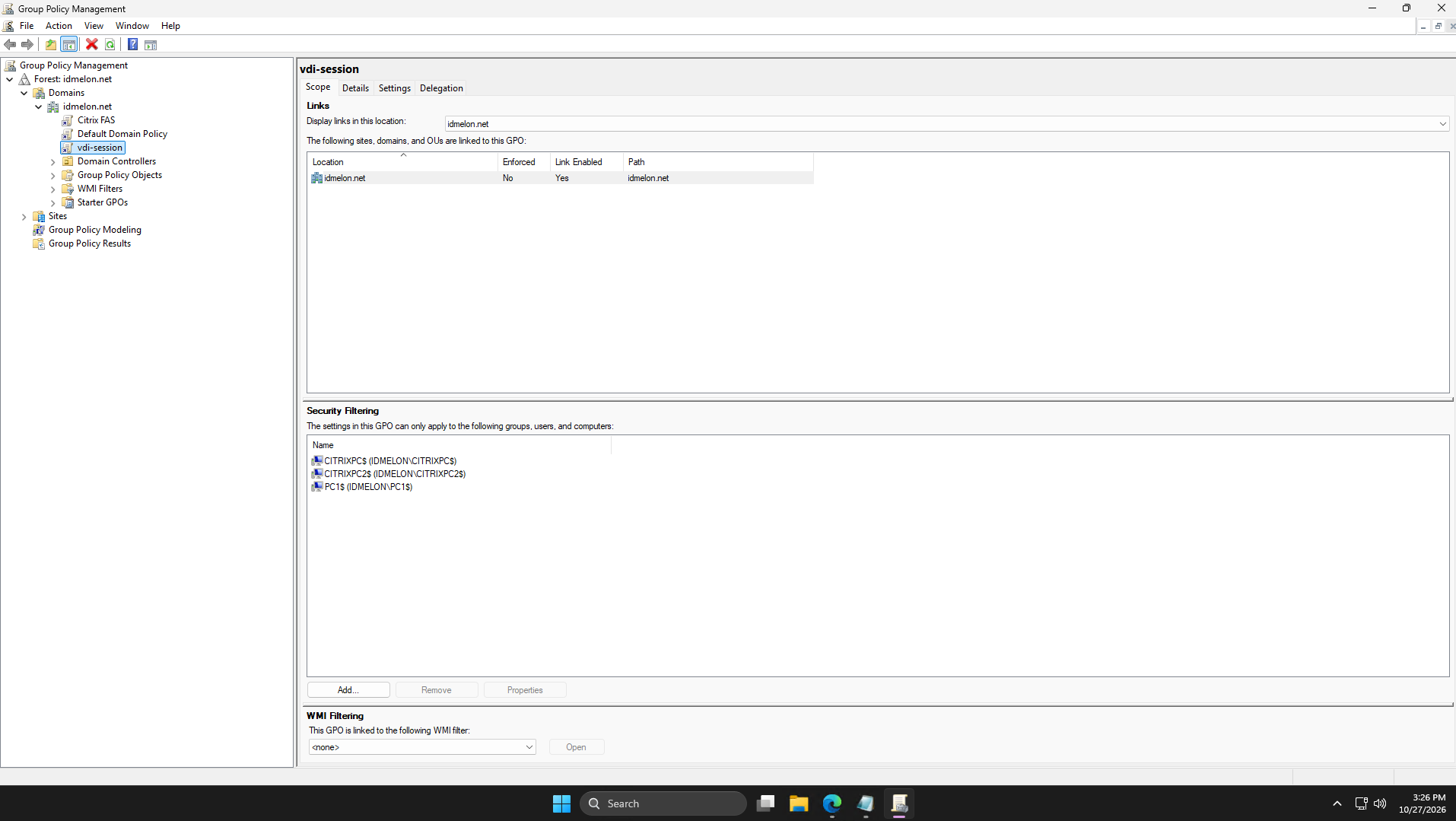
Select the new policy and open the Scope tab.
Under Security Filtering, select Authenticated Users and click Remove.
Click Add, then Object Types, and check Computers. Add the virtual desktops, or a security group that contains them.
Computer accounts are not included by default, so without checking Computers the desktops are not found.
Step 4: Allow Computers to Read the Policy
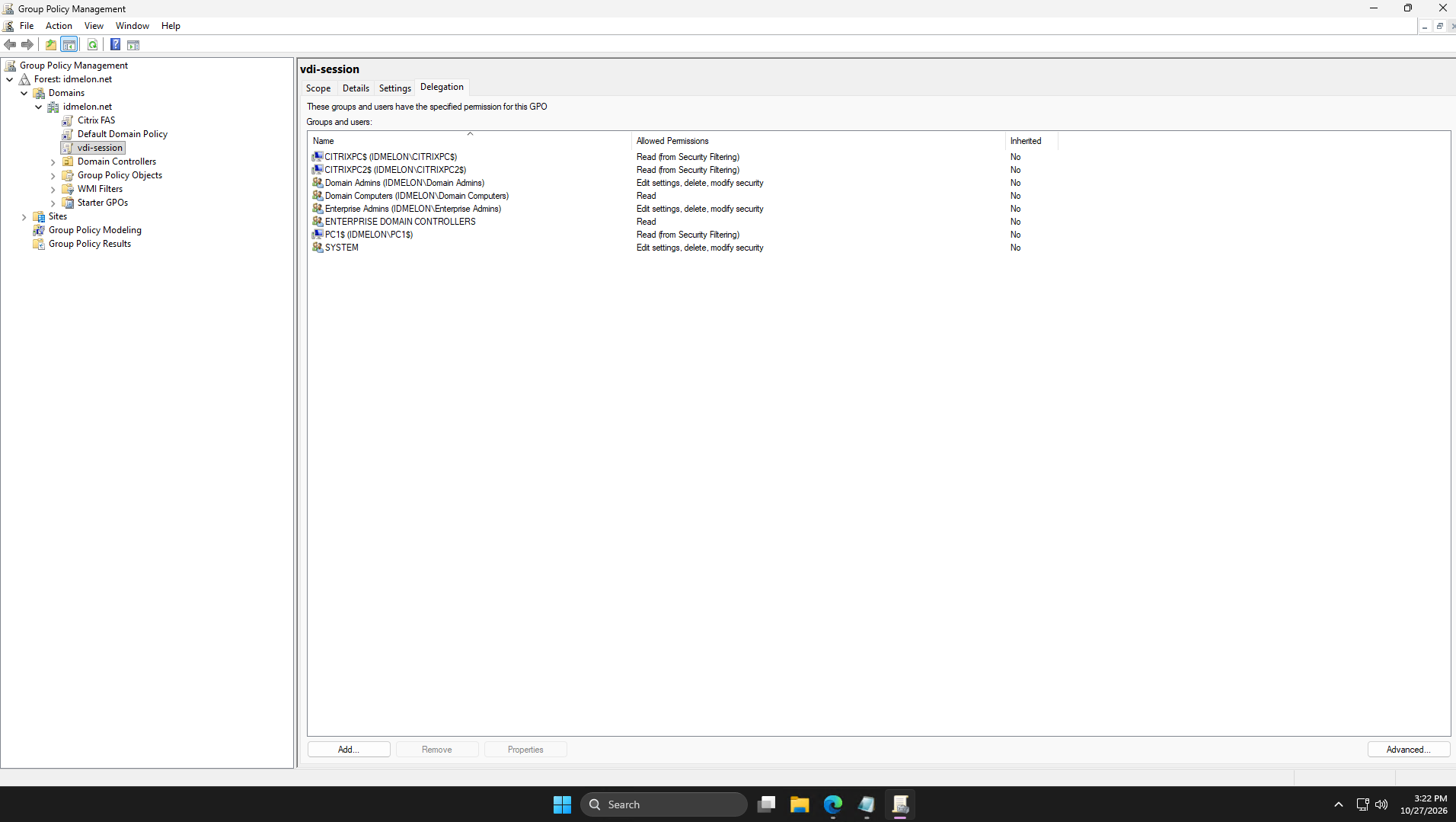
Removing Authenticated Users also stops computers from reading the policy. Computers read Group Policy with their own account, so without this permission the policy is skipped with no error. Add the read permission back:
- On the same policy, open the Delegation tab.
- Click Add, type
Domain Computers, click Check Names, then OK. - In Permissions, choose Read (not “Read and Apply group policy”).
The list should now show Domain Computers with Read, and your selected desktops or group with Read (from Security Filtering).
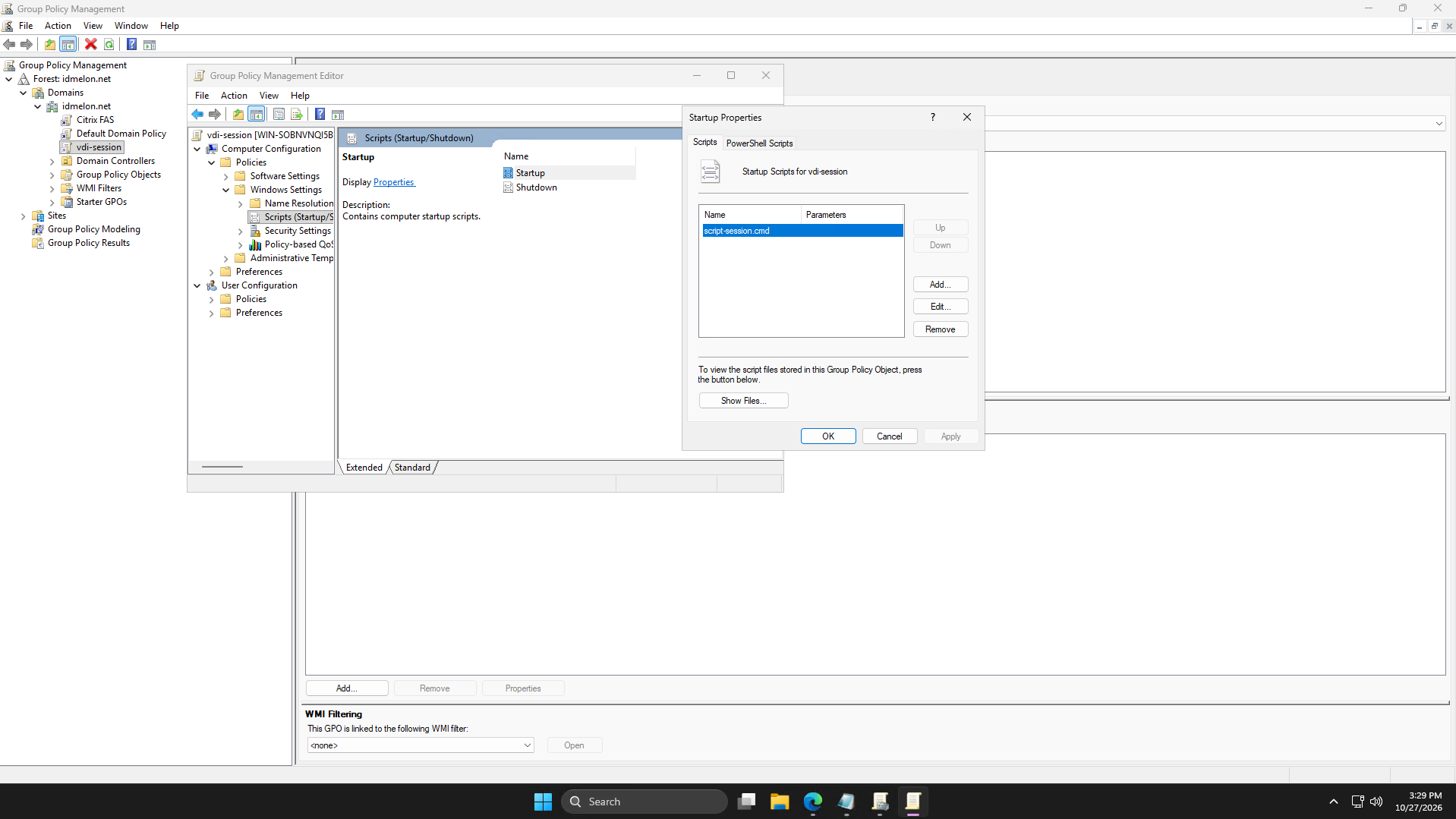
Step 5: Add the Startup Script
Right-click the policy and select Edit.
Go to:
Computer Configuration > Policies > Windows Settings > Scripts (Startup/Shutdown) > StartupOn the Scripts tab, click Show Files. Copy
Install-VDIAgent.ps1andscript-session.cmdfromC:\Softwareinto the folder that opens, then close it.Click Add > Browse, select
script-session.cmd, and click OK twice.
Note: Use the Scripts tab, not the PowerShell Scripts tab. The PowerShell Scripts tab follows the desktop’s execution policy, which blocks the script with no useful error. Keep the installer on the share, not in this folder: the folder is in SYSVOL, which copies to every domain controller and is not meant for large files.
Step 6: Test on One Desktop
On a target desktop, run:
gpupdate /force
Restart-Computer
The restart is required. Startup scripts only run when the machine starts.
After the restart, check the log and the service:
Get-Content C:\ProgramData\VDIAgentDeploy.log
Get-Service IDmelonVDISession
The log shows a Result: line with the installed version, and the service is Running.
On later restarts the script finds the version is already installed and does nothing, so the log stops growing. This is expected.
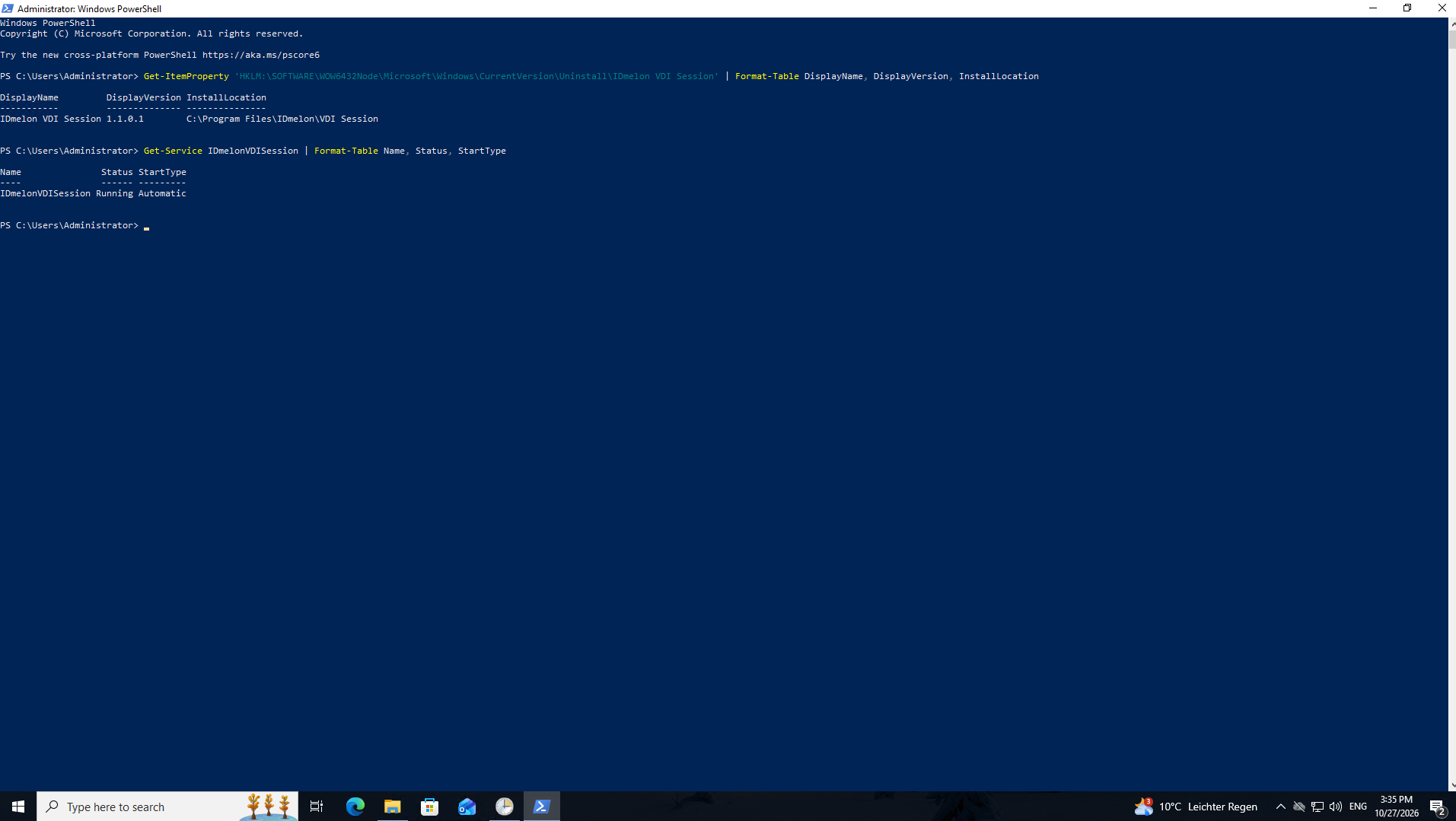
To check the installed version and the service together, run:
Get-ItemProperty 'HKLM:\SOFTWARE\WOW6432Node\Microsoft\Windows\CurrentVersion\Uninstall\IDmelon VDI Session' | Format-Table DisplayName, DisplayVersion, InstallLocation
Get-Service IDmelonVDISession | Format-Table Name, Status, StartType
DisplayVersion shows the installed version, Status is Running, and StartType is Automatic.
Install a New Version
- Copy the new installer to the share, for example
C:\Software\IDmelonVDISession-1.1.0.2.exe. - Update
$installerand$targetin the copy ofInstall-VDIAgent.ps1in the policy’s Show Files folder, for example toIDmelonVDISession-1.1.0.2.exeand1.1.0.2. This is the copy that runs, not the one inC:\Software.
Each desktop installs the new version on its next restart. The script never downgrades. To go back to an older version, uninstall the newer one on those machines first.
If Nothing Is Installed
If C:\ProgramData\VDIAgentDeploy.log does not exist, the policy did not reach the machine. On the desktop, run:
gpresult /h C:\report.html
Open the report and look for your policy under Applied GPOs:
- Listed as denied: Check the delegation in step 4.
- Not listed: Check where the policy is linked and the Security Filtering in step 3.
Non-Persistent Desktops
On pooled or non-persistent desktops that reset from a golden image, install IDmelon VDI Session in the golden image as well. Otherwise each reset removes it until the next deployment run.
With Mode B, create the scheduled task in the golden image. A reset removes a task that is not in the image.
Platform Notes
Citrix: In Citrix Studio, add this entry to the Virtual channel allow list policy. This is a one-time, site-wide change:
IDMLN,C:\Program Files\IDmelon\VDI Session\IDmelonVDISession.exeThen restart the virtual desktops. They read the allow list when they start. To keep security key prompts inside the session, also set FIDO2 redirection to Prohibited. See Citrix Policies.
Omnissa Horizon: No extra steps. The installer allows the app to use Horizon virtual channels automatically.
Remote Desktop: No extra steps.