IDmelon Reader Driver on Chromebook
IDmelon Accesskey, which is an extension, is designed and developed to enable you to leverage your card as a FIDO security key.
Note: As a requirement, it needs the Smart Card Connector app to be installed.
Deployment
Individual Chromebooks
Install IDmelon Accesskey from Chrome Store
Install Smart Card Connector from Chrome Store
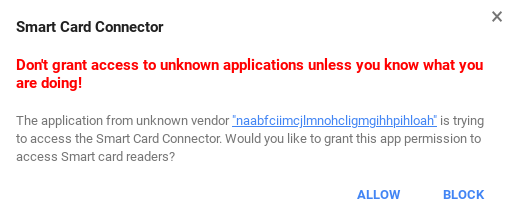
If you are asked to give permission, click on the Allow button (it will happen only once):
Managed Chromebooks (Business/School)
Open Google admin console
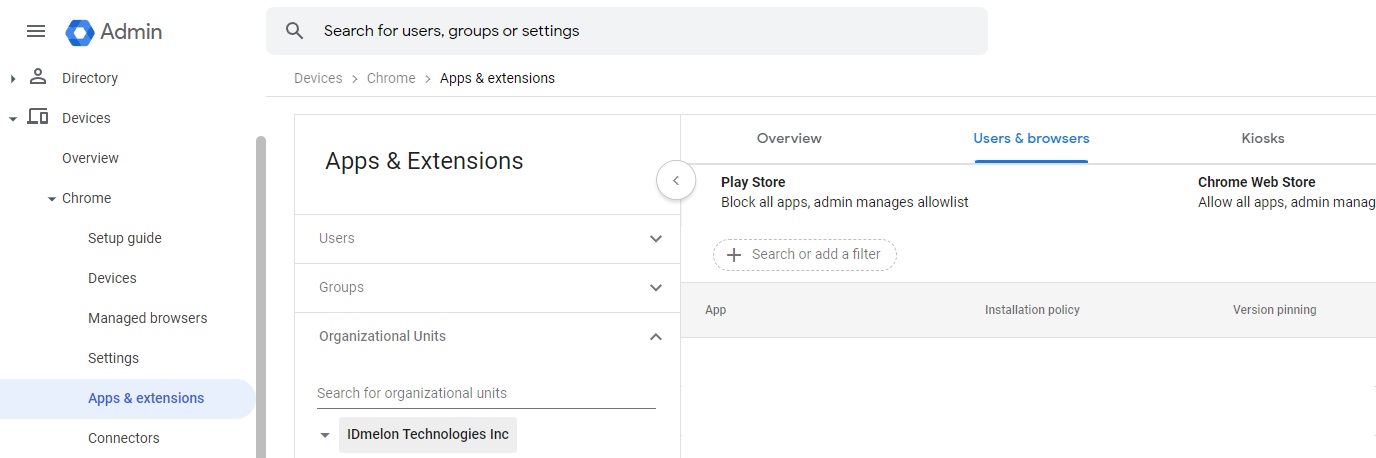
Navigate to Device -> Chrome -> Apps & Extensions -> Users & browsers
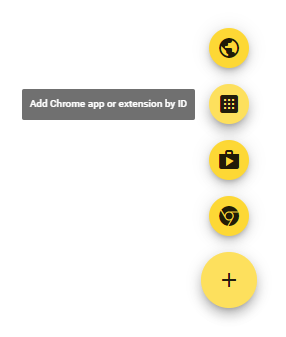
Click on + button in the lower right corner and select Add Chrome app or extension by ID.
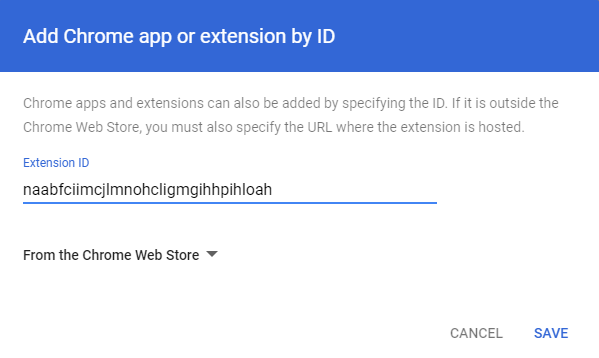
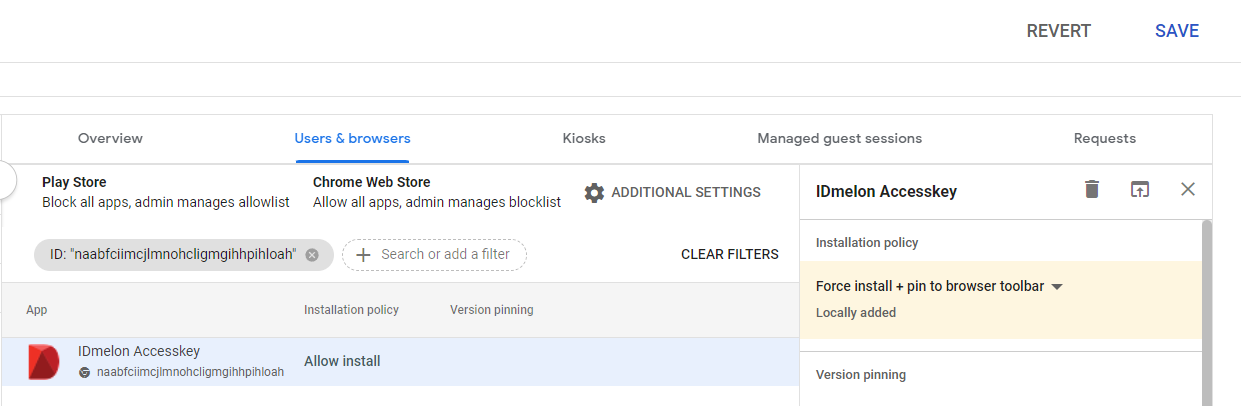
In the Extension ID enter naabfciimcjlmnohcligmgihhpihloah and click Save.
Once the extension is added, configure it to Force install + pin to browser toolbar
Click on Save button on the top right corner.
Click on + button in the lower right corner and select Add Chrome app or extension by ID.
In the Extension ID enter khpfeaanjngmcnplbdlpegiifgpfgdco and click Save.
Once the app is created, configure it to Force install, and under Policy for extensions, write the following:
{
  "force_allowed_client_app_ids": {
    "Value": [
      "naabfciimcjlmnohcligmgihhpihloah"
    ]
  }
}
If you are asked to give permission, click on Allow button (it will happen only once).