Workflow Automation
Workflow automation turns a card tap into a complete sign-in. On a shared computer, a user taps their IDmelon card on the reader, or scans their finger on a fingerprint reader, and IDmelon WebLogin opens the web apps you configured and signs the user in. Nobody types a username or a password. The next tap signs the user out and leaves the browser ready for the next person.
It is made for computers that many people share: nursing stations, front desks, shop floors and shift workstations.
This page covers the automation built into the WebLogin extension. To automate desktop applications, see the Workflow Automation app.
How it works
- The user taps their card. IDmelon Accesskey reads it and passes it to WebLogin.
- WebLogin checks the card with IDmelon. The card has to be enrolled and not blocked, and it tells WebLogin who the user is.
- WebLogin runs the action you configured:
- Login: it opens each configured website and signs the user in, using the passkey on the card for Microsoft sign-in, or a password saved in the user’s IDmelon account for other websites.
- Logout: it closes the user’s windows and, where the user signed in to Microsoft, signs them out of Microsoft.
Requirements
IDmelon Accesskey and the card reader drivers, from Downloads.
WebLogin on Google Chrome or Microsoft Edge. See the Overview for installation, or install it on many computers with Intune on Edge or Chrome.
Users with an enrolled IDmelon card or fingerprint.
For Microsoft sign-in, a Microsoft passkey on each user’s IDmelon security key. See Provision FIDO2 Passkeys for Microsoft.
For private windows (the
incognitowindow, which is the default), WebLogin must be allowed to run in them. Open WebLogin’s details on the extensions page and turn on Allow in InPrivate on Edge, or Allow in Incognito on Chrome: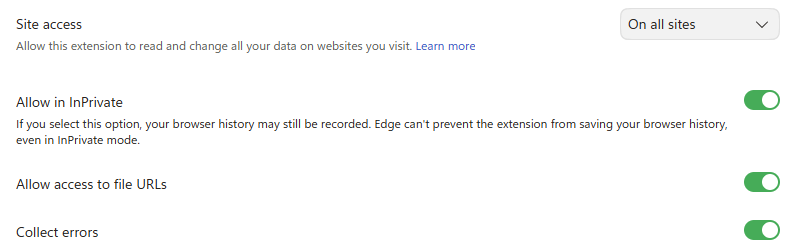
Set up workflow automation
Workflow automation is driven by a configuration: a small JSON object that says what a tap does, where the websites open, and how users are signed in. You can set it on each computer from WebLogin’s options, or from IDmelon Accesskey.
From WebLogin’s options
- Click the WebLogin icon in the browser toolbar and select Options.
- Select Workflow Automation Configuration.
- Paste your configuration in the Configuration box and select Save configuration. WebLogin checks the configuration first, and tells you what is wrong if it can’t be saved.
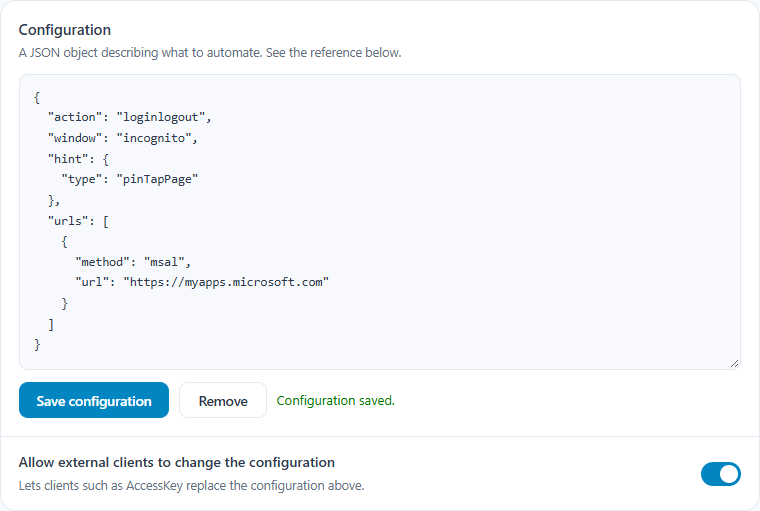
To turn workflow automation off, select Remove.
Allow external clients to change the configuration is on by default. It lets IDmelon Accesskey replace the configuration on this computer. Turn it off to keep the configuration you set here.
From IDmelon Accesskey
Accesskey can set and remove the configuration with the accesskeycli workflow-automation command. See
Tap to action with WebLogin.
Examples
Example 1: Microsoft 365 in a private window
The first tap opens a private window and signs the user in to My Apps. The next tap closes the private window.
{
  "action": "loginlogout",
  "window": "incognito",
  "hint": {
    "type": "pinTapPage"
  },
  "urls": [
    {
      "method": "passkey",
      "url": "https://myapps.microsoft.com?login_hint=${UserId}"
    }
  ]
}
Example 2: Microsoft sign-in wherever it’s asked for
When a web app sends the user to Microsoft’s sign-in page, WebLogin shows a prompt. The user taps their card, and
WebLogin opens that web app in a private window and signs the user in there. The next tap closes the private window.
Because the url is empty, the same configuration works for every web app that signs in with Microsoft. See
An empty url.
{
  "action": "loginlogout",
  "window": "incognito",
  "hint": {
    "type": "prompt",
    "promptConfig": {
      "urls": ["https://login.microsoftonline.com"],
      "position": "topCenter"
    }
  },
  "urls": [
    {
      "method": "passkey",
      "url": ""
    }
  ]
}
Keep trigger at its default, tap. With tapOnHint, the tap that signs the user out wouldn’t count, because no
prompt is shown inside the web app.
Example 3: Microsoft 365 and a website with a saved password
Both open in the same private window, each in its own tab.
{
  "action": "loginlogout",
  "window": "incognito",
  "urls": [
    {
      "method": "passkey",
      "url": "https://myapps.microsoft.com?login_hint=${UserId}"
    },
    {
      "method": "password",
      "url": "https://portal.example.com/login"
    }
  ]
}
Configuration reference
action(required):login,logoutorloginlogout. What a tap does. Withloginlogout, a tap signs the user in, and the next one signs them out.window:incognito(the default),newTaborcurrent. Where the websites open. See Actions and windows.hint: what tells users to tap their card. Without it, WebLogin shows the pinned tap page. See Hint.trigger:tap(the default) ortapOnHint. Which taps start the automation. WithtapOnHint, only a tap made while the prompt is shown, or while the pinned tap page is the active tab, starts it. It can’t be used with the hint typenone, and with the pinned tap page,passkeyandpasswordneed aurl. See An empty url.urls(required): the websites to sign the user in to, handled in order. See Websites.msalConfig: the Entra app WebLogin uses for themsalmethod. See Microsoft sign-in with MSAL.
Websites
Each entry in urls is one website:
method:passkey,passwordormsal. How WebLogin signs the user in. See Sign-in methods.url: the website to open.${UserId}in the address is replaced with the user’s ID, which is usually their sign-in name.{UserId}works too, and is easier to use in PowerShell, where$starts a variable. The address can be left empty, see An empty url.coverFlow:trueorfalse. Whentrue, WebLogin covers Microsoft’s sign-in pages while it signs the user in, so the user doesn’t see the steps.
The first website opens in the window you chose, and the others open in new tabs of the same window.
An empty url
An empty url stands for the page in the current tab, the one in front when the user taps their card:
- With the
currentwindow,passkeyandpasswordsign the user in on that tab. - With the
incognitoandnewTabwindows,passkeyopens that page and signs the user in there.passwordneeds an address. msal, in any window, signs the user in first, then goes back to that page.
When the current tab is on Microsoft’s sign-in page, WebLogin opens or goes back to the page before it instead: the web app that sent the user to sign in. Opened again, the web app starts its own sign-in in that window, so the user ends up signed in to it. This is how one configuration serves every web app, as in Example 2.
The current tab has to be on a website. If it’s a browser page, such as the new tab page or the pinned tap page,
passkey doesn’t start, and msal takes the user to a new tab page after signing in. For the same reason, with the
tapOnHint trigger and the pinned tap page, passkey and password need a url: those taps are made on the tap page,
so WebLogin doesn’t save the configuration without one.
Hint
type:pinTapPage(the default),promptornone. Which hint to show. See Hints.promptConfig.urls: required forprompt. A list of addresses; the prompt appears on every page whose address contains one of them.promptConfig.position: required forprompt.topLeft,topCenterortopRight: where on the page the prompt appears.
What WebLogin checks
WebLogin doesn’t save a configuration when:
action,window,triggeror a hinttypehas a value that isn’t listed above.urlsdoesn’t list at least one website, or a website’smethodisn’t listed above.- The hint is
promptandpromptConfigis missing, has no position, or lists an address that isn’t valid. - The window isn’t
currentand a website’surlis not a valid address. An emptyurlis allowed with thepasskeyandmsalmethods. - The action is
loginlogout, the window isn’tincognito, and none of the websites uses themsalmethod. - The trigger is
tapOnHintand the hint type isnone. - The trigger is
tapOnHint, the hint is the pinned tap page, and apasskeyorpasswordwebsite has an emptyurl.
Actions and windows
incognito (the default)
- Login opens a new private window with the websites. When WebLogin is connected to Accesskey, it also closes the other browser windows, so only the user’s window is left.
- Logout closes all private windows, which ends the user’s sessions. If no other window is left, WebLogin opens a new one.
newTab
- Login opens the websites in new tabs of the current window.
- Logout closes all browser windows and opens a new one. If a website uses the
msalmethod, the new window signs the user out of Microsoft.
current
- Login opens the first website in the tab the user is on. If its
urlis empty and the method isn’tmsal, WebLogin signs the user in on the page that is already open. - Logout works as with
newTab.
With loginlogout, WebLogin decides for each tap whether to sign the user in or out:
- With the
incognitowindow, a tap signs the user in when no private window is open, and signs them out otherwise. - With the
newTabandcurrentwindows,loginlogoutneeds a website with themsalmethod. A tap signs the user out when someone is signed in to Microsoft through WebLogin, and signs them in otherwise.
Sign-in methods
passkey
WebLogin opens the address and completes Microsoft’s sign-in page with the passkey on the user’s card. Use it for
Microsoft 365 and other apps that sign in with Entra ID. Add login_hint=${UserId} to the address, as in the examples
above, so Microsoft goes straight to the user’s account. If the card is protected by a PIN, the user enters it when
asked. With an empty address, WebLogin uses the page in the current tab, see An empty url.
password
WebLogin opens the address and fills in the username and password saved for that website in the user’s IDmelon account.
msal
WebLogin opens Microsoft’s sign-in page itself, for its Entra app (see Microsoft sign-in with MSAL). It asks for a fresh sign-in every time, with the user’s account filled in, and completes it with the passkey on the card. Then it opens the address, or, when the address is empty, takes the user back to the page in the current tab, see An empty url.
Because WebLogin knows when a user is signed in this way, msal is also what makes loginlogout work in normal
windows, and what signs users out of Microsoft on logout.
Hints
A hint tells users that they can tap their card.
Pinned tap page
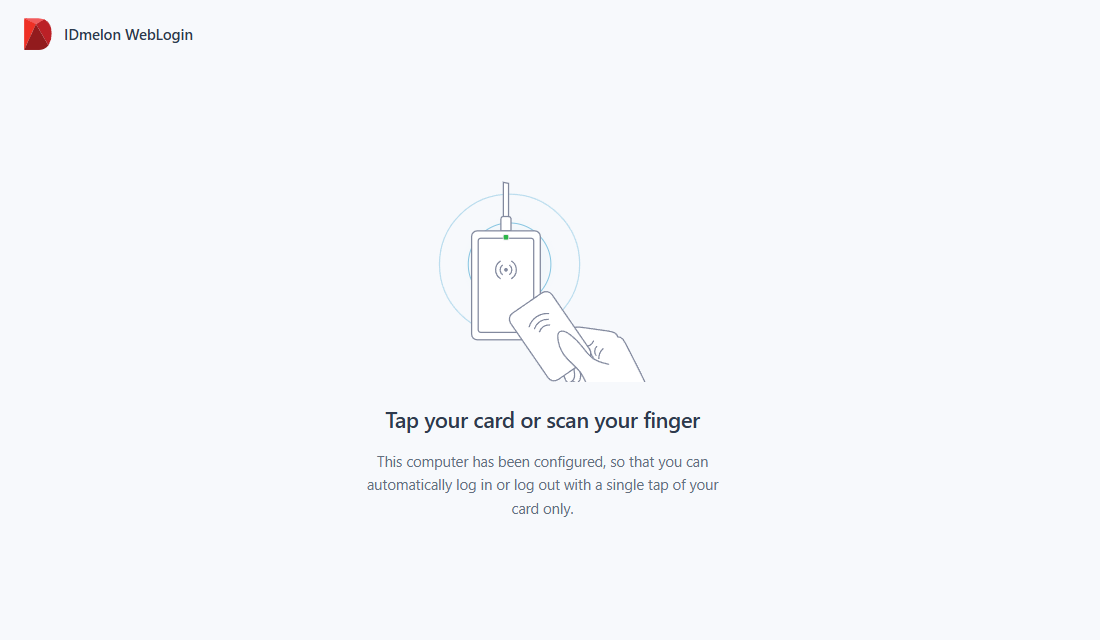
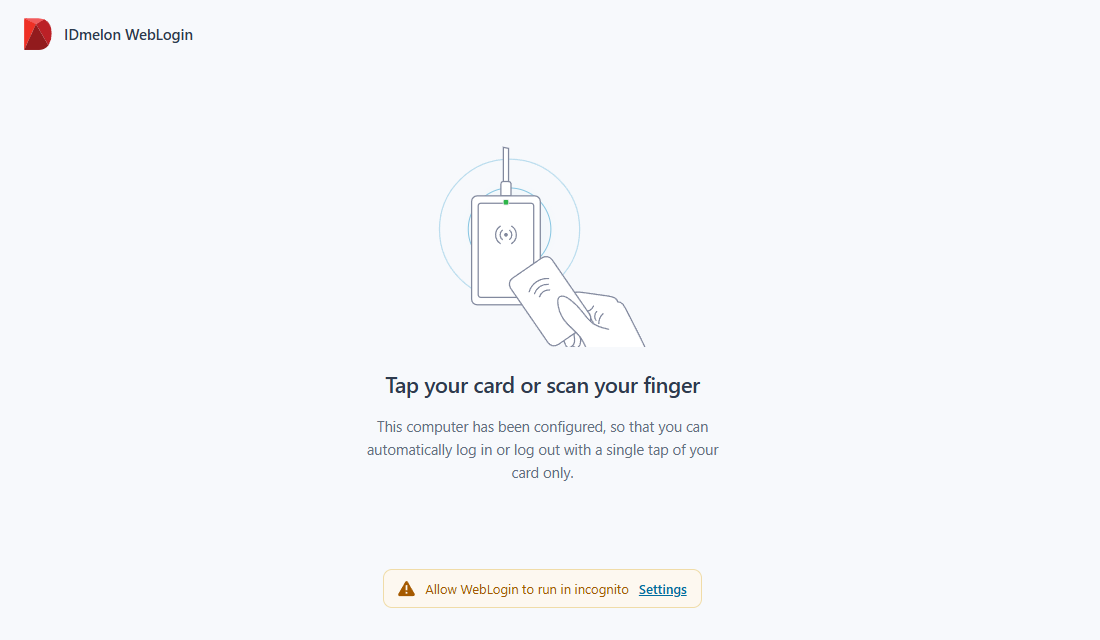
pinTapPage is the default. WebLogin keeps this page open in a pinned tab:
Prompt
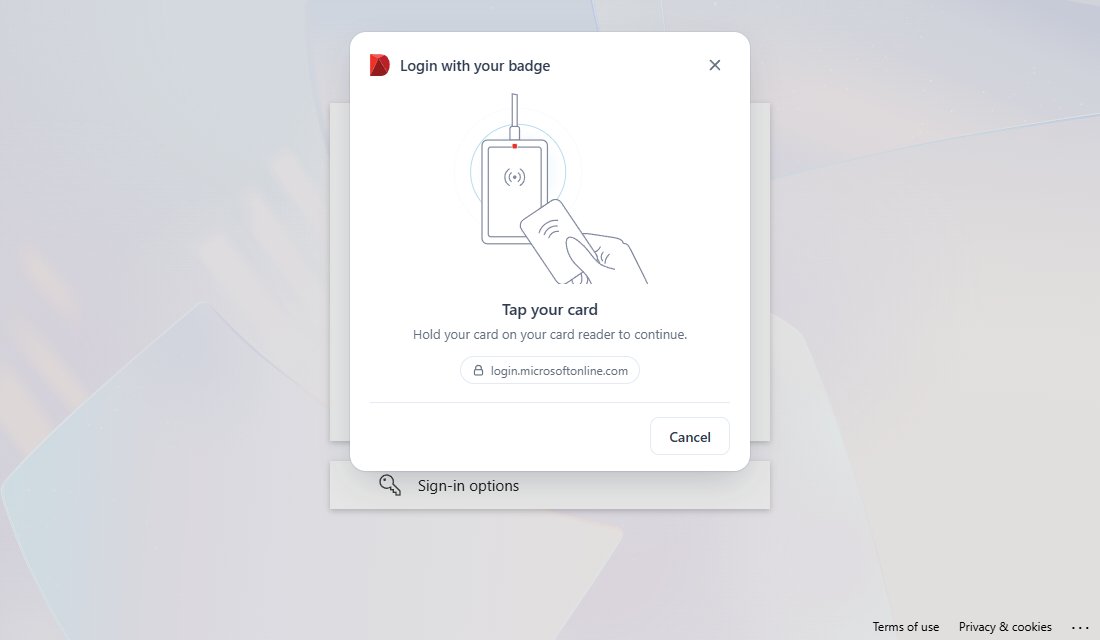
prompt shows this prompt on the pages you list in promptConfig.urls, at the position you choose. The user taps
their card, or selects Cancel to close it. A prompt on https://login.microsoftonline.com appears whenever a web app
sends the user to Microsoft’s sign-in page:
No hint
With none, WebLogin shows nothing, and any tap starts the automation.
Microsoft sign-in with MSAL
The msal method signs users in through an app registration in Microsoft Entra ID. WebLogin comes with a default app
registration, so the method works without registering one yourself, once an administrator of your tenant has allowed
it. We recommend registering your own app in your tenant instead: you own and control it, it accepts only accounts
from your tenant, and you can apply your own access policies to it.
Register your own app
In the Microsoft Entra admin center, open App registrations and select New registration:
Name: for example,
IDmelon WebLogin.Supported account types: Single tenant only - <your tenant>.
Redirect URI: select Single-page application (SPA) and enter the address for the WebLogin version you use, exactly as shown, including the trailing slash. It contains the WebLogin extension ID, which is the same on Chrome and Edge.
Version Redirect URI Stable https://eagmgpbjpedchliifpgfgogdknnmkaej.chromiumapp.org/Latest https://mnejefleopgpkjplbcbcgkdbnkdolomj.chromiumapp.org/If you use both versions, add the second address in Authentication once the app is registered.
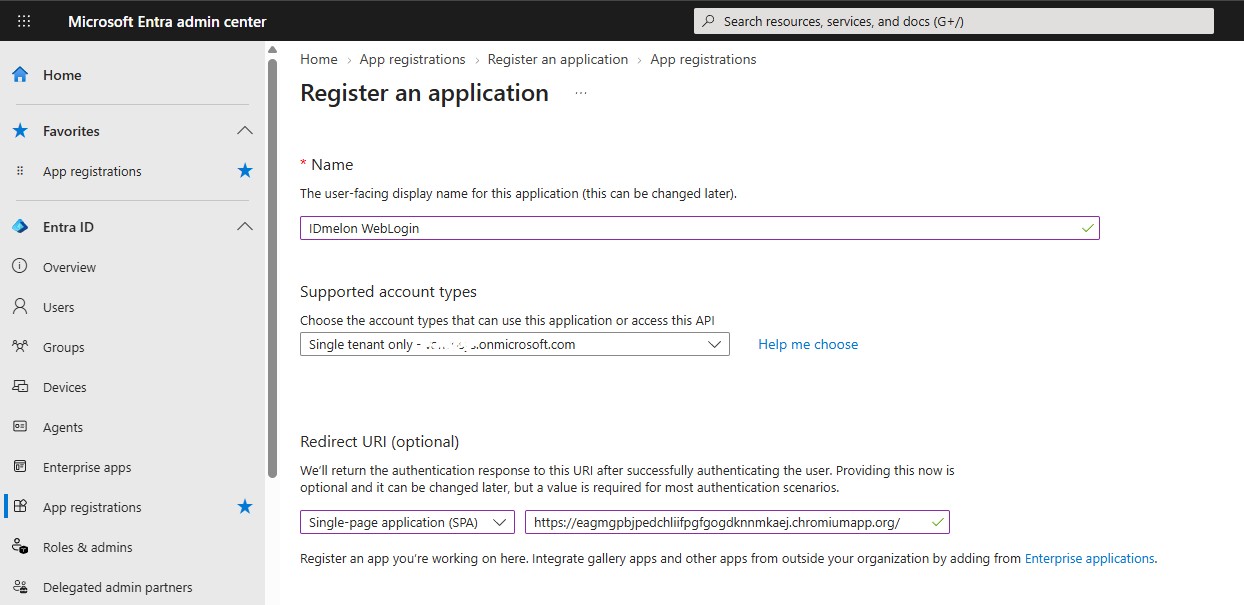
Select Register.
In Authentication, check that the redirect URI is listed under Single-page application, that both Implicit grant options are cleared, and that Allow public client flows is set to No.
In API permissions, keep the default Microsoft Graph > User.Read permission and select Grant admin consent for your tenant. Users can’t answer a consent screen during an automated sign-in, so the consent has to be granted for everyone in advance.
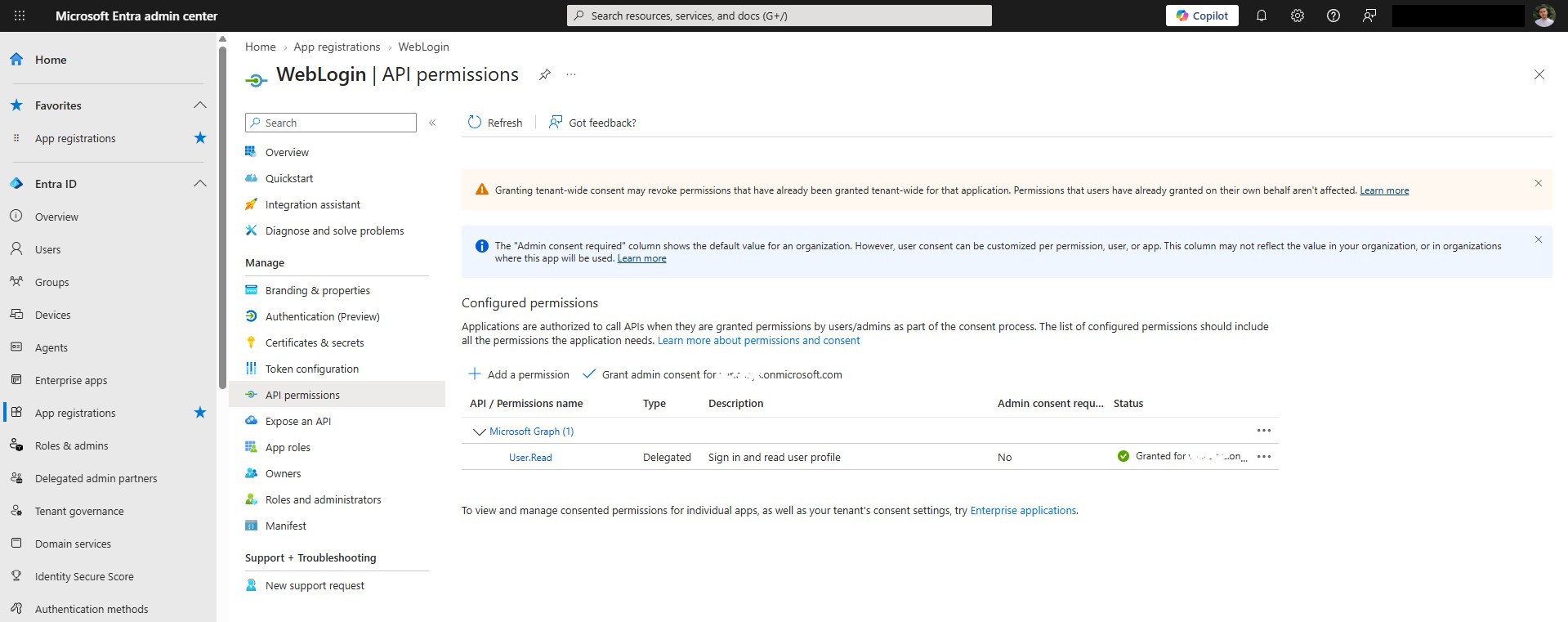
On Overview, copy the Application (client) ID and the Directory (tenant) ID.
The app doesn’t need a client secret or a certificate. To let only some users sign in with it, open the app in Enterprise applications, set Assignment required to Yes, and assign the users or groups. You can also target the app with Conditional Access policies.
Connect WebLogin to your app
Add msalConfig to the configuration:
{
  "action": "loginlogout",
  "window": "newTab",
  "urls": [
    {
      "method": "msal",
      "url": "https://myapps.microsoft.com"
    }
  ],
  "msalConfig": {
    "clientId": "<Application (client) ID>",
    "authority": "https://login.microsoftonline.com/<Directory (tenant) ID>",
    "includeLoginHint": true
  }
}
clientId(required): the Application (client) ID of your app.authority:https://login.microsoftonline.com/<Directory (tenant) ID>. Required for a single-tenant app; without it, WebLogin useshttps://login.microsoftonline.com/common/. Don’t add/v2.0at the end.includeLoginHint:truefills in the user’s account on Microsoft’s sign-in page. Recommended.redirectUri: leave it out. WebLogin uses its own redirect address, the one you registered.scopes: not needed. WebLogin only signs the user in.
Use the default app registration
If you leave msalConfig out of the configuration, WebLogin signs users in through its default app registration.
Users can’t answer a consent screen during an automated sign-in, so before they start, an administrator of your tenant
grants consent for everyone: open the following address with your tenant ID, sign in with an administrator account,
and accept.
https://login.microsoftonline.com/<your tenant ID>/adminconsent?client_id=794a450a-7217-4bdf-86da-1242f1dd8428
To check the result, open Enterprise applications in the Microsoft Entra admin center, select WebLogin, and review its Permissions.
When Microsoft sign-in fails
Some errors appear on Microsoft’s page in the browser, and the others in WebLogin’s logs (click the WebLogin icon in the toolbar and select Show Logs).
- AADSTS50011: the redirect URI isn’t registered, or doesn’t match exactly. Register the redirect URI of your WebLogin version as a single-page application redirect URI.
- AADSTS9002326: the redirect URI is registered under Web instead of Single-page application. Move it to Single-page application.
- AADSTS50194: a single-tenant app is used without your tenant in
authority. Setauthoritytohttps://login.microsoftonline.com/<Directory (tenant) ID>. - AADSTS700016: the app isn’t found in the tenant. Check
clientId, and the tenant ID inauthority. - AADSTS65001, or a Need admin approval page: consent hasn’t been granted. Grant admin consent for the app.
- AADSTS50105: the user isn’t assigned to the app. Assign the user or their group, or set Assignment required to No.
- AADSTS53003: a Conditional Access policy blocked the sign-in. Review the policies that apply to the app.
Troubleshooting
The pinned tap page shows “Allow WebLogin to run in incognito”. WebLogin can’t open private windows. Turn on Allow in InPrivate (Allow in Incognito on Chrome), as described in Requirements.
A tap doesn’t start the automation. With the
tapOnHinttrigger, the user has to tap while the prompt is shown or while the pinned tap page is the active tab. Also check that the card is enrolled and not blocked in IDmelon, and that WebLogin is connected to the reader: click the WebLogin icon in the toolbar and look at Reader driver connection. If it shows Not Connected, make sure the reader is plugged in and IDmelon Accesskey is installed and running.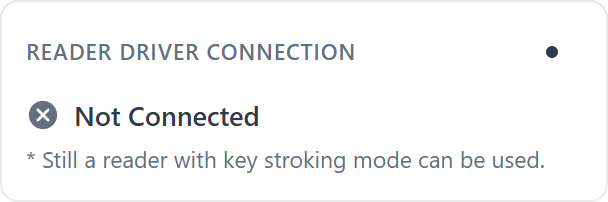
A tap opens nothing, and the logs say “The url is blank and the current tab isn’t on a website”. The configuration uses
passkeywith an emptyurl, and the user tapped while a browser page was in front, such as the new tab page or the pinned tap page. The user has to tap while the web app, or Microsoft’s sign-in page, is in front. See An empty url.Save configuration shows an error. The message names the field to fix. See What WebLogin checks.
The configuration keeps changing back. Accesskey is replacing it. Change the configuration in Accesskey, or turn off Allow external clients to change the configuration in WebLogin.
Anything else. Click the WebLogin icon in the toolbar and select Show Logs. The logs record every step of the automation.