Install and Configure on Chrome using Intune
This guide provides a step-by-step walkthrough for force-installing the WebLogin extension on Google Chrome using Microsoft Intune.
Prerequisites
Intune Administrator permissions.
Windows 10/11 devices enrolled in Intune.
Google Chrome must already be installed on the target devices.
WebLogin Extension Versions
The WebLogin extension is available in two different release channels:
Recommended for production environments and general users.
Receives fully tested and stable updates.
Includes the newest features and improvements before they are released to the stable channel.
Intended for testing, evaluation, or early access scenarios.
Each version has a different extension ID.
When configuring the extension deployment in Microsoft Intune, make sure you use the correct extension ID based on the version you want to deploy.
| Version | Extension ID |
|---|---|
| Stable | eagmgpbjpedchliifpgfgogdknnmkaej |
| Latest | mnejefleopgpkjplbcbcgkdbnkdolomj |
Important: Installing one version does not automatically install or update the other version, because they are treated as separate extensions by Google Chrome.
Installation Details
Extension Name: WebLogin
Extension ID: Check the table above
Update URL: https://clients2.google.com/service/update2/crx
Step 1: Create the Configuration Profile
Sign in to the Microsoft Intune admin center.
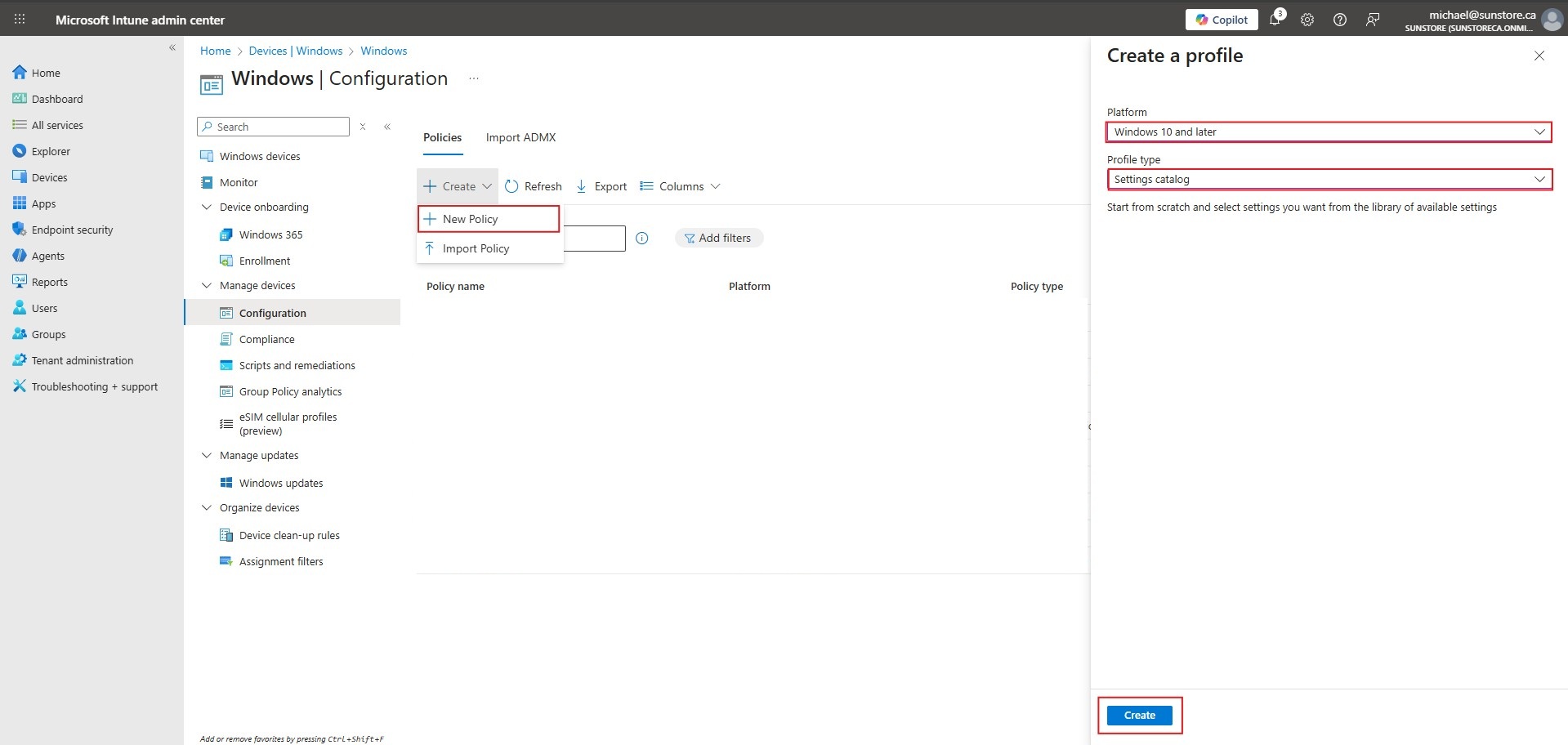
Navigate to Devices > Windows > Configuration.
Click Create > New Policy.
Select the following:
Platform: Windows 10 and later
Profile type: Settings catalog
Click Create.
On the Basics tab, enter a name (e.g., Chrome - Force Install WebLogin Extension) and an optional description. Click Next.
Step 2: Configure the Extension Policy
On the Configuration settings tab, click + Add settings.
In the Settings picker, search for “Extension” and select the Google > Google Chrome > Extensions category.
Check the box for Configure the list of force-installed apps and extensions.
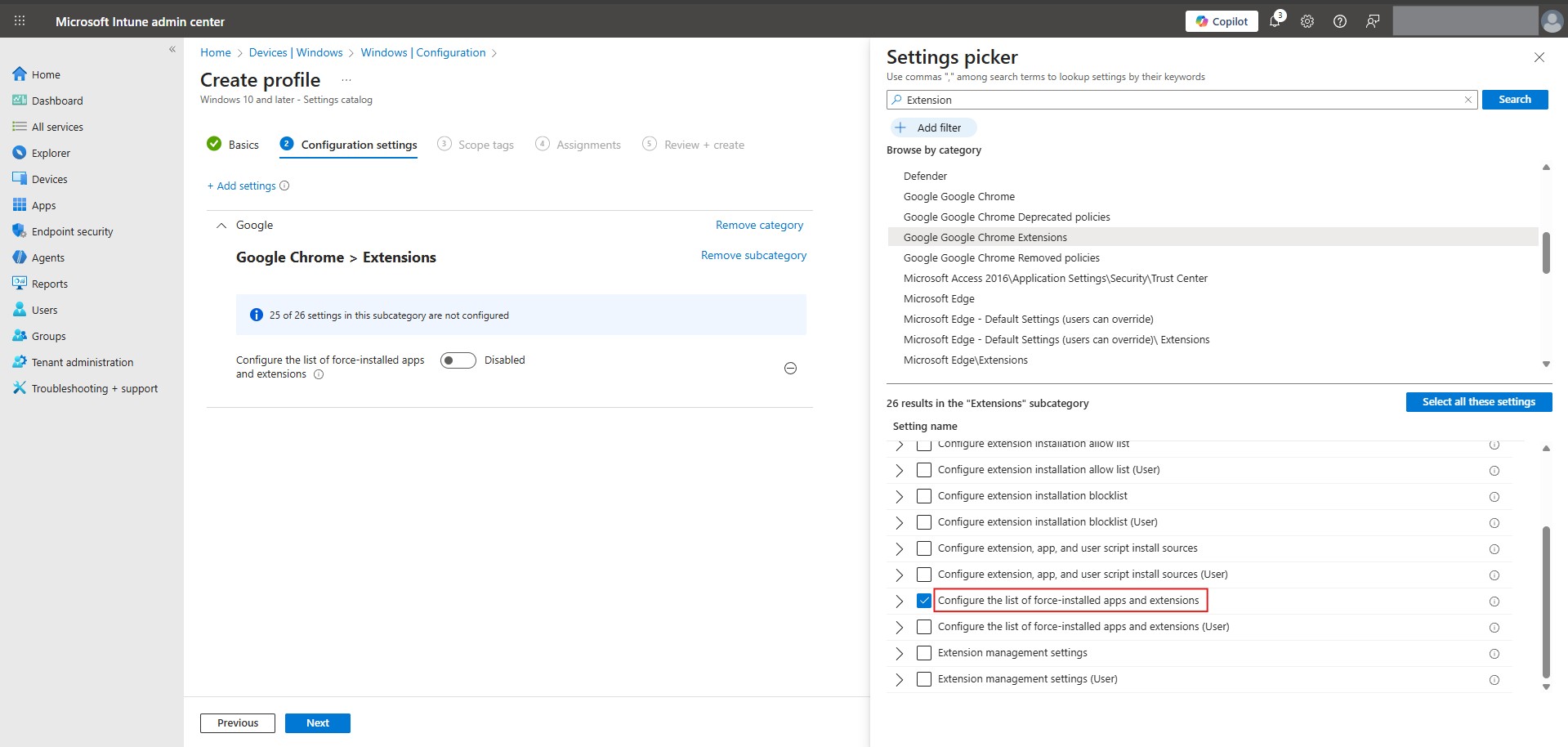
Close the Settings picker.
In the configuration pane, toggle the setting to Enabled.

Under Extension/App IDs and update URLs to be silently installed, enter the following string exactly:
For Stable version:
eagmgpbjpedchliifpgfgogdknnmkaej;https://clients2.google.com/service/update2/crxFor Latest version:
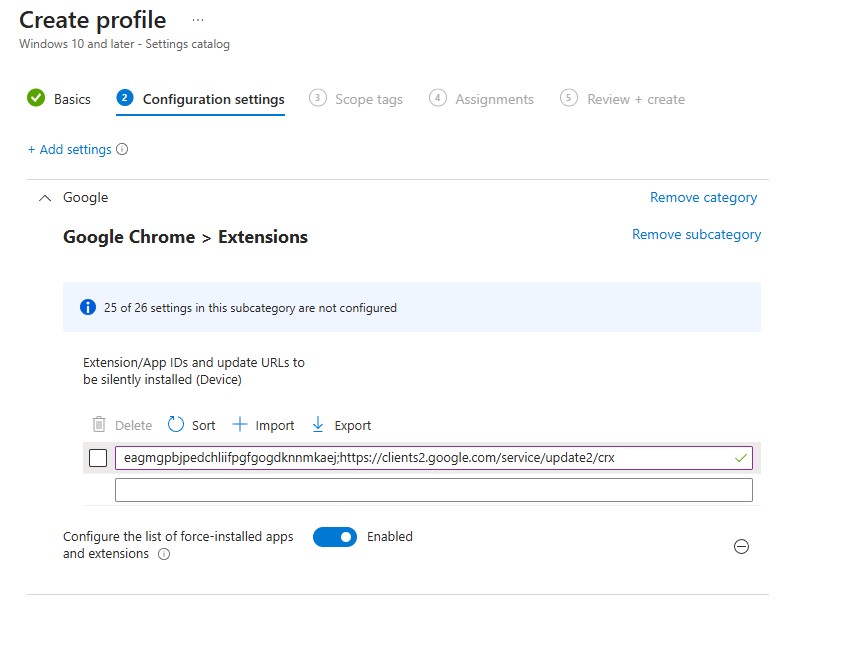
mnejefleopgpkjplbcbcgkdbnkdolomj;https://clients2.google.com/service/update2/crx
Click Next.
Step 3: Assignments and Review
Scope tags: Add if your organization uses them, otherwise click Next.
Assignments: Click Add groups and select the device or user group(s) you want to receive the extension.
Review + create: Verify the settings and the Extension ID string. Click Create.
Step 4: Verification
Once the policy syncs with the target devices (this can be manually triggered by going to Settings > Accounts > Access work or school > Info > Sync on the device):
Open Google Chrome.
Go to
chrome://extensions.The WebLogin extension should appear and show as “Installed by your administrator.”
You can also verify the policy status at
chrome://policy. Look for theExtensionInstallForcelistpolicy.
Configuration
This section provides a PowerShell script for IT Administrators to configure the WebLogin extension on Google Chrome via Microsoft Intune. This script manages complex configuration objects—including nested server addresses, automation workflows, and operational options—by writing directly to the Windows Registry.
This guide is written for the WebLogin Stable extension and uses the following extension ID throughout the document:
eagmgpbjpedchliifpgfgogdknnmkaej
If you want to configure the WebLogin Latest version instead, replace every occurrence of the stable extension ID in this guide with the following ID:
mnejefleopgpkjplbcbcgkdbnkdolomj
Step 1: Create the PowerShell Script
Create a script named Configure-WebLogin-Chrome.ps1. Update the variables in the script to match your organization’s
environment. Please note all the configs are optional and you should only declare the needed configs.
# Declare needed configs
$api_key = "your-api-key-goes-here"
$workspace_id = "your-workspace-id-goes-here"
$server_address = "{ `"env`": `"onpremise`", `"env`": `"https://domain.com/api/url`" }"
$options = "{ `"handlePasskeyRequests`": { `"value`": true }, `"allowAddingNewPasswords`": { `"value`": true }, `"allowPasswordUpdatePrompts`": { `"value`": true }, `"useEmbeddedNumpad`": { `"value`": true }, `"keystroking`": { `"value`": true }, `"debugMode`": { `"value`": true }, `"pin`": {`"autoSubmit`": true, `"length`": 6, `"resetUrl`": `"https://domain.com/reset`"}, `"autofillPrompt`": { `"value`": true, `"includedUrls`": [`"https://domain.com/login`"], `"excludedUrls`": [`"https://domain.com/login`"] } }"
$workflow_automation = "{ `"action`": `"login`", `"window`": `"incognito`", `"hint`": { `"type`": `"pinTapPage`" }, `"urls`": [ { `"method`": `"passkey`", `"url`": `"https://myapps.microsoft.com`" } ] }"
$registry_path = "HKLM:\SOFTWARE\Policies\Google\Chrome\3rdparty\extensions\eagmgpbjpedchliifpgfgogdknnmkaej\policy"
$parent_path = Split-Path -Path $registry_path
# Create policy path for the WebLogin if it does not exist
if (!(Test-Path $parent_path)) {
New-Item -Path $parent_path -Force -ItemType Directory | Out-Null
}
if (!(Test-Path $parent_path\policy)) {
New-Item -Path ("$parent_path\policy") -Force -ItemType Directory | Out-Null
}
# Set values
Set-ItemProperty -Path $registry_path -Name "apiKey" -Value $api_key
Set-ItemProperty -Path $registry_path -Name "workspaceID" -Value $workspace_id
Set-ItemProperty -Path $registry_path -Name "serverAddress" -Value $server_address -Type ExpandString
Set-ItemProperty -Path $registry_path -Name "options" -Value $options -Type ExpandString
Set-ItemProperty -Path $registry_path -Name "workflowAutomation" -Value $workflow_automation -Type ExpandString
exit 0
Step 2: Deployment via Intune
Sign in to the Microsoft Intune admin center.
Navigate to Devices > Scripts and remediations > Platform scripts.
Click Add.

Basics: Name the script (e.g., Chrome - WebLogin Extension Managed Config).
Script Settings:
Script location: Upload
Configure-WebLogin-Chrome.ps1.Run this script using the logged on credentials: No.
Enforce script signature check: No.
Run script in 64-bit PowerShell Host: No.

Assignments: Assign to the device group that has the WebLogin extension force-installed.
Step 3: Verification
To confirm the settings have been applied correctly:
Check the Registry: Open
regeditand navigate to:HKEY_LOCAL_MACHINE\SOFTWARE\Policies\Google\Chrome\3rdparty\extensions\eagmgpbjpedchliifpgfgogdknnmkaej\policyVerify that all declared keys (apiKey,serverAddress, etc.) are present.Verify in Chrome: Open Chrome and navigate to
chrome://policy. Find the entry foreagmgpbjpedchliifpgfgogdknnmkaej. Under Policy Value, click Show More to see the structured JSON data being consumed by the extension.
Intune can take up to 24 hours to run your configuration script on the end device.