Configure on Chrome for Windows using Intune
This guide provides a PowerShell script for IT Administrators to configure the WebLogin extension on Google Chrome via Microsoft Intune. This script manages complex configuration objects—including nested server addresses, automation workflows, and operational options—by writing directly to the Windows Registry.
Prerequisites
Intune Administrator permissions.
Windows 10/11 devices enrolled in Intune.
The WebLogin extension must be force-installed (Guide).
Step 1: Create the PowerShell Script
Create a script named Configure-WebLogin-Chrome.ps1. Update the variables in the script to match your organization’s
environment. Please note all the configs are optional and you should only declare the needed configs.
# Declare needed configs

$api_key = "your-api-key-goes-here"
$workspace_id = "your-workspace-id-goes-here"
$server_address = "{ `"env`": `"onpremise`", `"env`": `"https://domain.com/api/url`" }"
$options = "{ `"handlePasskeyRequests`": { `"value`": true }, `"allowAddingNewPasswords`": { `"value`": true }, `"allowPasswordUpdatePrompts`": { `"value`": true }, `"useEmbeddedNumpad`": { `"value`": true }, `"keystroking`": { `"value`": true }, `"debugMode`": { `"value`": true }, `"autofillPrompt`": { `"value`": true, `"includedUrls`": [`"https://domain.com/login`"], `"excludedUrls`": [`"https://domain.com/login`"] } }"
$workflow_automation = "{ `"action`": `"login`", `"window`": `"incognito`", `"hint`": { `"type`": `"pinTapPage`" }, `"urls`": [ { `"method`": `"passkey`", `"url`": `"https://myapps.microsoft.com`" } ] }"

$registry_path = "HKLM:\SOFTWARE\Policies\Google\Chrome\3rdparty\extensions\eagmgpbjpedchliifpgfgogdknnmkaej\policy"

$parent_path = Split-Path -Path $registry_path

# Create policy path for the WebLogin if it does not exist

if (!(Test-Path $parent_path)) {
    New-Item -Path $parent_path -Force -ItemType Directory | Out-Null
}

if (!(Test-Path $parent_path\policy)) {
    New-Item -Path ("$parent_path\policy") -Force -ItemType Directory | Out-Null
}

# Set values

Set-ItemProperty -Path $registry_path -Name "apiKey" -Value $api_key
Set-ItemProperty -Path $registry_path -Name "workspaceID" -Value $workspace_id
Set-ItemProperty -Path $registry_path -Name "serverAddress" -Value $server_address -Type ExpandString
Set-ItemProperty -Path $registry_path -Name "options" -Value $options -Type ExpandString
Set-ItemProperty -Path $registry_path -Name "workflowAutomation" -Value $workflow_automation -Type ExpandString

exit 0
Step 2: Deployment via Intune
Sign in to the Microsoft Intune admin center.
Navigate to Devices > Scripts and remediations > Platform scripts.
Click Add.
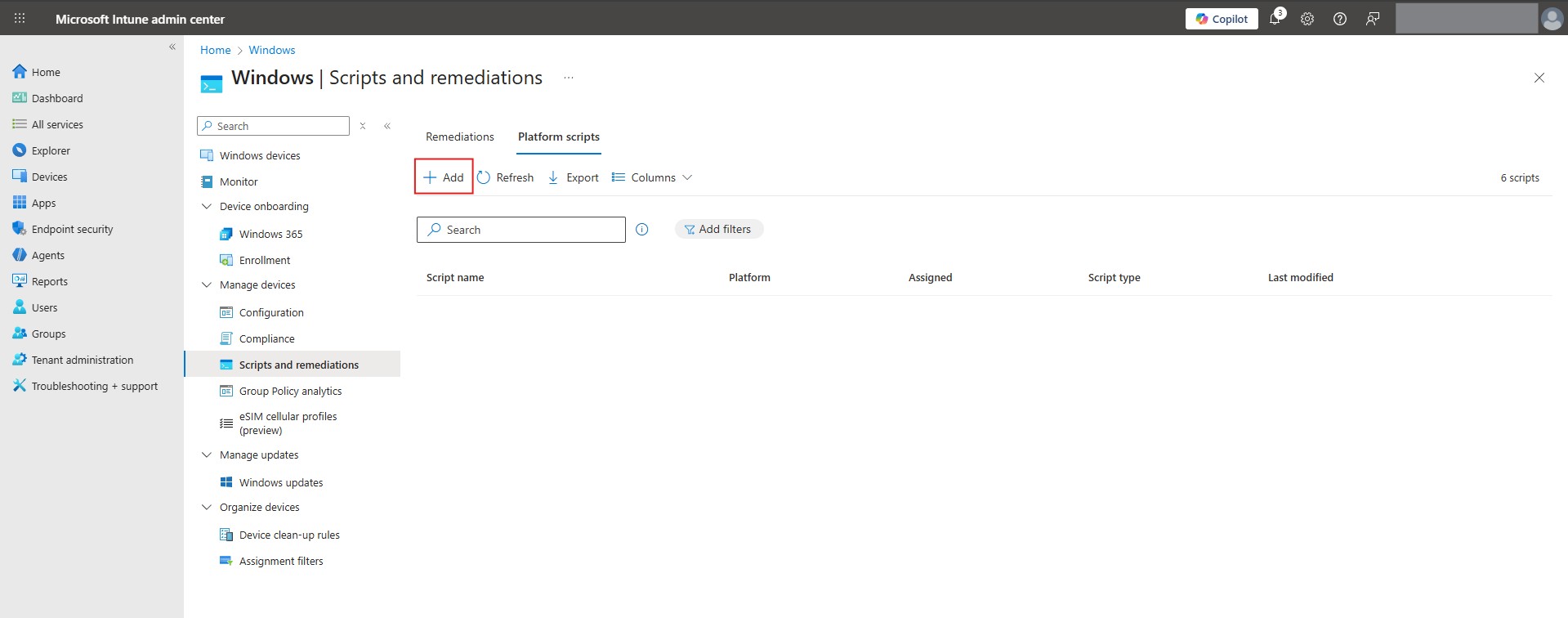
Basics: Name the script (e.g., Chrome - WebLogin Extension Managed Config).
Script Settings:
Script location: Upload
Configure-WebLogin-Chrome.ps1.Run this script using the logged on credentials: No.
Enforce script signature check: No.
Run script in 64-bit PowerShell Host: No.
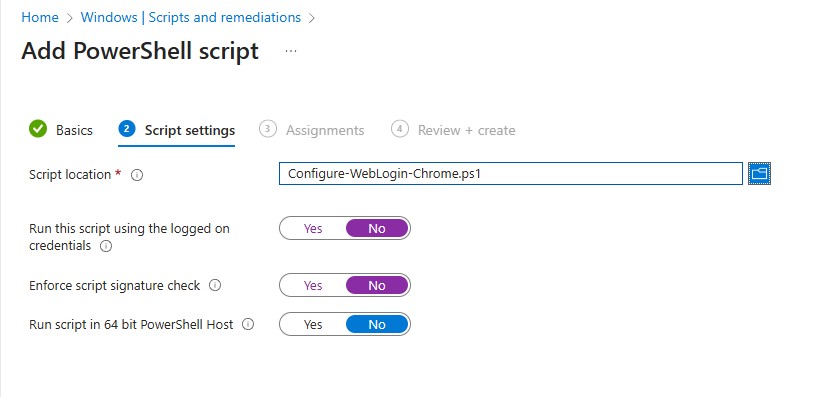
Assignments: Assign to the device group that has the WebLogin extension force-installed.
Step 3: Verification
To confirm the settings have been applied correctly:
Check the Registry: Open
regeditand navigate to:HKEY_LOCAL_MACHINE\SOFTWARE\Policies\Google\Chrome\3rdparty\extensions\eagmgpbjpedchliifpgfgogdknnmkaej\policyVerify that all declared keys (apiKey,serverAddress, etc.) are present.Verify in Chrome: Open Chrome and navigate to
chrome://policy. Find the entry foreagmgpbjpedchliifpgfgogdknnmkaej. Under Policy Value, click Show More to see the structured JSON data being consumed by the extension.
Intune can take up to 24 hours to run your configuration script on the end device.