Configuration for Using MSAL
Microsoft Authentication Library (MSAL) enables a unified sign‑in experience across Microsoft applications. On shared iPads, MSAL ensures that once a user signs in, the authentication state is seamlessly applied to apps like Teams, Outlook, Word, Excel, etc, eliminating the need for repeated logins. This provides a consistent and secure single sign‑on environment for all Microsoft apps.
Integrating with IDmelon SSO
To enable Single Sign‑On (SSO) login capabilities, your environment must be integrated with IDmelon. The IDmelon SSO extension handles authentication flows for users whose identity provider is set to IDmelon.
To configure, see IDmelon Configuration as IDP.
Register an application in Microsoft Entra ID
This process is essential for establishing a trust relationship between IDmelon Authenticator and the Microsoft identity platform.
Follow these steps to create the app registration:
Sign in to the Microsoft Entra admin center.
If you have access to multiple tenants, use the Settings icon in the top menu to switch to the tenant in which you want to register the application.
Browse to Entra ID > App registrations and select New registration.
Enter a meaningful Name for the app, for example
IDmelon-Authenticator-MSAL.Under Supported account types, specify who can use the application. We recommend you select Accounts in this organizational directory only.
For the Redirect URI, select Mobile and desktop applications as the platform, and then, in the URL box, enter:
msauth.com.idmelon.idmelon-2://authSelect Register to complete the app registration.
Under the Manage section, select API permissions.
Make sure the delegated permission User.Read is present. If it is not, select Add a permission → Microsoft Graph → Delegated permissions, then check User.Read and click Add permissions.
Select Grant admin consent for < tenant name >, then select Yes.
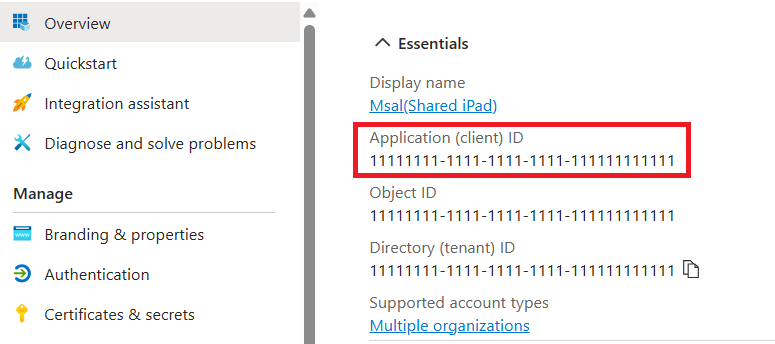
From the Overview section, the Application (client) ID is available. You can use this value as the configuration for azure_client_id.
Microsoft Enterprise SSO plug-in
For MSAL integration, the Microsoft Enterprise SSO plug-in must be configured on the device.
Configuring the IDmelon Enterprise SSO plug-in
The IDmelon SSO extension is responsible for authenticating shared users in the IDmelon panel.
To configure, follow the steps below:
- Sign in to the Microsoft Intune admin center.
- Select Devices > Manage devices > Configuration > Create > New policy.
- Enter the following properties:
- Platform: Select
iOS/iPadOS. - Profile type: Select
Templates > Device features.
- Platform: Select
- Select Create:
- In Basics, enter the following properties:
- Name: Enter a descriptive name for the policy.
- Description: Enter a description for the policy.
- Select Next.
- In Configuration settings, select Single sign-on app extension, and configure the following properties:
SSO app extension type:
Redirect.Extension ID:
com.idmelon.idmelon-2.ssoextensionTeam ID:
4A6ZQ29Y2FURLs:
https://panel.idmelon.com/auth/sign-in