User Experience
The end-user experience, start to finish.
This page walks through what a person sees on a finished shared iPad, from the first tap to handing it on. It’s here so you can glance at a device and tell it’s working before you give it to staff or a help desk. You don’t need to read it to set anything up.
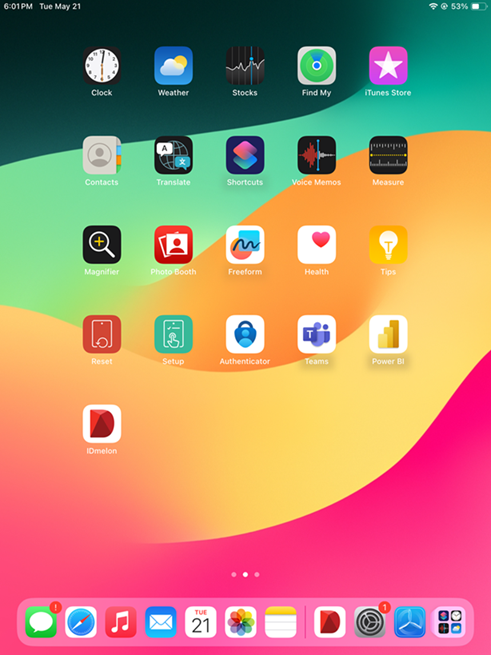
The home screen, before sign-in
A healthy iPad opens IDmelon Authenticator into the shared sign-in screen, not the normal personal app. Nobody is signed in. The screen waits for the next person.
Signing in
The person taps their badge to sign in. The tap arrives through the IDmelon Hub, the same paired reader your other IDmelon logins use, so nothing is attached to the iPad itself.
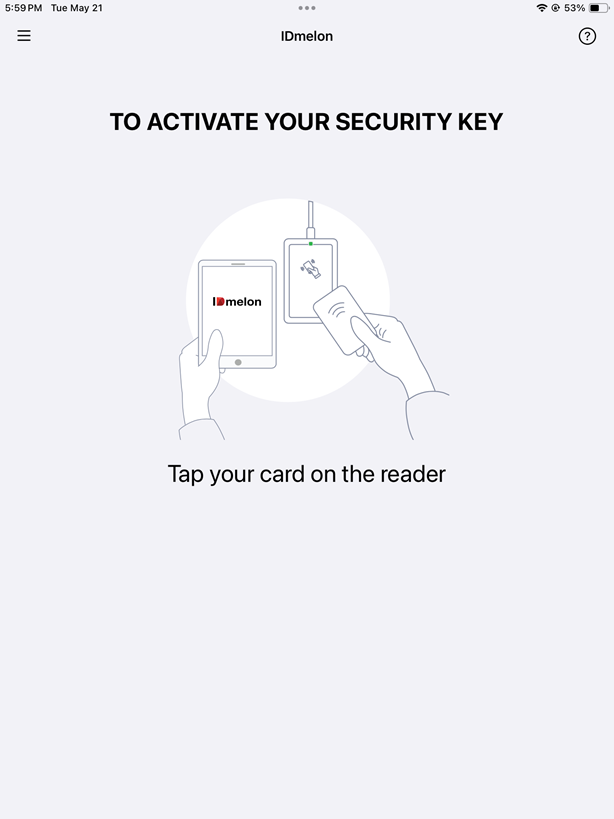
If you set the device up for face instead, the person looks at the iPad camera and it matches their face. Either way, the rest of the flow is the same.
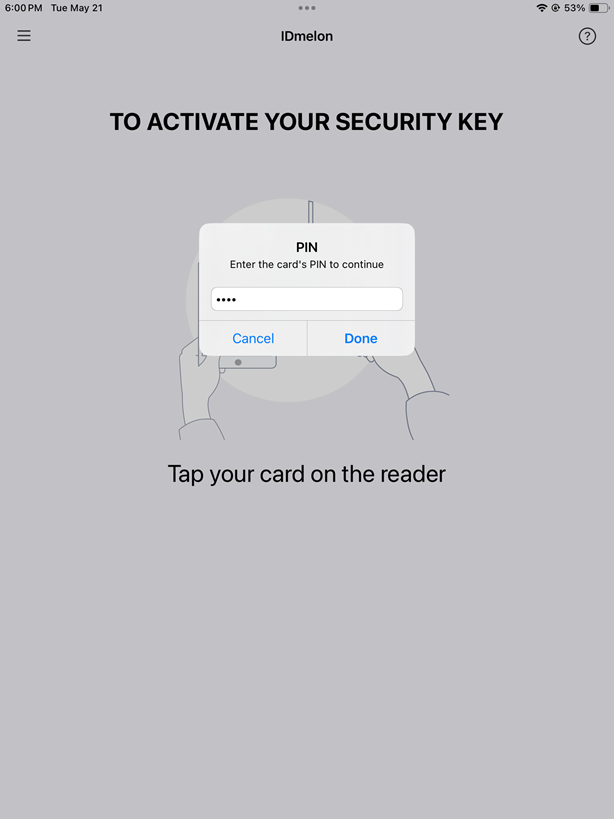
Entering a PIN
If your deployment asks for a PIN, the person enters it after the badge tap. Many deployments don’t require one, so this screen may not appear.
The Microsoft prompt and passkey
After the person is recognized, Microsoft asks them to continue and they approve with a passkey. This is the normal path, since most devices use Microsoft sign-in.
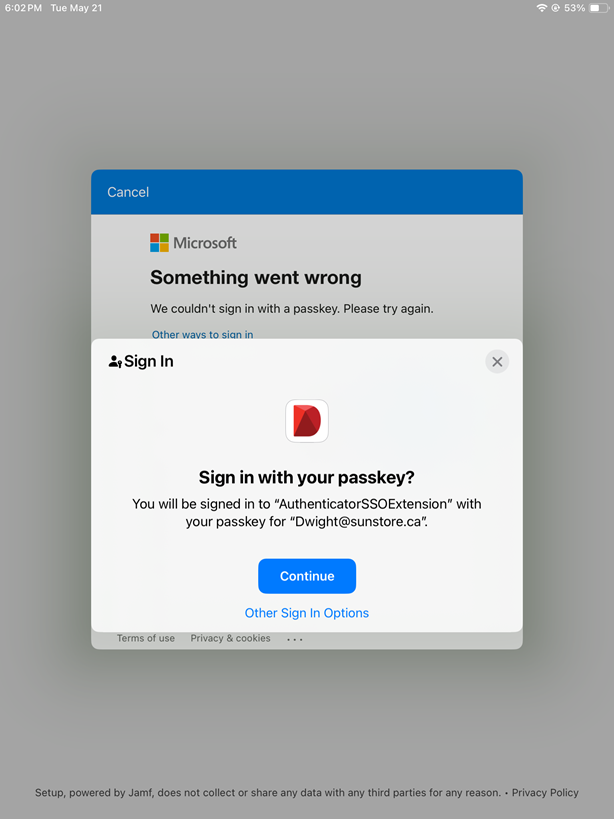
If your team doesn’t use Microsoft apps, this step won’t appear and the person goes straight to the home screen. See Set up a shared iPad for how it’s set up.
After sign-in
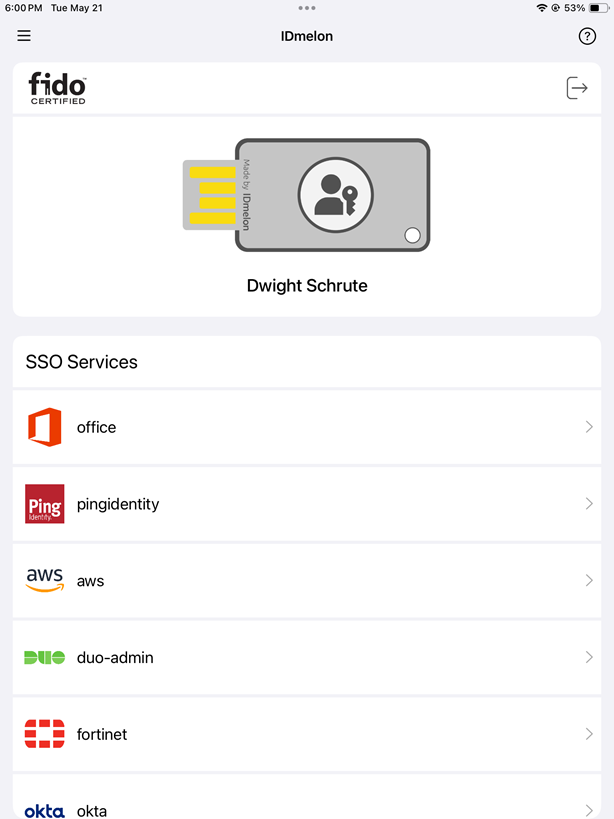
The person’s name shows at the top. The home screen holds the shortcut tiles you set, and tapping one opens that app or page as them. From here they work as themselves.
Signing out
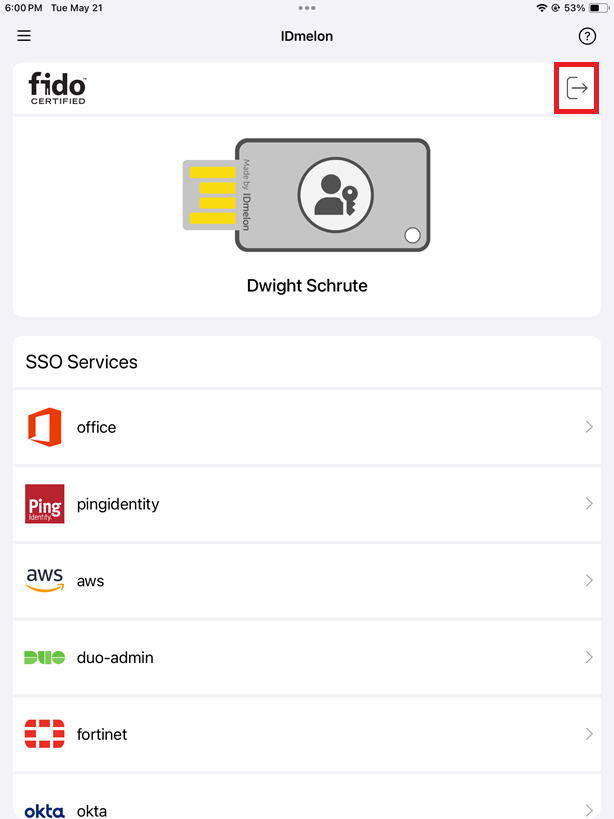
When the person is done, they sign out and the iPad returns to the waiting screen, ready for the next person. Some deployments also sign out on a timer, so the device clears itself even if someone walks away.
If any of these screens looks wrong — the app opens to the personal screen, the wrong sign-in prompt appears, or the name never shows — go back to Set up a shared iPad.