Troubleshooting
When something does not work.
Find your symptom, apply the fix. Each assumes you already pushed a managed app configuration from Intune and synced the device.
The app didn’t switch to shared mode
IDmelon Authenticator opens the normal personal screen, not the shared sign-in screen.
Cause: no api_key. Reading that key is the switch; there is no separate toggle.
Fix:
- Set
api_keyto a Shared Mobile key from the IDmelon Admin Panel. - Spell it exactly
api_key, all lowercase. - Push it in the Apple namespace
com.apple.configuration.managed; never author the internalIDmelonnamespace. - Re-sync and reopen the app.
See Configuration keys for the canonical value.
Activation failed or the device won’t register
The app reaches the shared screen but fails to activate or never finishes registering.
Cause: wrong base_api_url (on-premise only), or a stale device token.
Fix:
- Cloud: remove
base_api_urlentirely. Its absence is normal. - On-premise: set
base_api_urlto your server’s exact https URL. See Configuration keys. - Stale token: re-pair — remove and re-add the device record, then sync.
Badge or face login won’t start
No badge prompt, no camera prompt, or the wrong prompt appears.
Cause: shared_login_method doesn’t match the device; missing or malformed falls back to
badge/hub.
Fix:
- Pick the method. Badge/hub is the default (the tap arrives over the Hub, no iPad accessory); face uses the iPad camera, no reader.
- Paste the exact
shared_login_methodblock for that method. A wrong or malformed block silently falls back to badge/hub. - If you meant face but see a badge prompt, your face block is malformed — re-check
typeandmodel. - For badge/hub, confirm the reader feeding the Hub is powered and reachable.
See Login methods for every model and the exact block to paste.
Microsoft apps keep asking for a password
A user signs in to IDmelon, but Teams or Outlook still prompts for a Microsoft password.
Cause: Microsoft (MSAL) sign-in is off or misconfigured.
Fix:
- Set
use_msaltotrue— the on-switch for Microsoft sign-in. - Set
azure_client_idto your Entra app registration’s Application (client) ID, andazure_tenant_idto its Directory (tenant) ID. - Add the redirect URI
msauth.com.idmelon.idmelon-2://authto the Entra app registration. - Assign both SSO extension profiles — Microsoft Entra and IDmelon — to the device.
- Install Microsoft Authenticator — the MSAL flow depends on it.
Full walkthrough: Set up a shared iPad. Values: Configuration keys.
Sign-in ends with “client_assertion or client_secret” (AADSTS7000218)
The badge or face works, the Microsoft page accepts the person, and then sign-in fails.
The log shows AADSTS7000218: The request body must contain the following parameter: 'client_assertion' or 'client_secret'.
Cause: the Entra app registration is set up as a web app, so Microsoft asks the iPad for a client secret. A mobile app never has one.
Fix:
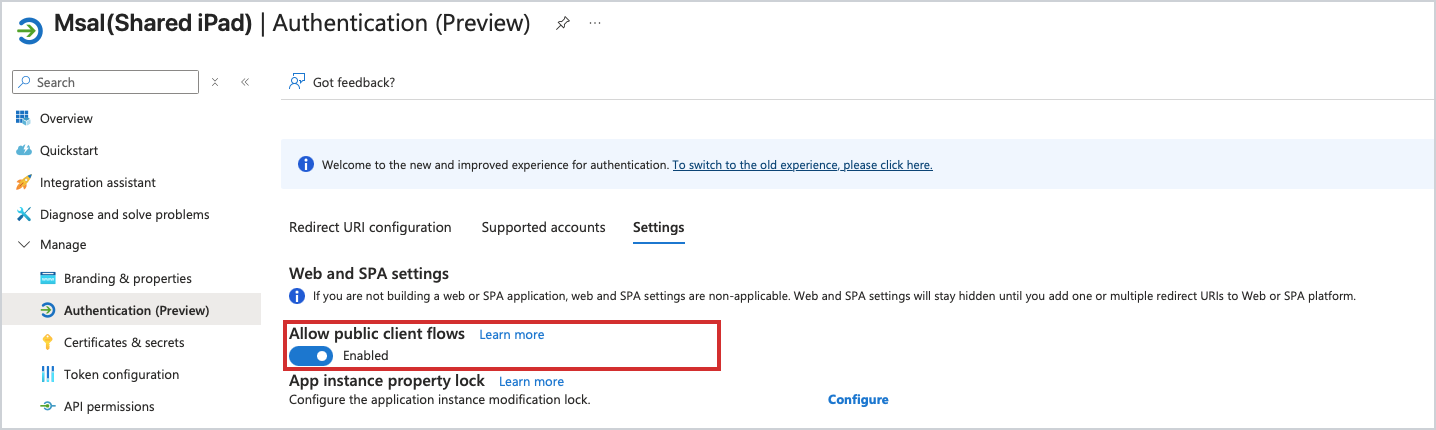
- In Microsoft Entra, open App registrations and select
the app whose id is in
azure_client_id. - Go to Authentication > Settings and turn Allow public client flows on. (Older portal view: Advanced settings > Allow public client flows.)
- On the same page, check
msauth.com.idmelon.idmelon-2://authis listed under the iOS / macOS platform and not under Web or Single-page application. - Re-sync the device and reopen IDmelon Authenticator.
Sign-in stops on a consent or “Need admin approval” screen
The Microsoft page asks the user to approve permissions, and nobody can.
Cause: admin consent was never granted on the app registration.
Fix:
- Open the app registration’s API permissions.
- Confirm the four Microsoft Graph delegated permissions are there:
openid,profile,email,User.Read. - Select Grant admin consent and confirm every row turns green.
The Microsoft flow doesn’t act shared
Sign-in works, but the account sticks between users.
Cause: Microsoft Authenticator is not in shared-device mode. This flag lives on the Microsoft Authenticator app config, not IDmelon.
Fix:
- In Intune, open the app configuration policy targeting Microsoft Authenticator (a separate policy from the IDmelon one).
- Set
sharedDeviceModeto Boolean true — a real Boolean, not the string"true". - Re-sync the device.
A shortcut tile opens the wrong thing
A home-screen tile opens the wrong site, a broken link, or a generic sign-in.
Cause: the tile’s url is wrong, or its token is misspelled so it isn’t substituted.
Fix:
- Open the
shortcut_listentry and check theurl. - Use a supported token, spelled exactly:
{email},{username},{name},{realm},{organization},{tenantID}— for examplehttps://myapps.microsoft.com/?login_hint={email}. - Re-sync and tap the tile again.
See Home page Customization for the full tile format and token list.
Unenrolled users get stuck
A person who has never enrolled taps to sign in and hits a dead end.
Cause: self_service_url is missing or points at a workflow that doesn’t exist.
Fix:
- In the IDmelon Admin Panel, create the self-service enrollment workflow.
- Copy its URL into
self_service_url. See Configuration keys. - Confirm the URL loads in a browser before pushing it.
Still stuck — send logs to support
- On the iPad, open IDmelon Authenticator and use Share log to export the log file.
- Send it to support with the device’s values: which managed app configuration the iPad
has, the
shared_login_methodyou set, whetheruse_msalis on, and whether the device is cloud or on-premise.