Set up a shared iPad
Get one iPad working, start to finish.
This page takes a blank enrolled iPad to a working shared device with Microsoft sign-in, the default for most teams. By the end, a person can walk up, tap their badge, reach the home screen, and open Teams or Outlook without a second login.
Most teams connect Microsoft sign-in so Teams, Outlook, and My Apps open as the same person, and it’s included in the steps below. If your users never open Microsoft apps, skip the steps marked Microsoft and leave the
use_msal,azure_client_id, andazure_tenant_idlines out of the payload in Step 4.
Before you start
- The iPad runs iPadOS 17 or later and is already enrolled in Microsoft Intune (supervised recommended).
- For Microsoft sign-in: when you enroll the iPad, set its Enrollment type (User Affinity) to Enroll with Microsoft Entra ID shared mode.
- IDmelon Authenticator is in your Intune app catalog.
- You can sign in to the IDmelon Admin Panel and Microsoft Intune — or you can ask someone who can.
- For Microsoft sign-in: you can also sign in to Microsoft Entra, and Microsoft Authenticator is in your Intune app catalog.
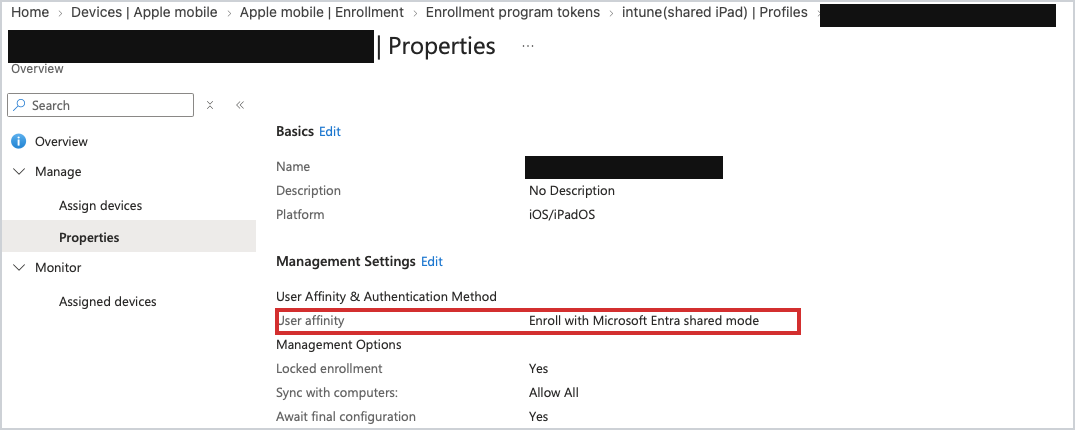
Set Shared iPad to No in your Intune enrollment policy. Microsoft doesn’t support using it together with Microsoft sign-in, and turning it off later means factory-resetting every iPad.
The same goes for user affinity itself: Microsoft doesn’t allow it to be changed on an existing enrollment policy, so get it right before you enroll.
Step 1 — Create your Shared Mobile API key
The Shared Mobile API key is what makes the app a shared device; there’s no separate “shared mode” switch to flip.
- Open the IDmelon Admin Panel.
- Go to Authentication > API Key Management.
- Click + New API Key.
- Name it something you’ll recognize, like
Shared iPads. - Set Type to Shared Mobile.
- Create the key and copy it somewhere safe.
For more detail, see API Key Management.
Step 2 — Microsoft — Register the iPad app in Microsoft Entra
(skip if your team doesn’t use Microsoft apps)
This tells Microsoft to trust sign-ins coming from IDmelon on the iPad.
Open Microsoft Entra and go to App registrations > New registration.
Give it a name you’ll recognize, like
IDmelon Shared iPad.Under Redirect URI, choose Mobile and desktop applications and enter:
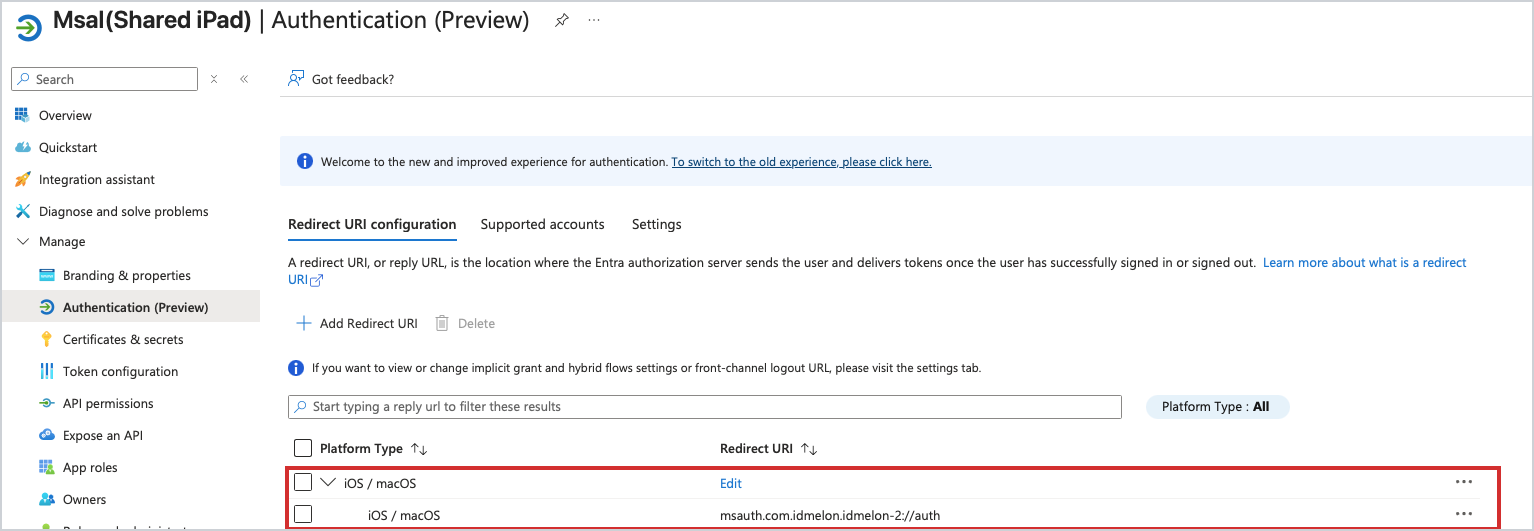
msauth.com.idmelon.idmelon-2://authRegister the app.
Open Authentication and check the redirect URI is listed under the iOS / macOS platform. It must not also appear under Web or Single-page application.
Still in Authentication, open the Settings tab and turn Allow public client flows on. (On the older portal view: Advanced settings > Allow public client flows.)
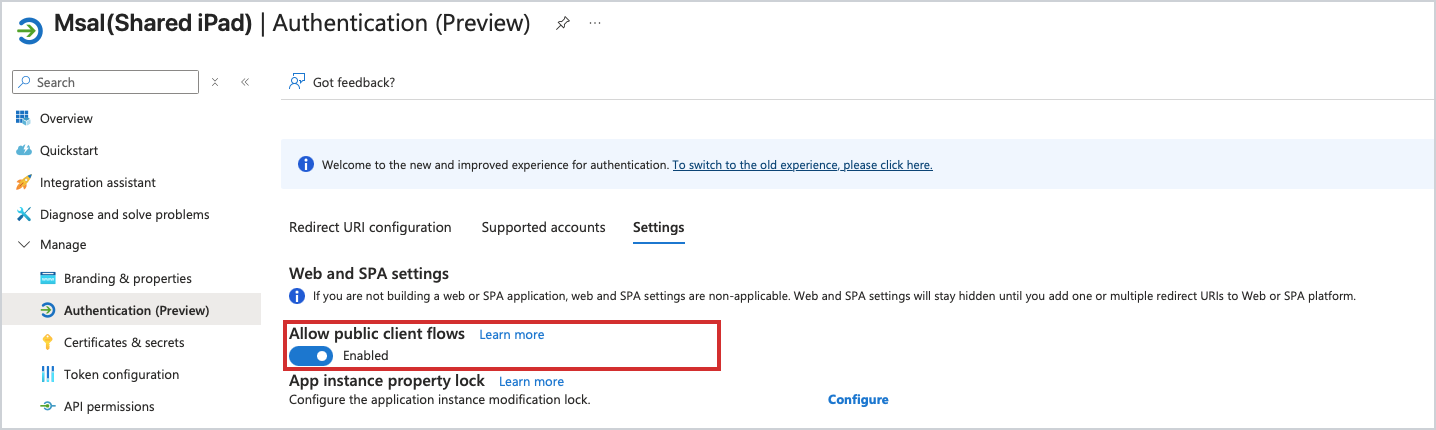
Leave this off and sign-in fails at the last step with
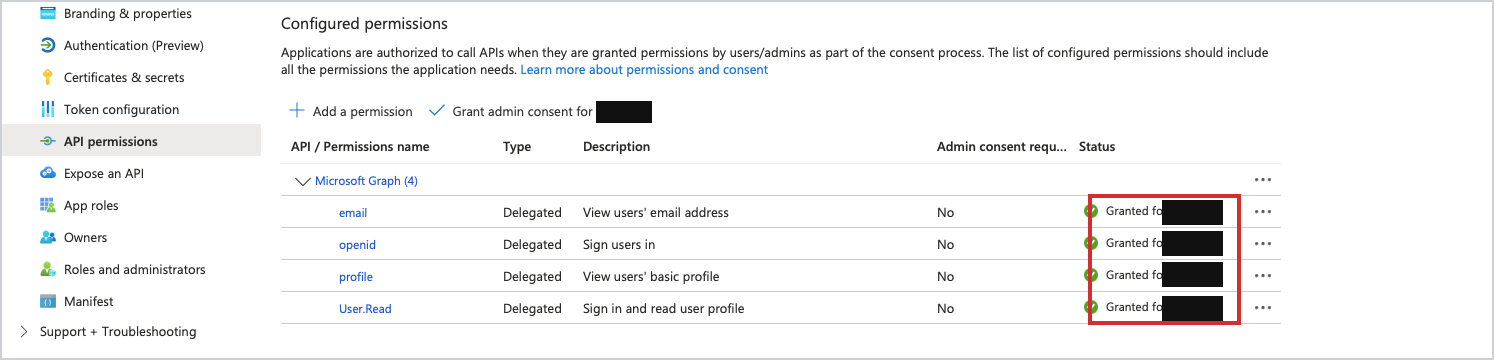
AADSTS7000218. The iPad app is a mobile app, so Microsoft has to be told not to ask it for a client secret. See Troubleshooting.Open API permissions and add these four Microsoft Graph delegated permissions:
Permission Why it’s needed openidLets people sign in with their Microsoft account. profileTells the app who signed in. emailAdds the person’s email address to their sign-in details. User.ReadLets the app read the signed-in person’s own profile, nobody else’s. Then select Grant admin consent. You approve once here, so users never see a permission prompt — nobody can approve one on a shared device.
On the app’s Overview, copy the Application (client) ID and the Directory (tenant) ID, and keep both for Step 4.
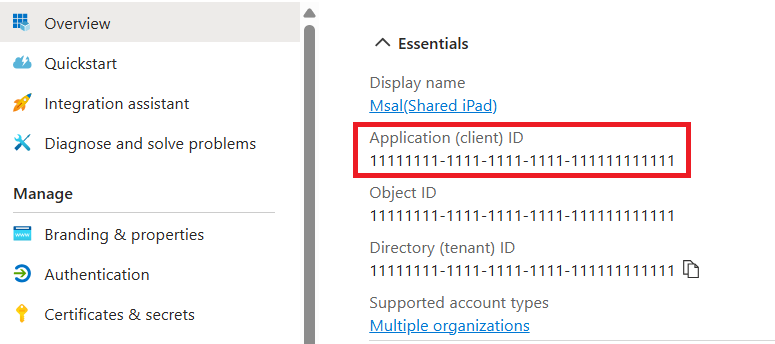
Use the IDs from your own app registration. Don’t copy the ones in the screenshot.
Step 3 — Add the apps in Intune
- Sign in to Microsoft Intune.
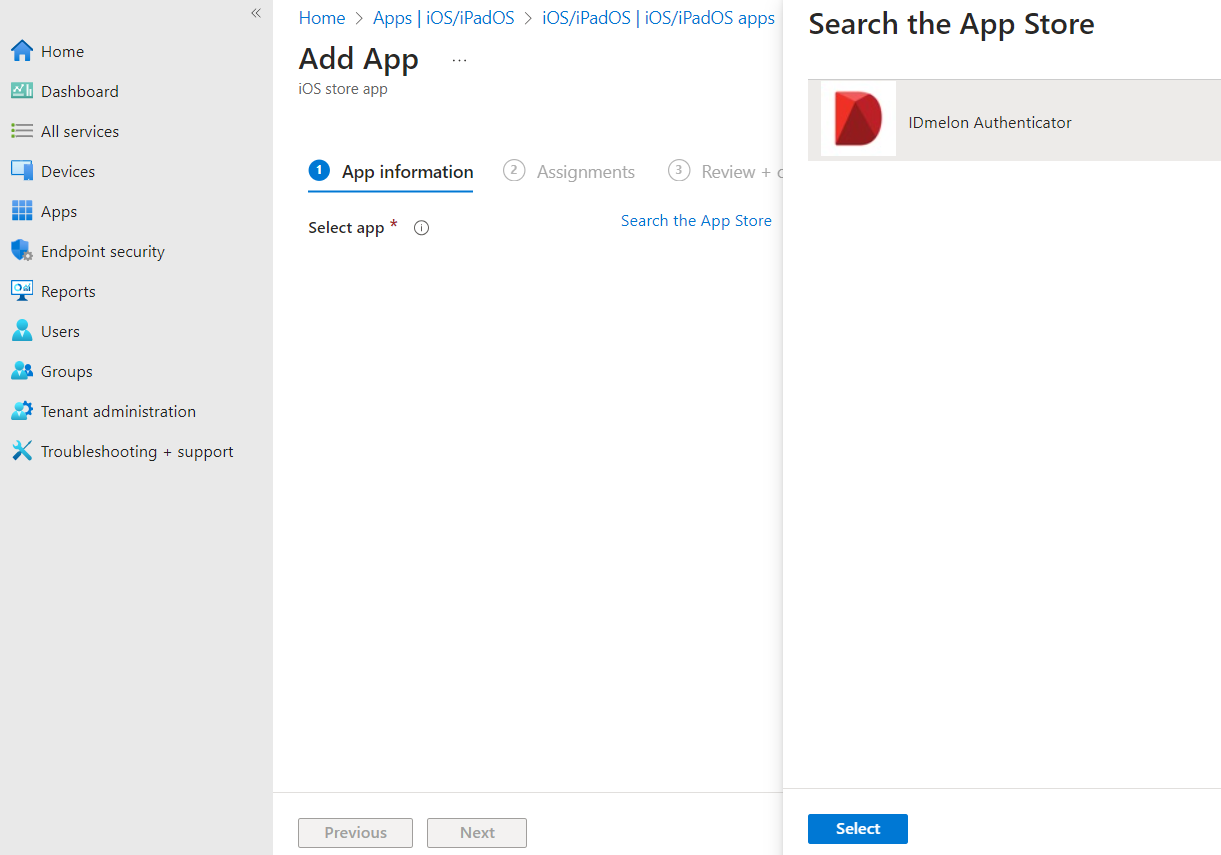
- Go to Apps > iOS/iPadOS and add IDmelon Authenticator as an iOS store app.
- Microsoft: add Microsoft Authenticator the same way. Microsoft sign-in runs through it, so it must be on the device. (Skip it only if your team doesn’t use Microsoft apps.)
- Assign both apps to the device group that holds your shared iPads, with assignment type Required so they install without anyone signing in. Microsoft Authenticator has to be the volume-purchased (Apple VPP) copy for that to work.
Step 4 — Push the settings
Now send the app its settings as a managed app configuration.
- In Intune, go to Apps > Configuration > Create > Managed devices.
- Set Platform to iOS/iPadOS and select IDmelon Authenticator as the target app.
- Set Configuration settings format to Enter XML data.
- Paste the payload below.
- Set
api_keyto the key from Step 1. Setazure_client_idto the Application (client) ID andazure_tenant_idto the Directory (tenant) ID, both from Step 2. - Assign the policy to the same device group, then review and create.
<dict>
  <key>api_key</key>
  <string>YOUR_API_KEY</string>
  <key>azure_client_id</key>
  <string>YOUR_CLIENT_ID</string>
  <key>azure_tenant_id</key>
  <string>YOUR_TENANT_ID</string>
  <key>shared_device_passkeys</key>
  <true/>
  <key>shared_authentication_backend</key>
  <string>legacy</string>
  <key>shared_login_method</key>
  <dict>
    <key>type</key>
    <string>badge</string>
    <key>model</key>
    <string>auto</string>
  </dict>
  <key>shortcut_list</key>
  <array>
    <dict>
      <key>iconName</key>
      <string>teams</string>
      <key>title</key>
      <string>Teams</string>
      <key>url</key>
      <string>msteams://</string>
    </dict>
    <dict>
      <key>iconName</key>
      <string>outlook</string>
      <key>title</key>
      <string>Outlook</string>
      <key>url</key>
      <string>ms-outlook://</string>
    </dict>
    <dict>
      <key>iconName</key>
      <string>myapps</string>
      <key>title</key>
      <string>My Apps</string>
      <key>url</key>
      <string>https://myapps.microsoft.com/?login_hint={email}</string>
    </dict>
  </array>
  <key>use_msal</key>
  <true/>
</dict>
Change only the highlighted values — leave every other line exactly as it is.
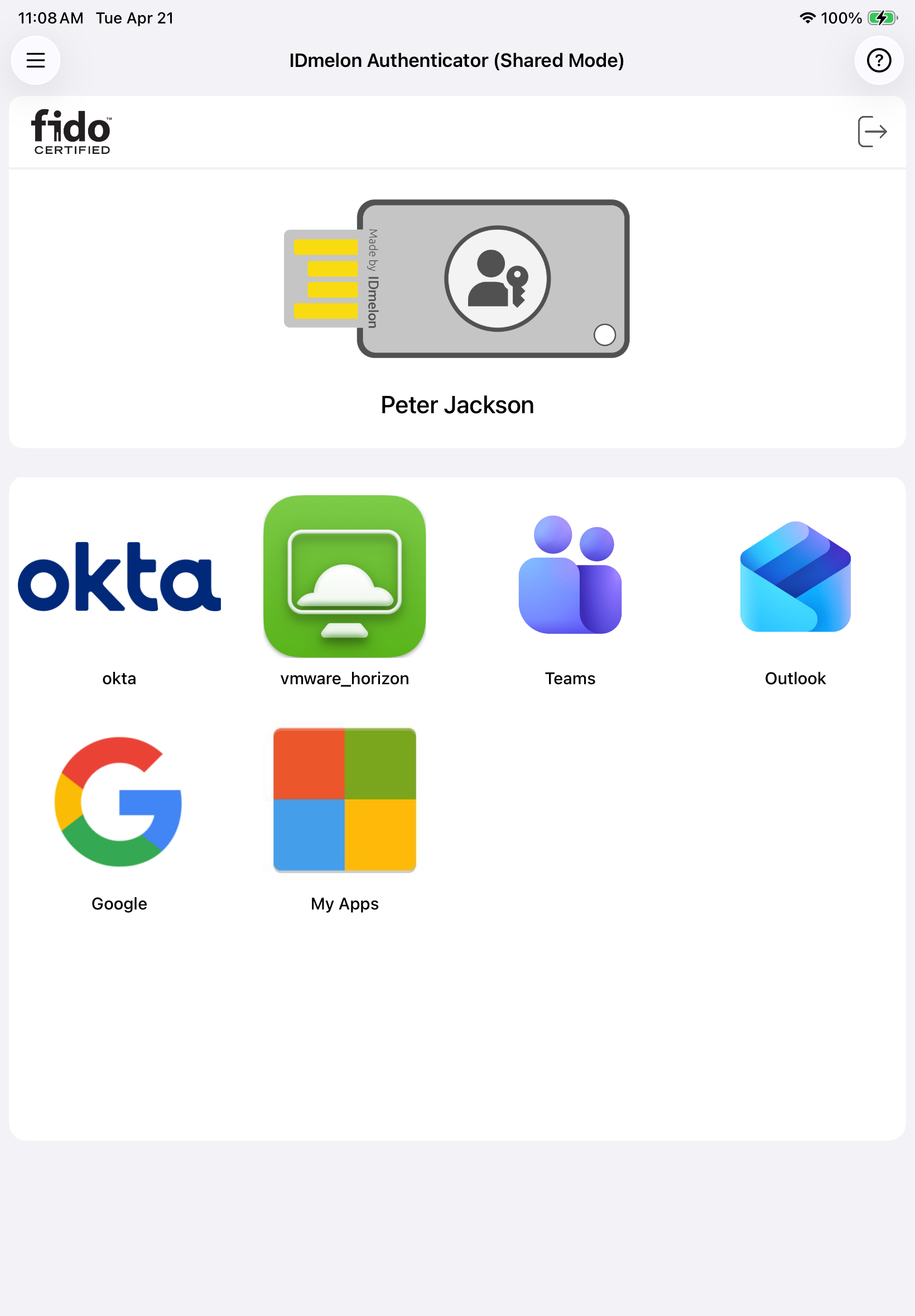
This default config also adds three home-screen shortcuts — Teams, Outlook, and My Apps — so people have somewhere to tap right after signing in. See Home page Customization to change or add tiles.
Sign-in defaults to badge. To use face or another method, see Login methods.
Not using Microsoft apps? Remove the
use_msal,azure_client_id, andazure_tenant_idlines; keep the rest.Running IDmelon on-premise? You’ll also add
base_api_url. See Configuration keys.
Step 5 — Microsoft — Create the SSO extension profiles in Intune
(skip if your team doesn’t use Microsoft apps)
Single sign-on lets a signed-in session pass between apps, so users don’t authenticate again in each one. Create two Device features profiles — one for Microsoft, one for IDmelon. Both are device configuration profiles (not app configurations), and both go to your shared-iPad device group.
Microsoft Entra SSO extension
- Go to Devices > Configuration > Create > New policy.
- Set Platform to iOS/iPadOS and Profile type to Templates > Device features.
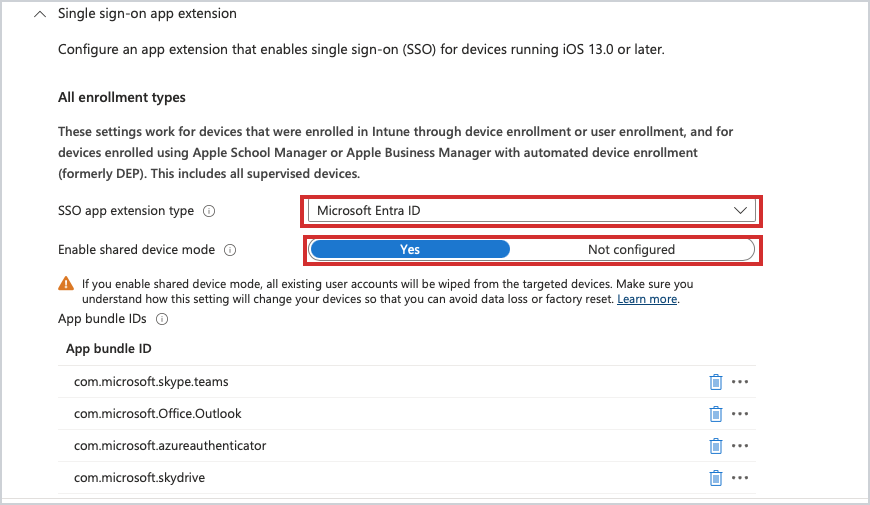
- Open Single sign-on app extension and set:
- SSO app extension type: Microsoft Entra ID
- Enable shared device mode: Yes
- Under App bundle IDs, add the apps that share the sign-in. These are common
examples — add any other Microsoft apps your team uses:
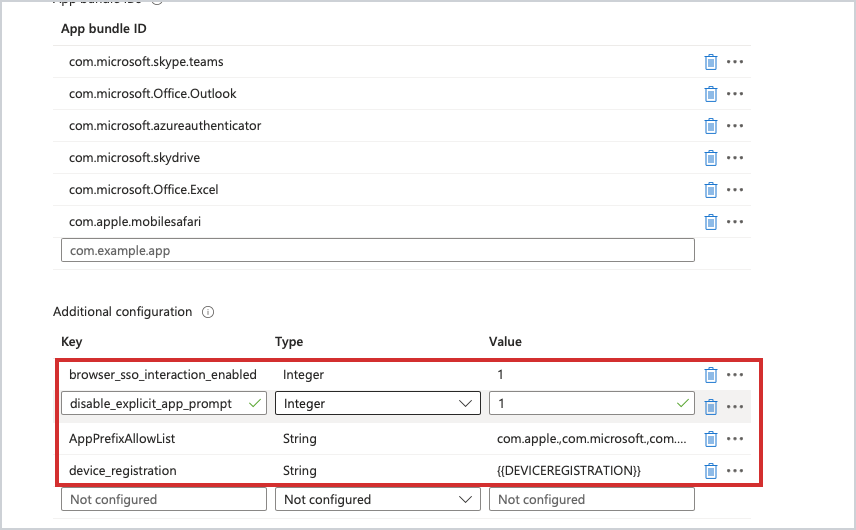
com.microsoft.skype.teamscom.microsoft.Office.Outlookcom.microsoft.azureauthenticatorcom.apple.mobilesafari
- Under Additional configuration, add:
browser_sso_interaction_enabled(Integer) =1disable_explicit_app_prompt(Integer) =1AppPrefixAllowList(String) =com.apple.,com.microsoft.,com.idmelon.device_registration(String) ={{DEVICEREGISTRATION}}
- Assign the profile to your shared-iPad device group, then review and create.
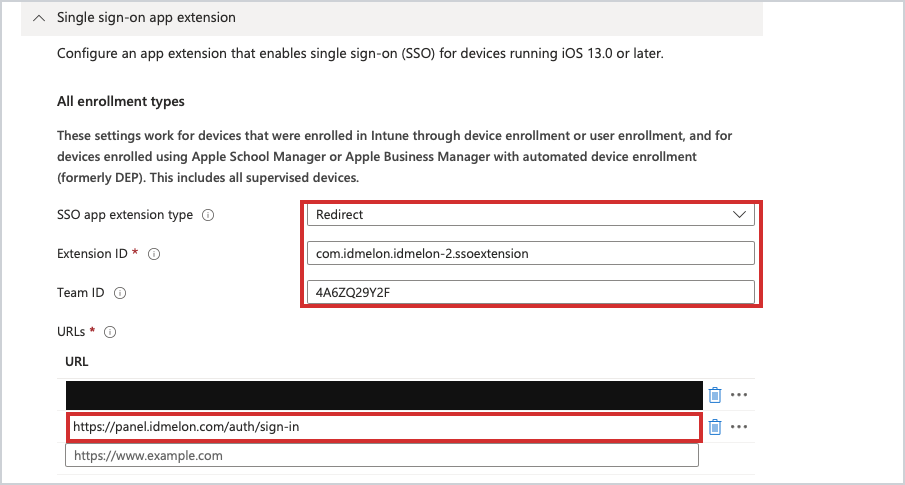
IDmelon SSO extension
Create a second Device features profile for IDmelon.
- Go to Devices > Configuration > Create > New policy, iOS/iPadOS, then Templates > Device features.
- Open Single sign-on app extension and set:
- SSO app extension type: Redirect
- Extension ID:
com.idmelon.idmelon-2.ssoextension - Team ID:
4A6ZQ29Y2F
- Under URLs, add:
https://panel.idmelon.com/auth/sign-in
- Assign the profile to your shared-iPad device group, then review and create.
Step 6 — Microsoft — Set Microsoft Authenticator to shared device mode
(skip if your team doesn’t use Microsoft apps)
You added Microsoft Authenticator in Step 3. Now switch it to shared device mode with its own app configuration.
- Go to Apps > Configuration > Create > Managed devices.
- Set Platform to iOS/iPadOS and target Microsoft Authenticator.
- Add one configuration key:
sharedDeviceMode(Boolean) =true. - Assign it to your shared-iPad device group, then review and create.
This goes on Microsoft Authenticator, not IDmelon Authenticator. They are two separate apps with two separate configurations.
Step 7 — Test on the iPad
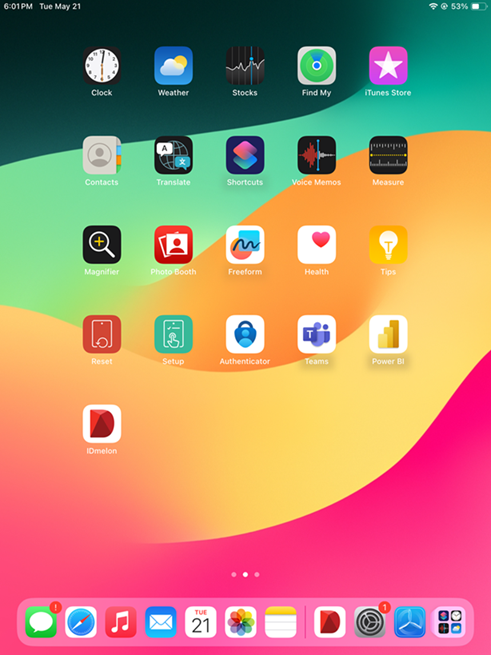
- Open IDmelon Authenticator on a synced iPad and confirm it opens into shared mode.
- Tap your badge to sign in and reach the home screen.
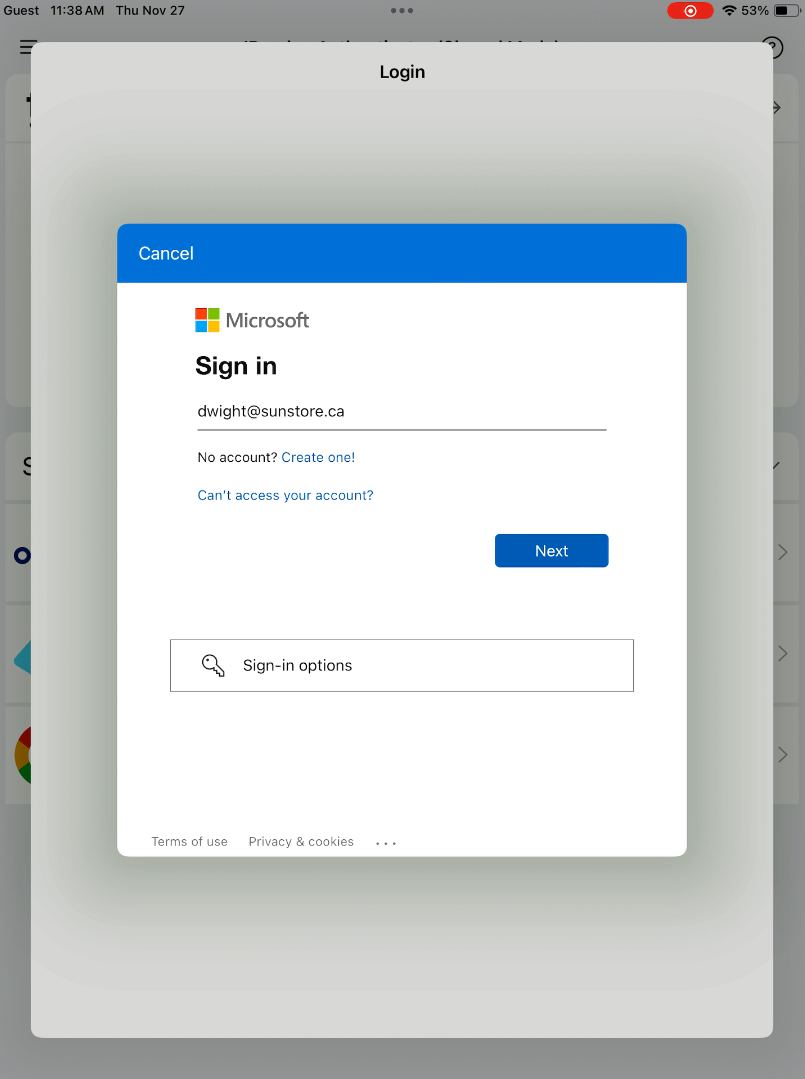
- Microsoft: open Teams or Outlook and confirm it opens as you, with no second password prompt.
What’s next
See User Experience for what a healthy device looks like day to day. If something didn’t work, see Troubleshooting.