Password Autofill
Fill saved usernames and passwords into apps and websites on shared Android devices
Password autofill lets users sign in to apps and websites without typing their username and password. After a user signs in to IDmelon Authenticator, Android shows their saved credentials on sign-in pages. The user picks an account, and IDmelon Authenticator fills in the username and password.
Password autofill works on every Android version the app supports (Android 8+). On Android 14 and later, users can also sign in with passkeys.
How it works
- The user signs in to IDmelon Authenticator by tapping a badge or with face authentication.
- The user opens an app or website and taps the username or password field.
- Android shows the user’s saved credentials for that app or website.
- The user selects a credential, and IDmelon Authenticator fills in the username and password.
- The user submits the sign-in form.
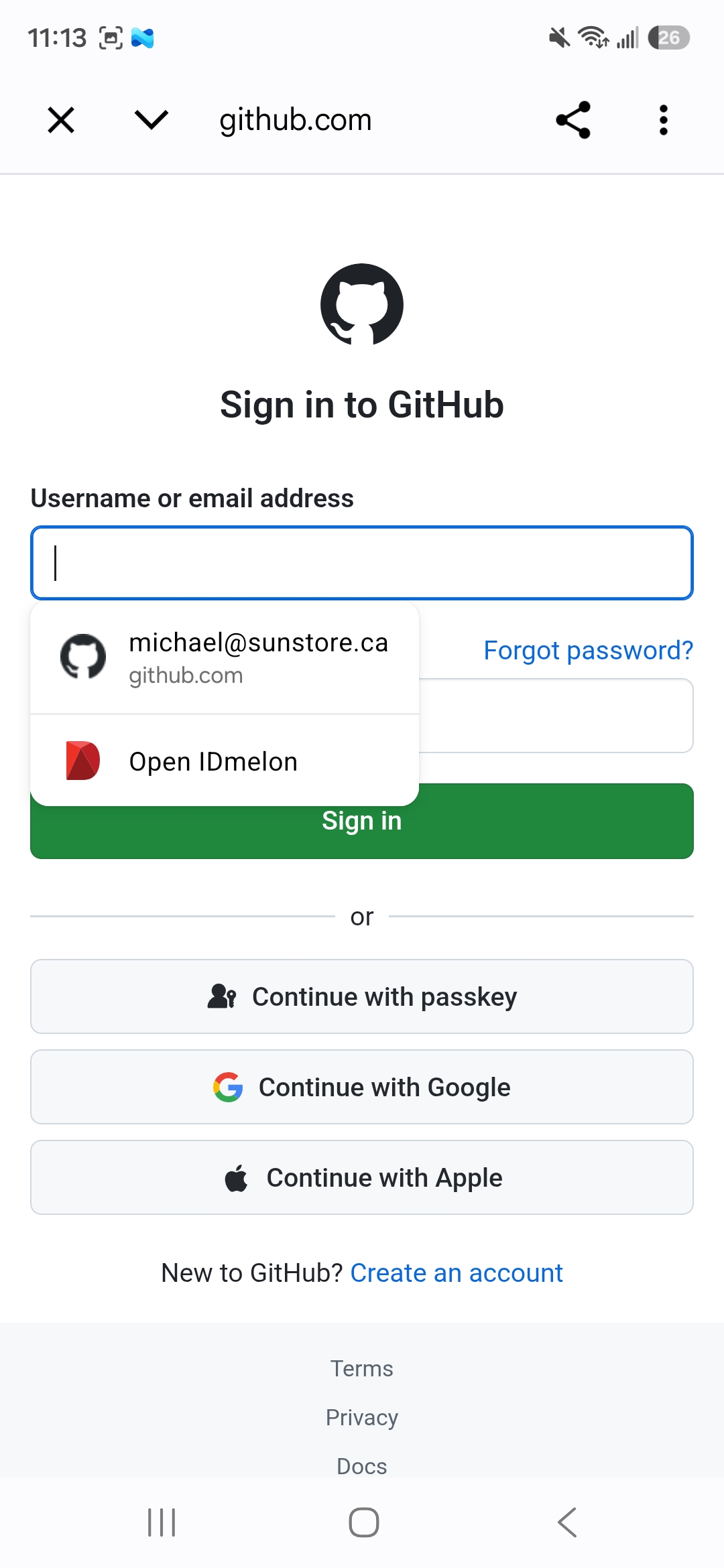
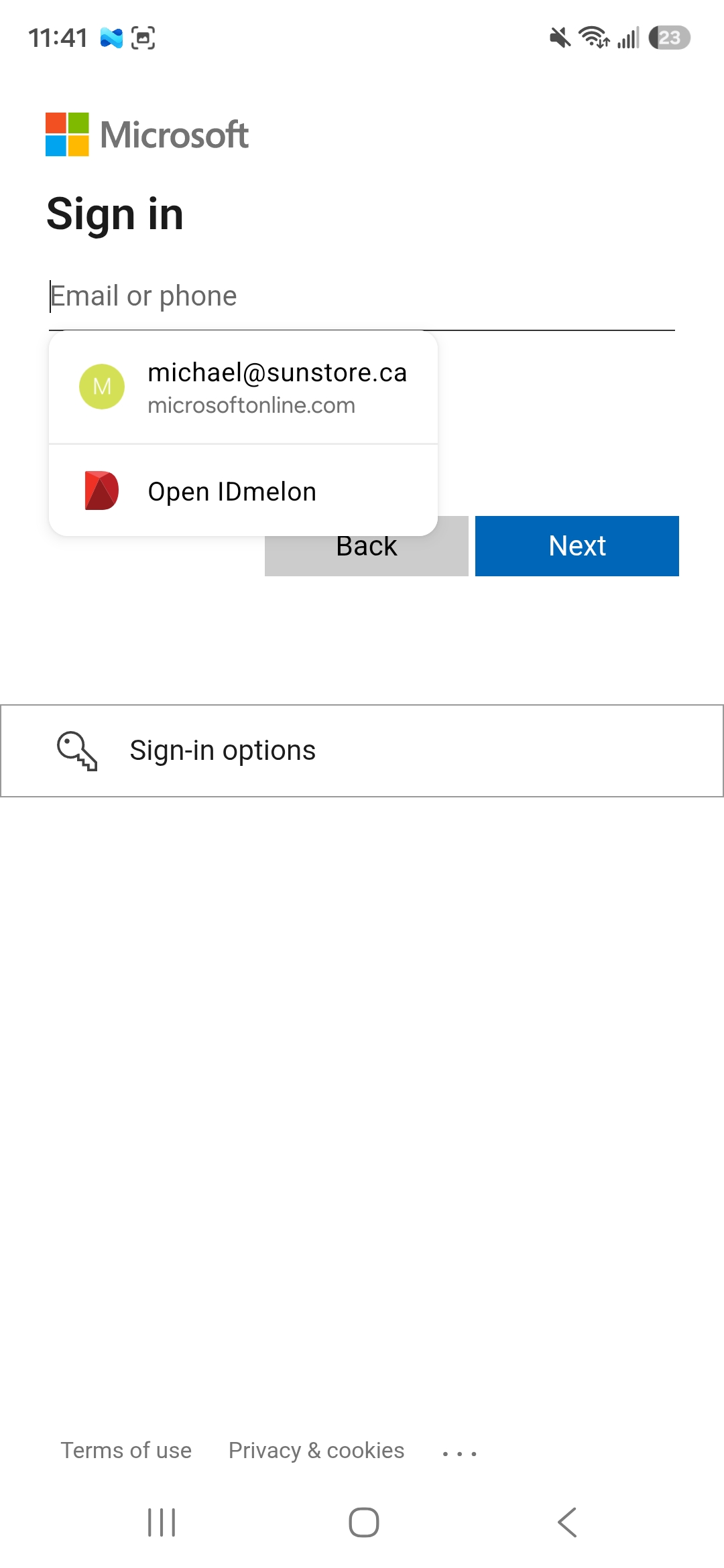
If the user has no saved password for that app or website, IDmelon Authenticator suggests the user’s email address for the username field instead.
Suggestions are tied to the user’s session. They stop when the user signs out of IDmelon Authenticator, or when the
session reaches the auto_logout time limit set in the
app configuration, whichever
comes first. To get suggestions back, the user signs in again. The next user who signs in sees only their own
passwords.
Where saved passwords come from
- Added by an administrator — you add passwords for a user in the IDmelon Panel. The user never has to type them.
- Saved by the user — when a user types a username and password to sign in, Android offers to save them to IDmelon Authenticator. If the user types a new password for an account that is already saved, IDmelon Authenticator updates it.
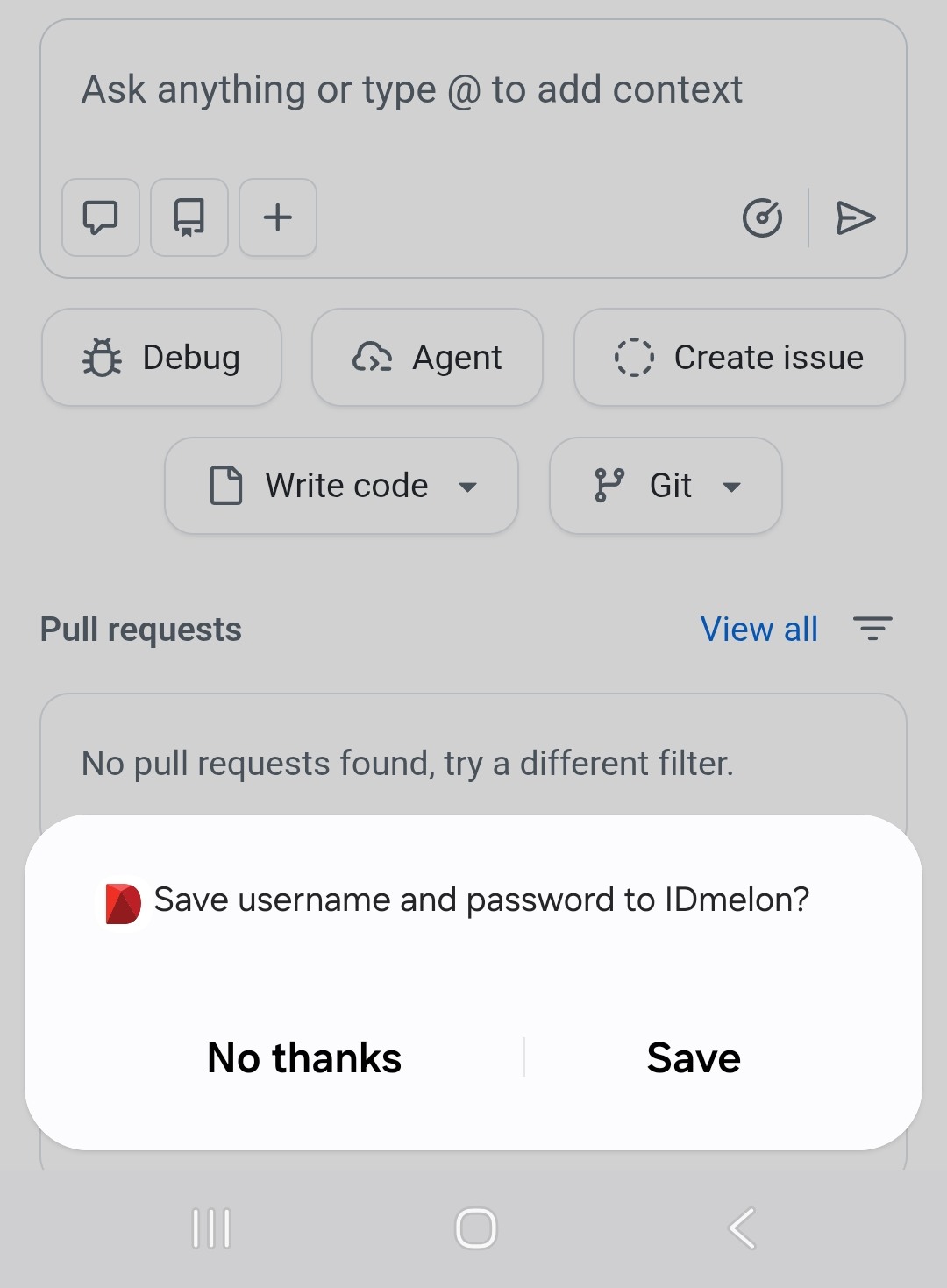
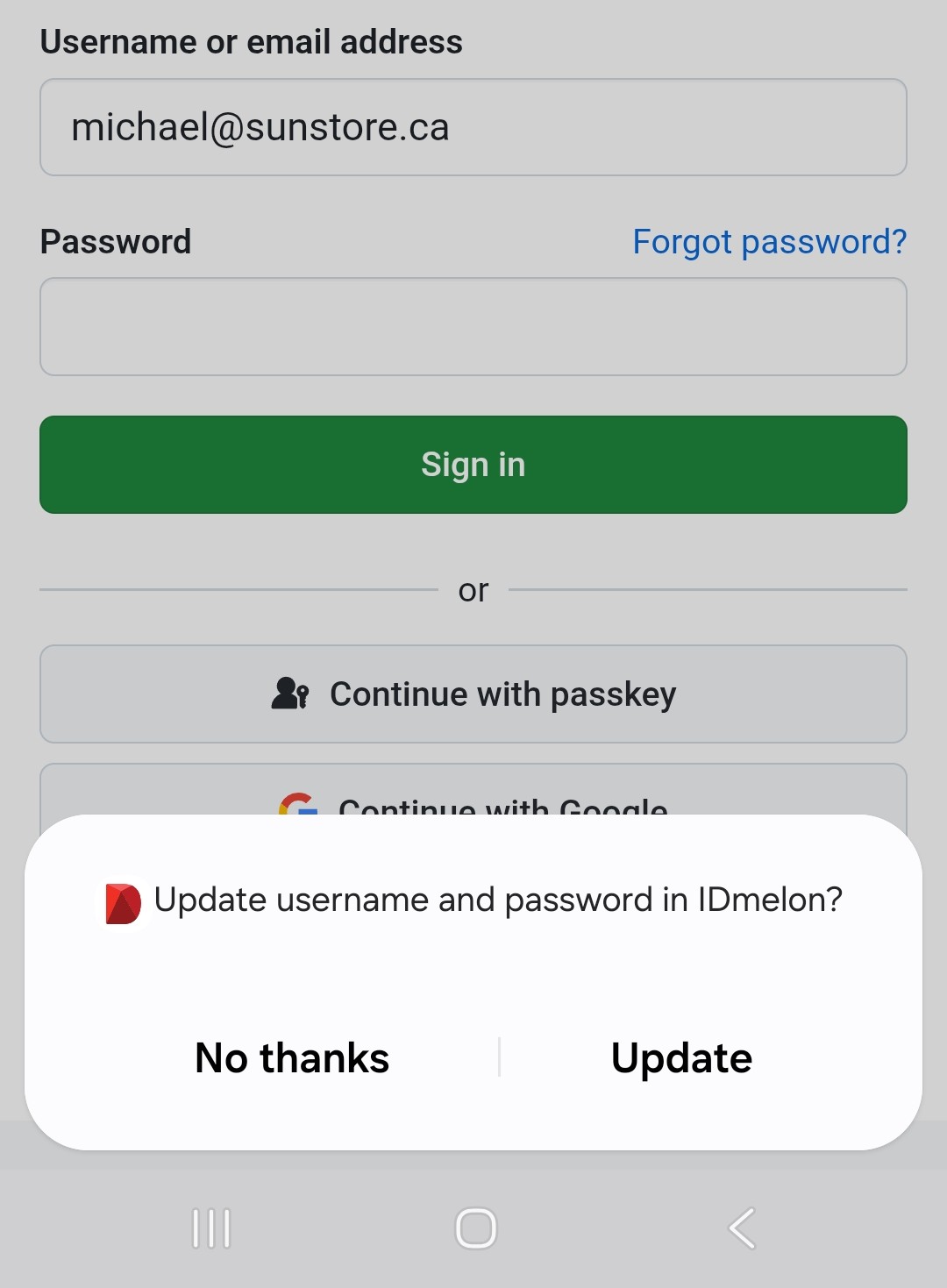
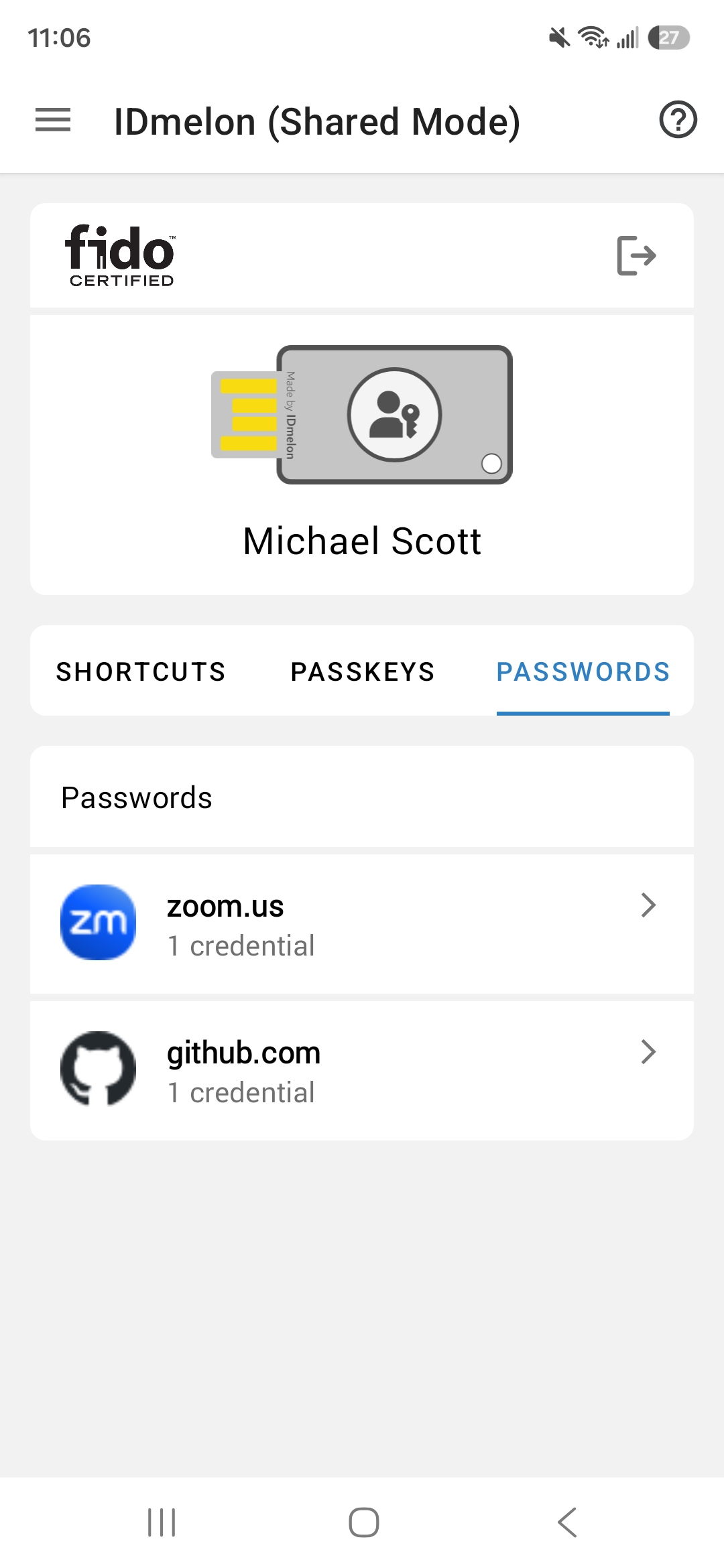
Users can see their saved passwords on the Passwords tab in IDmelon Authenticator.
Before you start
- Shared devices running Android 8.0 or later.
- IDmelon Authenticator deployed and configured in Shared Device Mode. See Deploy and Configure IDmelon Authenticator.
- An internet connection on the device, so IDmelon Authenticator can load the user’s passwords and save new ones.
Turn on password autofill
Android uses one autofill service at a time. Make IDmelon Authenticator that service on each device while you stage it, before you hand the device over to users.
Step 1 — Set IDmelon Authenticator as the autofill service
- Open IDmelon Authenticator on the device.
- Tap Tap here to complete setup, then select Autofill service.
- In the Android prompt, confirm IDmelon Authenticator as the autofill service.
- Return to the app. A check mark next to Autofill service shows that it is turned on.
If the Tap here to complete setup banner does not appear, setup is already complete.
Step 2 — Allow autofill in Chrome
To allow autofill in Chrome:
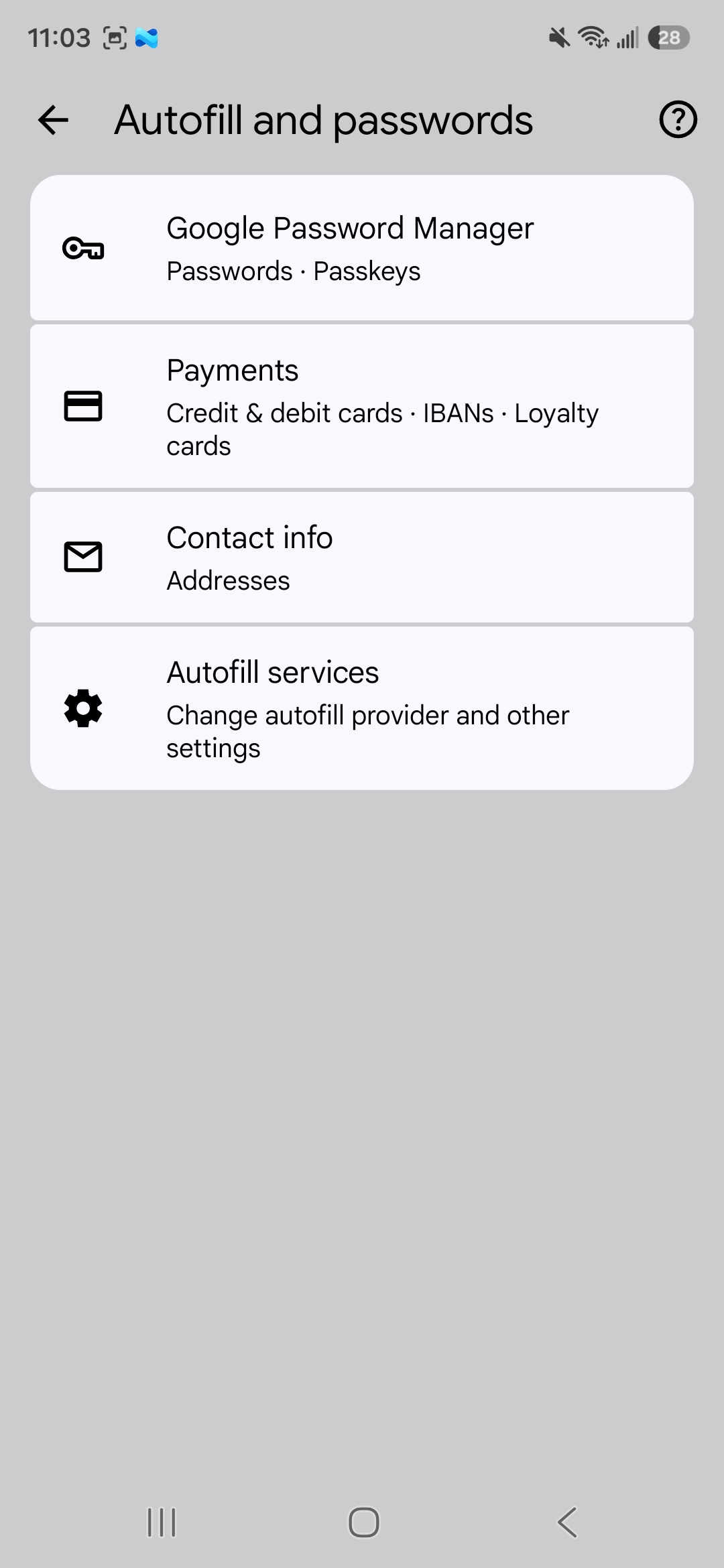
- Open Chrome and go to Settings > Autofill and passwords > Autofill services.
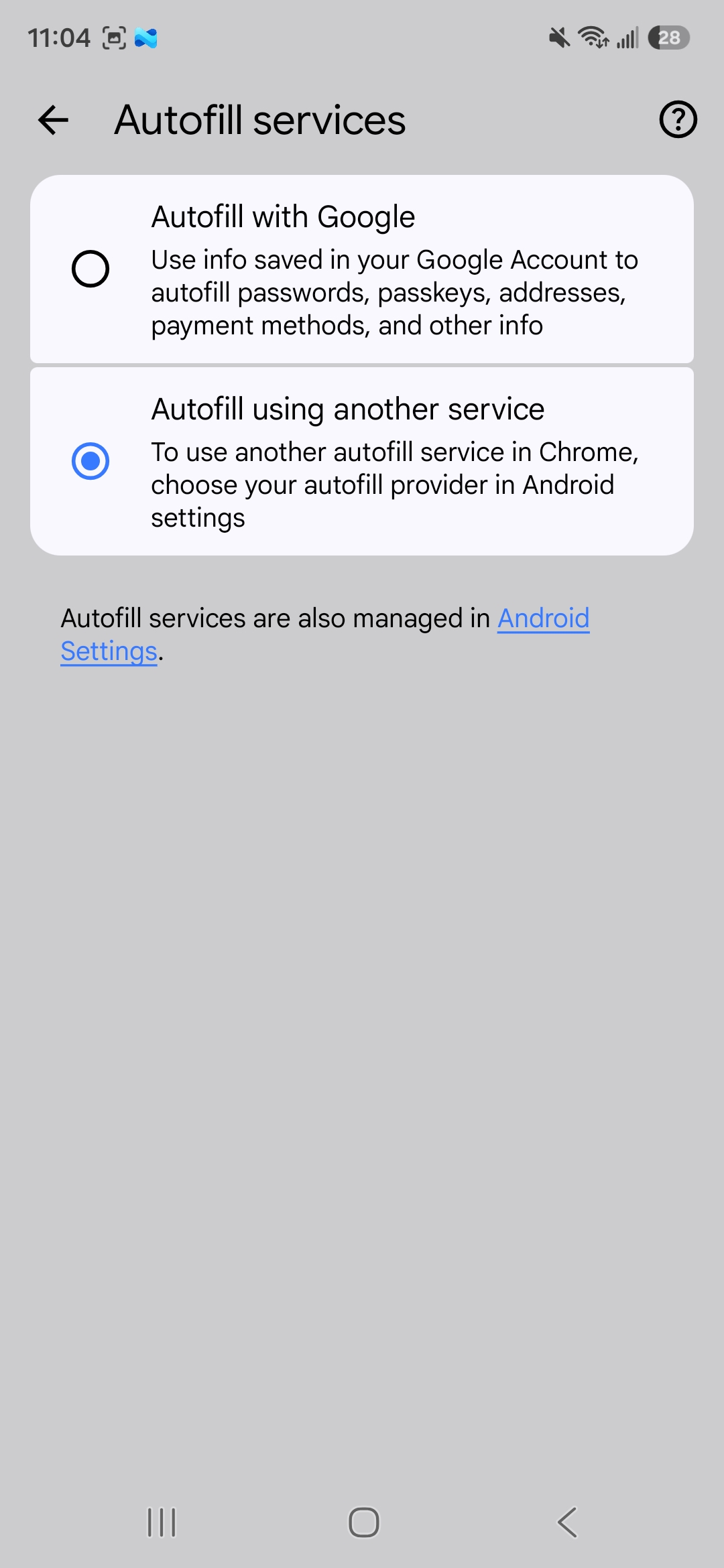
- Select Autofill using another service.
- Restart Chrome if it asks you to.
What is supported
Apps and websites
| Where the user signs in | Fill saved passwords | Save new or changed passwords |
|---|---|---|
| Websites in Chrome and other supported browsers | Yes | Yes |
| Websites in Microsoft Edge | Yes, on Android 9 and later | No |
| Android apps | Yes, if the app is linked to its website | Yes, if the app is linked to its website |
Password autofill is tested in Chrome, Firefox, Brave, Vivaldi, Opera Mini, and Microsoft Edge.
Websites. A saved password is offered on every page of the same website. For example, a password saved for
example.com is also offered on login.example.com. Some services sign users in across several domains — Microsoft,
for example, uses both microsoftonline.com and live.com. IDmelon Authenticator treats these related domains as
one website.
Android apps. IDmelon Authenticator fills a password into an app only when it can confirm that the app belongs to the website the password was saved for. This is the case when:
- the website officially lists the app as its own, using Android’s Digital Asset Links, or
- the app is on IDmelon’s list of trusted apps, such as Microsoft Teams, Outlook, and other Microsoft 365 apps.
Android versions
| Android version | What is supported |
|---|---|
| 8.0 and 8.1 | Filling and saving passwords in apps and browsers. Microsoft Edge is not supported. |
| 9 | Adds filling in Microsoft Edge. |
| 10 and later | Adds reliable saving for sign-ins that ask for the username and password on separate screens. |
On Android 9 and earlier, when a sign-in asks for the username and password on separate screens, users may have to type the username again to save the password.
Limitations
- Microsoft Edge cannot save passwords. Users can fill saved passwords in Edge, but Edge does not offer to save new or changed ones. Add the passwords users need in Edge through the IDmelon Panel.
- Not every app is supported. An app only gets suggestions if it is linked to its website. A password that works on a website may not be offered in that website’s app.
- Not every sign-in page is recognized. Pages that use custom or unusual fields may not show suggestions.
- Saving needs a connection. Saving fails if the device is offline or the user is not signed in to IDmelon Authenticator.
- Usernames and passwords only. Password autofill does not fill one-time codes, payment cards, or addresses, and it does not generate new passwords. It also does not submit the sign-in form or complete multi-factor authentication for the user.
Troubleshooting
| Symptom | What to check |
|---|---|
| No suggestions appear | IDmelon Authenticator must be set as the autofill service, and the user must be signed in with a password saved for that app or website. |
| Suggestions stop appearing after a while | The session has reached the auto_logout time limit. The user must sign in to IDmelon Authenticator again. |
| Chrome shows its own saved passwords instead | In Chrome, go to Settings > Autofill and passwords > Autofill services and select Autofill using another service. |
| Suggestions appear on the website but not in the app | The app is not linked to its website. See Apps and websites. |
| Suggestions disappear while typing | Suggestions appear only while the field is empty. Clear the field and tap it again. |
| Edge does not offer to save a password | This is expected. Add the password in the IDmelon Panel instead. |
| Saving fails | Check that the device is online and that the user is signed in to IDmelon Authenticator. |