Overview
Deploy IDmelon Authenticator in Shared Device Mode on Android devices managed with Microsoft Intune
Shared Device Mode turns an Android device into a shared workstation. The device belongs to the organization rather than to one person: each user signs in by tapping a badge or with face authentication, works from the shortcuts you publish, and leaves a clean session behind for the next user.
This section covers that deployment with Microsoft Intune, from an unenrolled device to a working shared device.
What users get on a shared device
- Sign in to the device by tapping a badge or with face authentication, and leave a clean session behind for the next person.
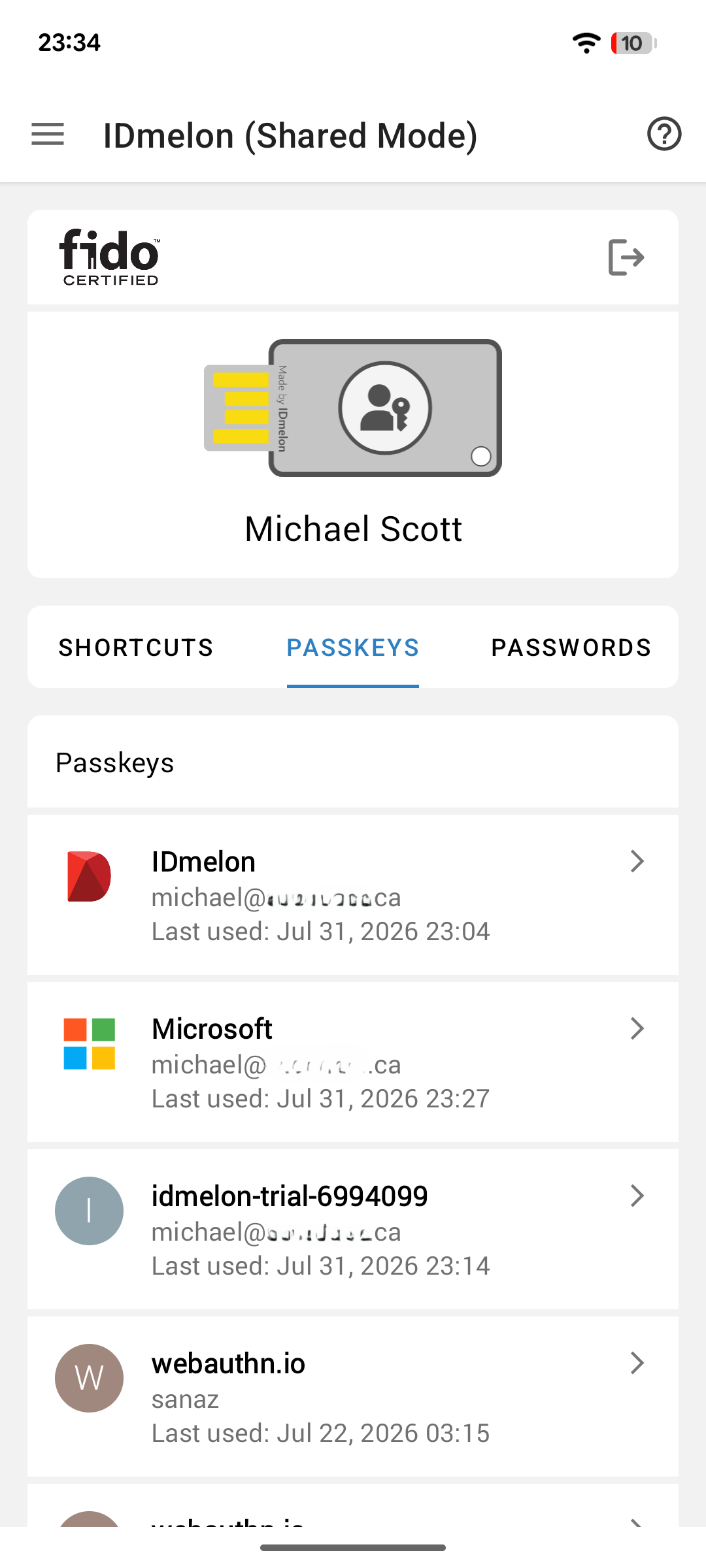
- Sign in to apps and websites with their passkeys, or by autofilling their saved passwords.
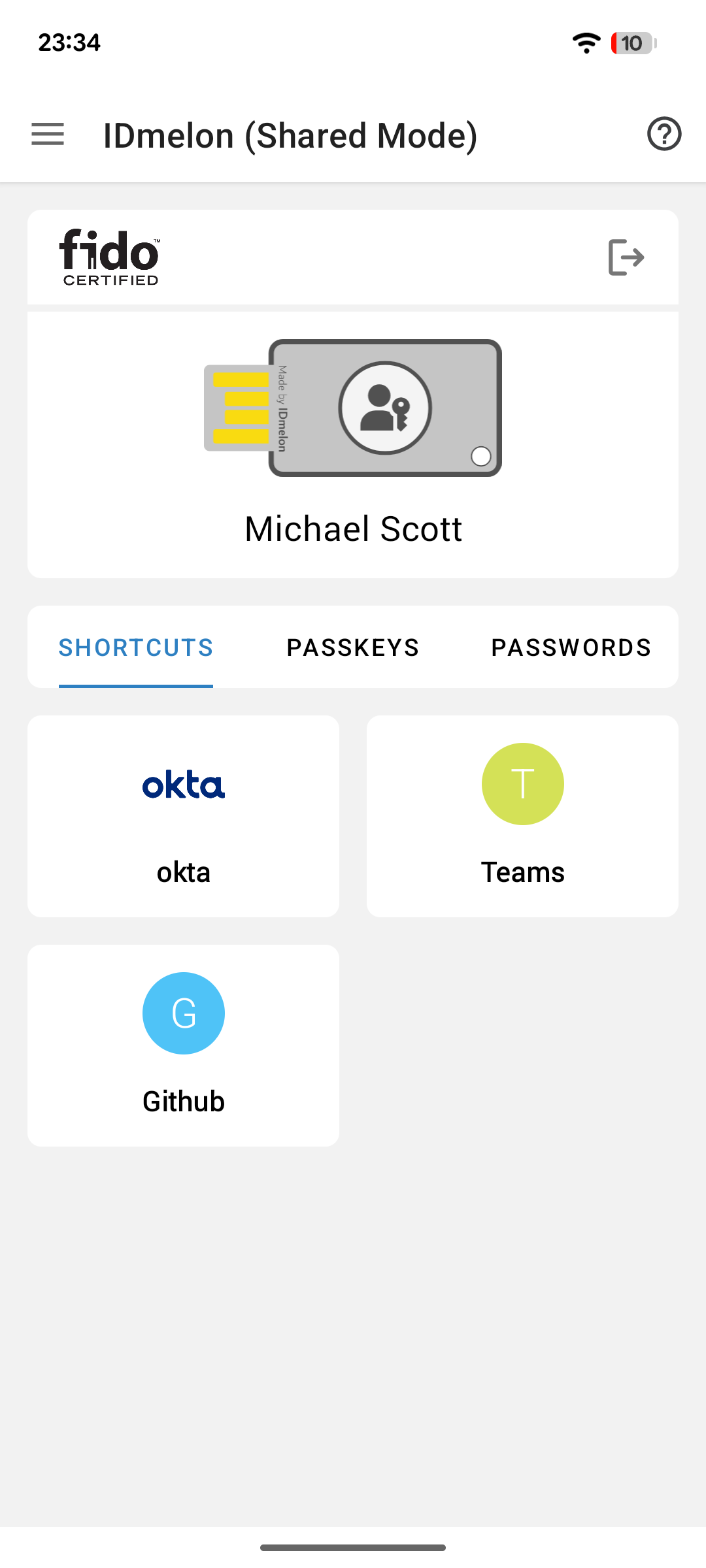
- Shortcut tiles for the apps and sites they need, published from Intune.
- Microsoft apps without a second sign-in, if you enable MSAL.
- Clear local data from selected apps and browsers when users sign out of IDmelon Authenticator, if MSAL is enabled.
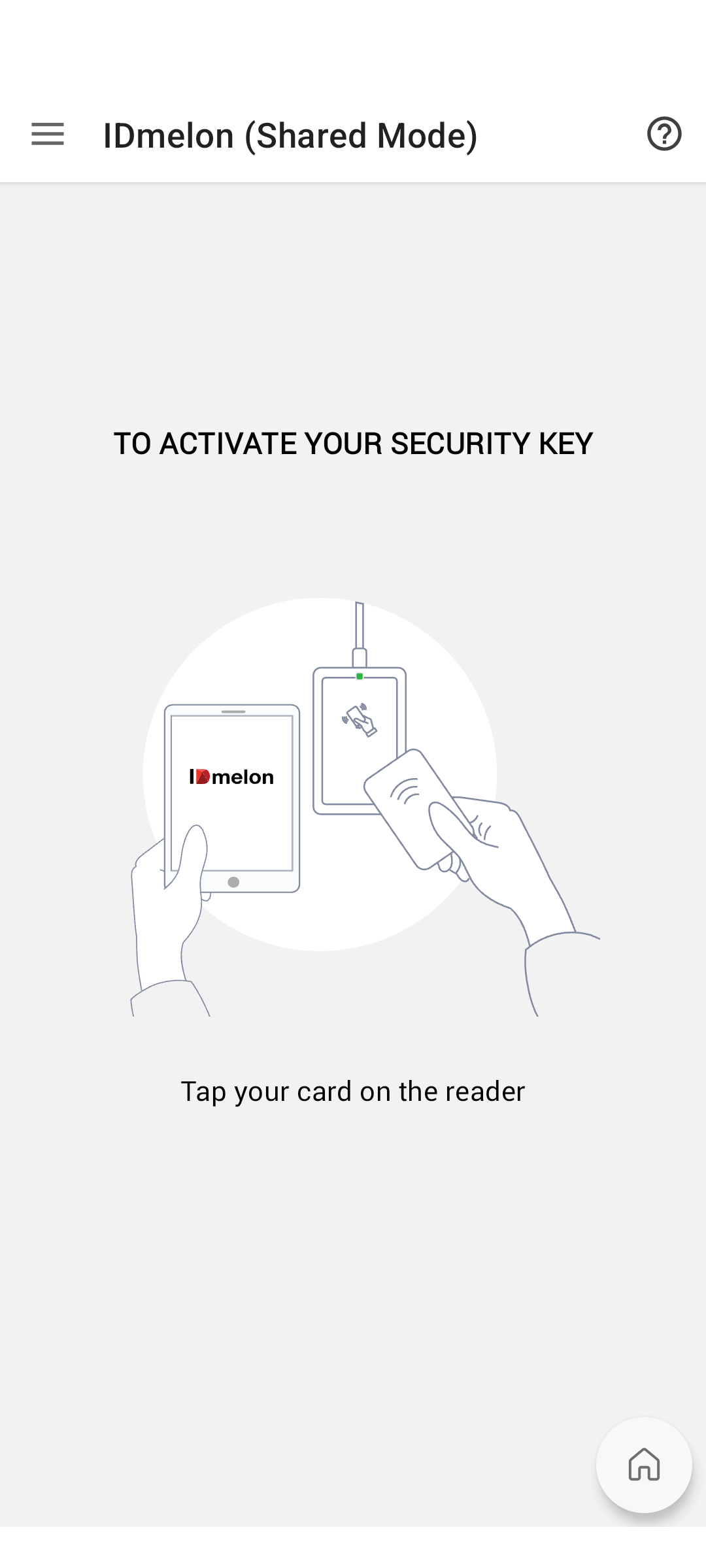
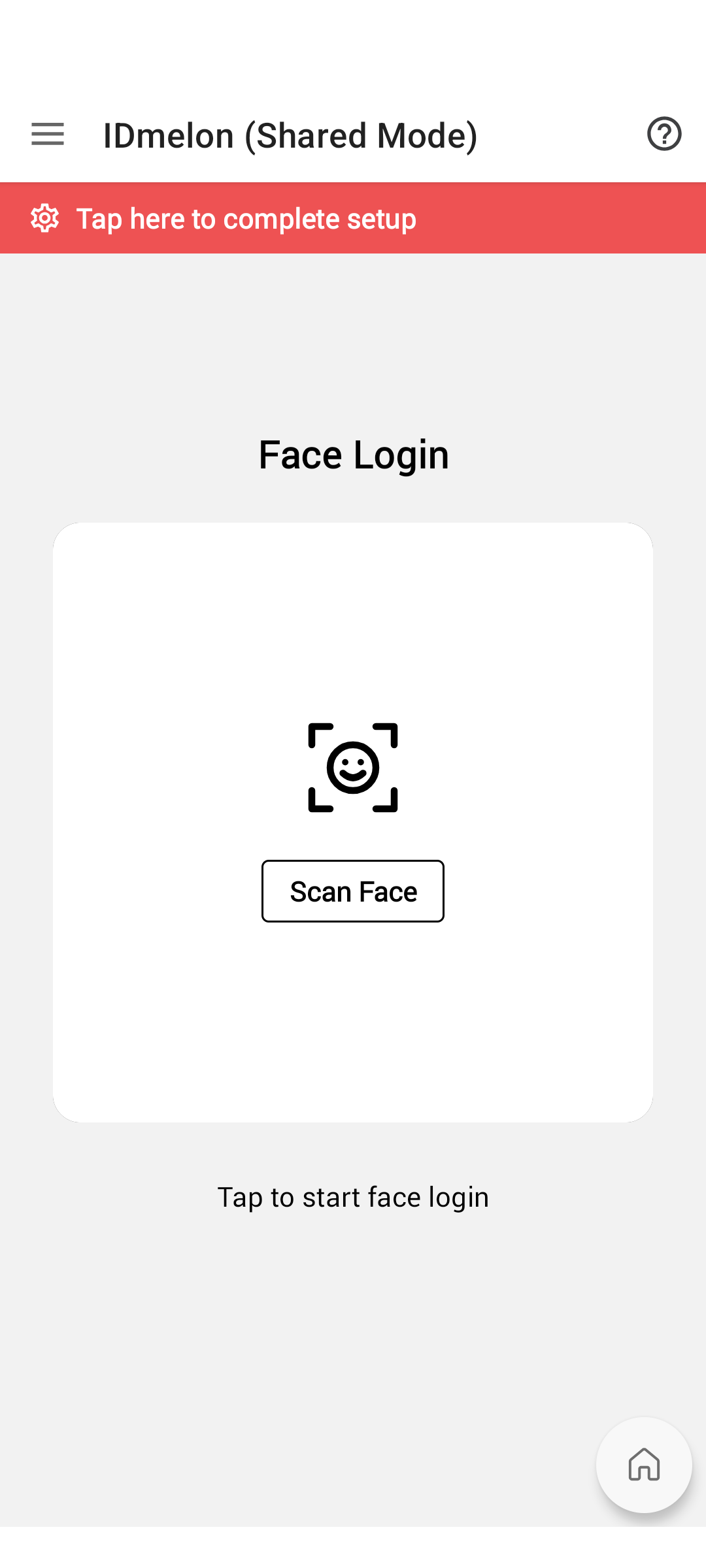
This is what it looks like on the device:
What is available for app and website sign-in depends on the Android version:
| Capability | Android 14 and later | Android 13 and earlier |
|---|---|---|
| Sign in with passkeys | Yes | No |
| Sign in with password autofill | Yes | Yes |
Passkey sign-in also depends on IDmelon Authenticator being enabled as the device’s credential provider, which you do in the app configuration policy.
Passwords reach the device two ways. The first time a user signs in to an app or website, IDmelon Authenticator offers to save the password and fills it in automatically on later sign-ins. Administrators can also add passwords for a user directly in the IDmelon Panel, so the user never has to type one.
The user session
Once the device is set up, this cycle repeats for every person who picks it up. Nothing is left behind for the next user.
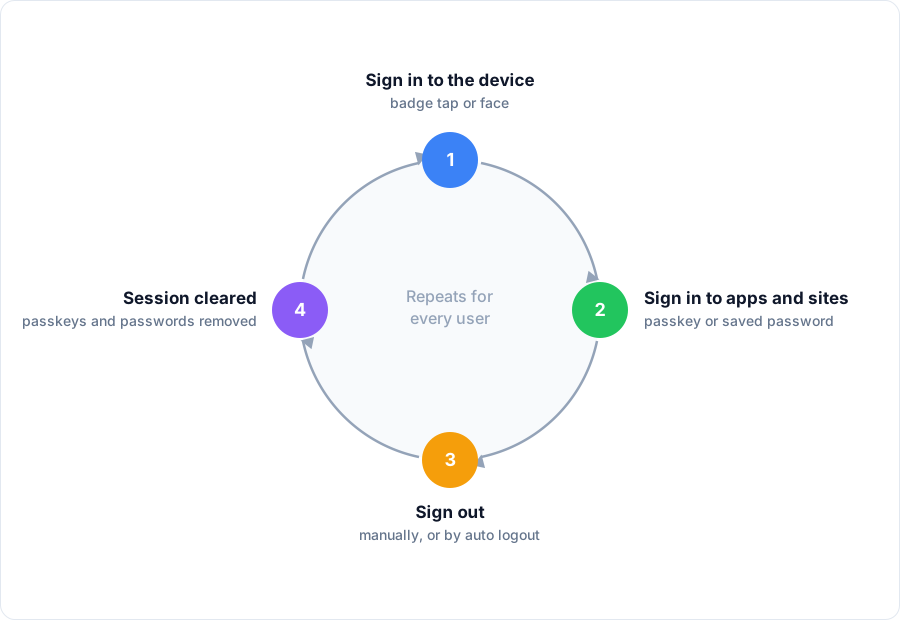
Sign in to the device — The user taps a badge or completes face authentication in IDmelon Authenticator. Their shortcut tiles, passkeys, and passwords appear.
Sign in to apps and sites — The user opens apps and websites from the shortcut tiles and signs in with passkeys or with saved passwords through autofill. If MSAL is enabled, Microsoft apps such as Teams and Outlook sign in automatically.
Sign out — The user signs out of IDmelon Authenticator when finished. If configured, IDmelon signs the user out automatically after the specified time.
Session cleared — IDmelon Authenticator clears the user’s session. If MSAL is enabled, local data is also cleared from apps and browsers selected during setup. The device is then ready for the next user.
How the deployment fits together
Setting up a shared device is a one-time job for an administrator. You do it once per device, and the device stays ready for everyone who uses it afterwards.
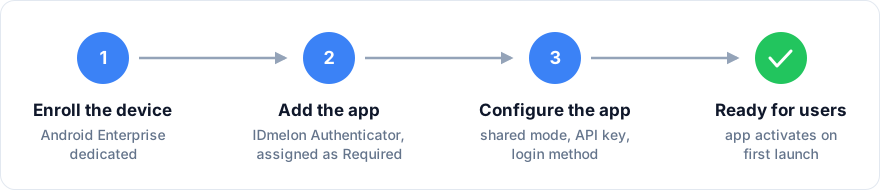
- Enrollment — the devices are enrolled as Android Enterprise dedicated devices (COSU). They have no user signed in to the device itself, so apps and policies are targeted at device groups, and only apps assigned as Required ever reach them.
- App deployment and configuration — IDmelon Authenticator is installed from Managed Google Play and receives a managed configuration that turns on shared mode, links the app to your workspace, and sets the login method.
- Activation — on first launch the app reads that configuration and activates against your workspace with the Shared Mobile API key. From then on it starts in shared mode.
- Home screen experience — optionally, the device is locked into a kiosk so users see only the apps you allow.
Pages in this section
Enroll Shared Devices in Intune — connect Intune to Managed Google Play, create the enrollment policy and device group, and enroll the hardware.
Deploy and Configure IDmelon Authenticator — install the app, create the API key, and apply the managed configuration, with a full reference of the supported configuration keys.
Badge Readers and Cards — the readers and cards badge login supports, and how to set it up for the cards your site issues.
Home Screen and Kiosk Experience — decide how the device presents its apps, and set up multi-app kiosk mode with Managed Home Screen.
If your devices are already enrolled in Intune, skip the first page and start at Deploy and Configure IDmelon Authenticator.
Replace every API key, client ID, and URL in these pages with values from your own workspace before you deploy.