Home Screen and Kiosk Experience
Choose how a shared Android device presents its apps, and set up multi-app kiosk mode with Managed Home Screen
This page is optional. A shared device works without any of it. Locking the home screen down is a matter of organization preference — how much of the device you want users to reach, and how tightly it must be controlled. If you have no such requirement, stop after Deploy and Configure IDmelon Authenticator.
If you do want that control, a dedicated device can present its apps in more than one way. This page covers the choice and walks through the setup that suits shared devices: multi-app kiosk mode with Microsoft’s Managed Home Screen launcher.
Before you start
- Devices enrolled as Android Enterprise dedicated devices running Android 8.0 or later. See Enroll Shared Devices in Intune.
- IDmelon Authenticator deployed and configured. See Deploy and Configure IDmelon Authenticator.
- The list of apps users are allowed to open on the device.
Choose the experience
| Option | What the user sees | Use it when |
|---|---|---|
| No kiosk lockdown | The device’s normal launcher, with every installed app | You have no lockdown requirement, or you are still piloting the deployment |
| Multi-app kiosk | Managed Home Screen, showing only the apps you list | The usual choice for a shared device that also needs Teams, Outlook, or a browser |
| Single-app kiosk | IDmelon Authenticator only, full screen, with no way out | Rare. Only when websites opened from inside IDmelon are the entire job |
Multi-app kiosk is the option most deployments want. Every app a shortcut tile points at must also be in the kiosk app list, otherwise the tile appears but does nothing.
Single-app kiosk is far more restrictive than it first sounds. The device runs IDmelon Authenticator and nothing
else: no other native apps, and no separate web browser. That leaves exactly one workable pattern — pin IDmelon
Authenticator as the kiosk app and publish everything the user needs as website shortcuts in shortcut_list, opened
from inside IDmelon. Shortcuts pointing at native apps such as msteams:// cannot open under this mode. It fits
single-purpose stations and little else.
Set up multi-app kiosk mode
In this mode, Managed Home Screen replaces the device launcher, and the apps you list run on top of it. Users
still sign in through IDmelon Authenticator with a badge tap or face authentication, and if you set use_msal,
IDmelon then signs them in to the Microsoft apps on the device automatically. IDmelon stays the only place a user
signs in.
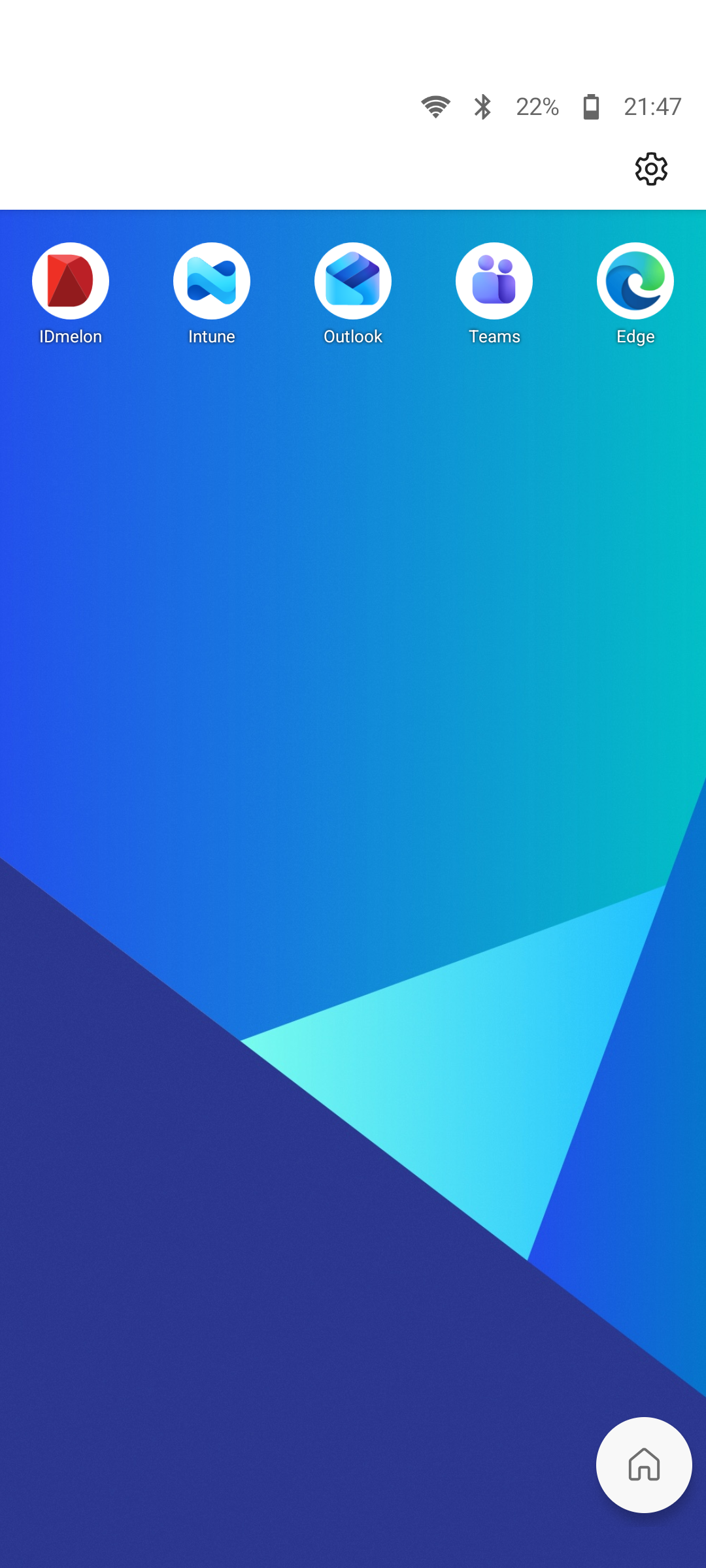
The result on the device — only the apps you allowed, with IDmelon Authenticator among them:
Step 1 — Install the apps the kiosk will show
Every app that appears in the kiosk — including Managed Home Screen itself — must be added in Intune and assigned as Required to your shared device group.
Go to Apps > Android > Create and add Managed Home Screen as a Managed Google Play app, then sync it.
Assign it as Required to the shared device group.
Confirm the same is true for IDmelon Authenticator and for every app your
shortcut_listopens, such as Teams or Outlook.
Step 2 — Create the device restrictions profile
Sign in to the Microsoft Intune admin center.
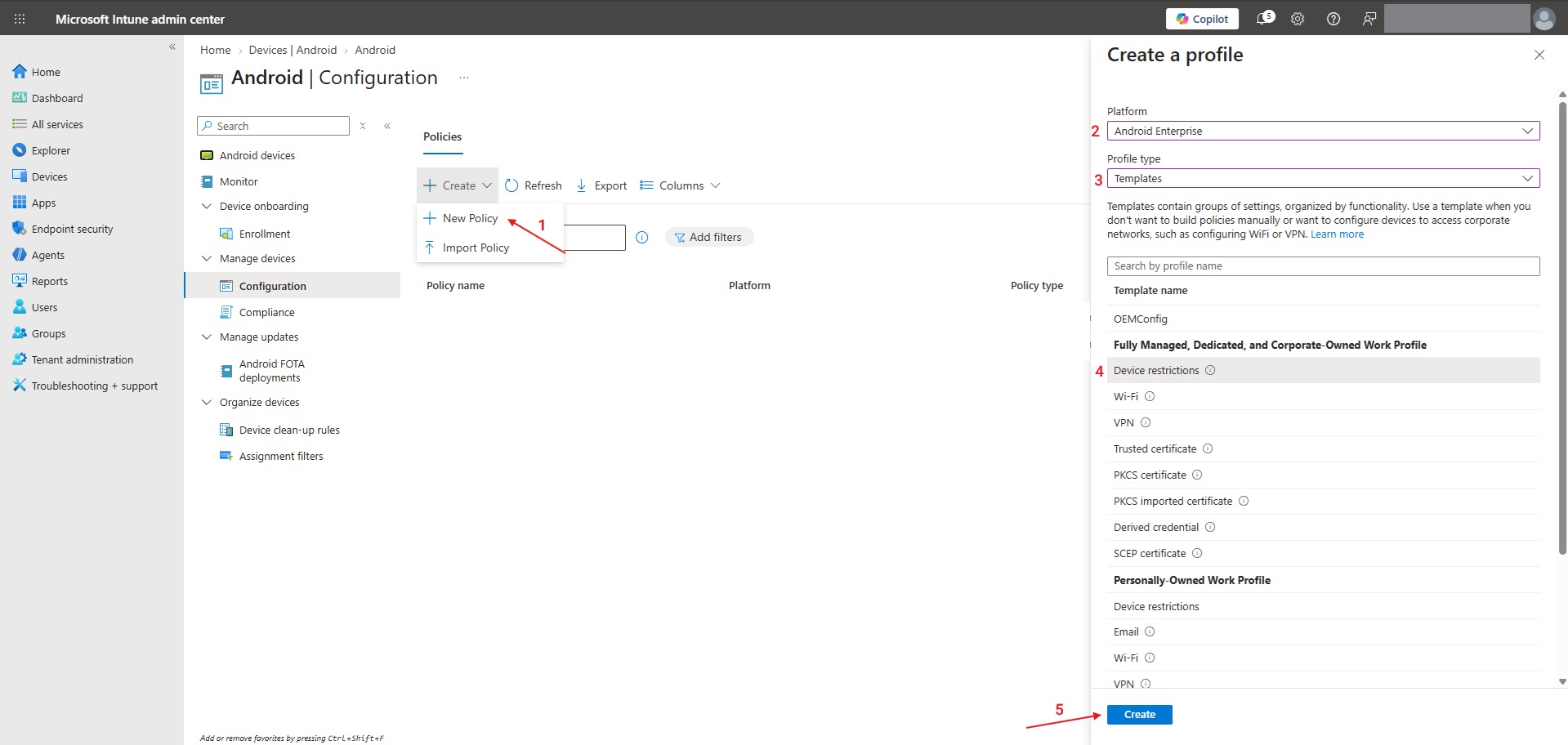
Go to Devices > Android > Configuration, then select Create > New Policy.
Set Platform to Android Enterprise and Profile type to Templates. Under Fully Managed, Dedicated, and Corporate-Owned Work Profile choose Device restrictions, then select Create.
Give the policy a name such as
Shared Android - Kiosk, then continue to Configuration settings.Open Device experience and set:
Device experience type: Kiosk mode (dedicated and fully managed).
Kiosk mode: Multi-app.
Add: select each app that belongs on the home screen — Managed Home Screen, IDmelon Authenticator, and every shortcut target.
Keep the app list here rather than in the Managed Home Screen app configuration policy: both write the same list, and configuring it in two places leads to conflicts.
Set Leave kiosk mode to Enable and set a Leave kiosk mode code — a 4 to 6 digit PIN. This is how an administrator temporarily leaves the kiosk to service the device. Without it, a locked device is hard to work on.
Assign the policy to the same device group used for the apps, then review and create.
To leave the kiosk on a device, press the back button repeatedly until Exit kiosk appears, enter the PIN, and open Managed Home Screen again when you are done to relock the device.
Step 3 — Create the app data clearing profile
Create a separate Device restrictions profile to choose which apps have their local data cleared when a user signs out of IDmelon Authenticator.
Repeat substeps 1–3 in Step 2 to create another Device restrictions profile.
Give the policy a name such as
Shared Android - Clear App Data, then continue to Configuration settings.Open Applications and scroll to the Dedicated devices section. Select Add next to Clear local data in apps not optimized for Shared device mode and choose the apps whose local data should be cleared at sign-out.
Assign the policy to the same device group used for the apps, then review and create.
Step 4 — Customize Managed Home Screen (optional)
Managed Home Screen has settings of its own — grid size, wallpaper, screen saver, organization logo, and automatic sign-out. They live in an app configuration policy rather than the profile you just created:
Go to Apps > Configuration > Create > Managed devices.
Set Platform to Android Enterprise and choose Managed Home Screen as the targeted app.
Set the values you need, then assign the policy to the shared device group.
For the full list of settings, see Microsoft’s Configure the Microsoft Managed Home Screen app.
One setting to stay away from: Enable sign in puts a Managed Home Screen sign-in screen in front of the apps. IDmelon Authenticator cannot fill passkeys while that screen is shown, so this deployment does not support it. It is off by default — leave it that way.
Validate on a test device
- Sync the test device and wait for the policies to arrive.
- Confirm the device starts into Managed Home Screen rather than the stock launcher.
- Confirm IDmelon Authenticator and every allowed app are visible, and that nothing else is reachable.
- Sign in through IDmelon Authenticator with a badge or face, and confirm passkeys can be used.
- Open each shortcut tile and confirm its target launches.
- Confirm the Exit kiosk PIN works for administrators.
Troubleshooting
| Symptom | What to check |
|---|---|
| The device still shows the stock launcher | Managed Home Screen must be assigned as Required to the device group, and the device restrictions policy must target the same group. |
| An app is missing from the kiosk | The app must be both assigned as Required and listed under Device experience > Add. Doing only one of the two is the usual cause. |
| The device asks users to sign in to Managed Home Screen | Enable sign in must be off in the Managed Home Screen app configuration policy. Passkeys cannot be filled while that screen is shown, so users get stuck with no way to sign in. |
| Microsoft apps ask for credentials after the user signs in to IDmelon | Check use_msal and azure_client_id in the IDmelon Authenticator configuration policy. |
| A shortcut tile opens nothing | The target app is not in the kiosk app list, or its URL scheme is wrong. Under single-app kiosk, only website shortcuts can open. |
| Administrators cannot service the device | Leave kiosk mode must be enabled and a PIN set before the device is locked down. |