Enroll Shared Devices in Intune
Prepare Microsoft Intune and enroll shared Android devices as Android Enterprise dedicated devices
This page prepares your tenant and brings the shared hardware under management. When you finish, the devices are enrolled, grouped, and ready to receive the IDmelon Authenticator app and its configuration.
Shared devices are normally enrolled as Android Enterprise dedicated devices (COSU): corporate-owned, not tied to a single user, and used by whoever is at the desk.
Before you start
- Devices running Android 8.0 or later with Google Mobile Services (GMS) available. For the enrollment types and what each one is for, see Microsoft’s Android device enrollment guide for Microsoft Intune.
- Administrative access to the Microsoft Intune admin center.
- The devices can be factory reset. Dedicated device enrollment requires it.
Step 1 — Connect Intune to Managed Google Play
Without this connection you cannot approve or assign any Android Enterprise app. You do this once per tenant. See Connect your Intune account to your Managed Google Play account.
Step 2 — Create the enrollment policy
Sign in to the Microsoft Intune admin center.
Go to Devices > Enrollment, select the Android tab, and under Enrollment Profiles choose Corporate-owned dedicated devices.
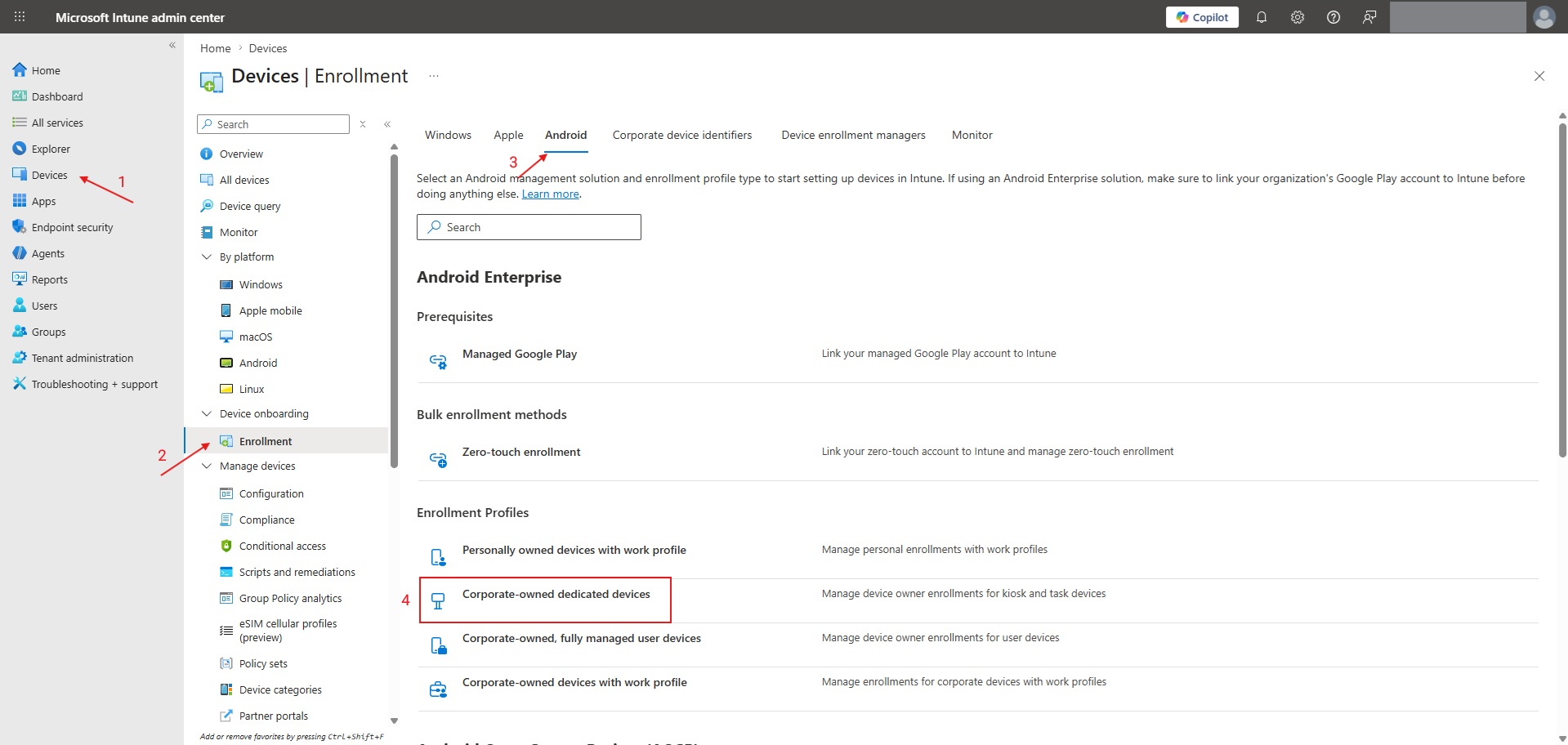
Select Create policy and enter the basics:
Name: A name you can recognize later, such as
Shared Android - Front Desk. Note it down — the device group in Step 3 matches devices on this exact name.Token type: Choose the type that matches your deployment:
Corporate-owned dedicated device — the standard dedicated device token.
Corporate-owned dedicated device with Microsoft Entra ID shared mode — the same, but Microsoft Authenticator is also installed and placed in Microsoft Entra shared device mode during enrollment. Choose this one if your deployment uses MSAL for single sign-in and single sign-out across Microsoft apps.
Token expiration date: Set a date that fits your rollout and your security policy.
On the Device group page, select None. The group you create in Step 3 picks the devices up through its membership rule, so allow a little time after enrollment before apps and policies arrive.
Review and create. Intune generates an enrollment token as a 20-digit string and a QR code. You can view it later under the policy, using the Token option.
Step 3 — Create the device group
This is the group everything else in the deployment is assigned to: the IDmelon Authenticator app, its configuration policy, and any other app you put on the device. You never assign anything to a shared device directly. Use a dynamic group so that enrolling devices join it on their own.
Go to Groups > All groups > New group.
Group type: Security. Membership type: Dynamic Device.
Add the dynamic rule Property
enrollmentProfileNameEquals the name of the enrollment policy you created in Step 2.
Step 4 — Enroll the devices
Factory reset each device.
Enroll the device with the token from Step 2, using NFC, the QR code, a token string, Google Zero Touch, or Samsung Knox Mobile Enrollment. For the steps for each method, see Enroll dedicated, fully managed, or corporate-owned work profile devices.
Confirm the device appears in Devices > All devices and that it landed in the device group from Step 3.
The Microsoft Intune app is installed automatically during enrollment and cannot be removed.
Next step
The devices are managed but still empty. Continue with Deploy and Configure IDmelon Authenticator.