Deploy and Configure IDmelon Authenticator
Install IDmelon Authenticator on shared Android devices and apply the Shared Device Mode configuration
This page installs IDmelon Authenticator on your enrolled shared devices and configures it for Shared Device Mode, and it documents every configuration key the app supports.
Before you start
- Shared devices already enrolled in Intune, and the device group they belong to. Both come from Enroll Shared Devices in Intune. Everything on this page is assigned to that group.
- Administrative access to the Microsoft Intune admin center.
- An administrator account for the IDmelon Panel, with permission to create API keys.
- Administrative access to the Microsoft Entra admin center, if you use MSAL.
- What your login method needs:
- Badge — a supported badge reader: the phone’s built-in NFC, a USB smart card reader, a keyboard-wedge reader, or an IDmelon Hub. See Badge Readers and Cards.
- Face — the base URL and API key of your Matcher Server.
Step 1 — Add IDmelon Authenticator to Intune
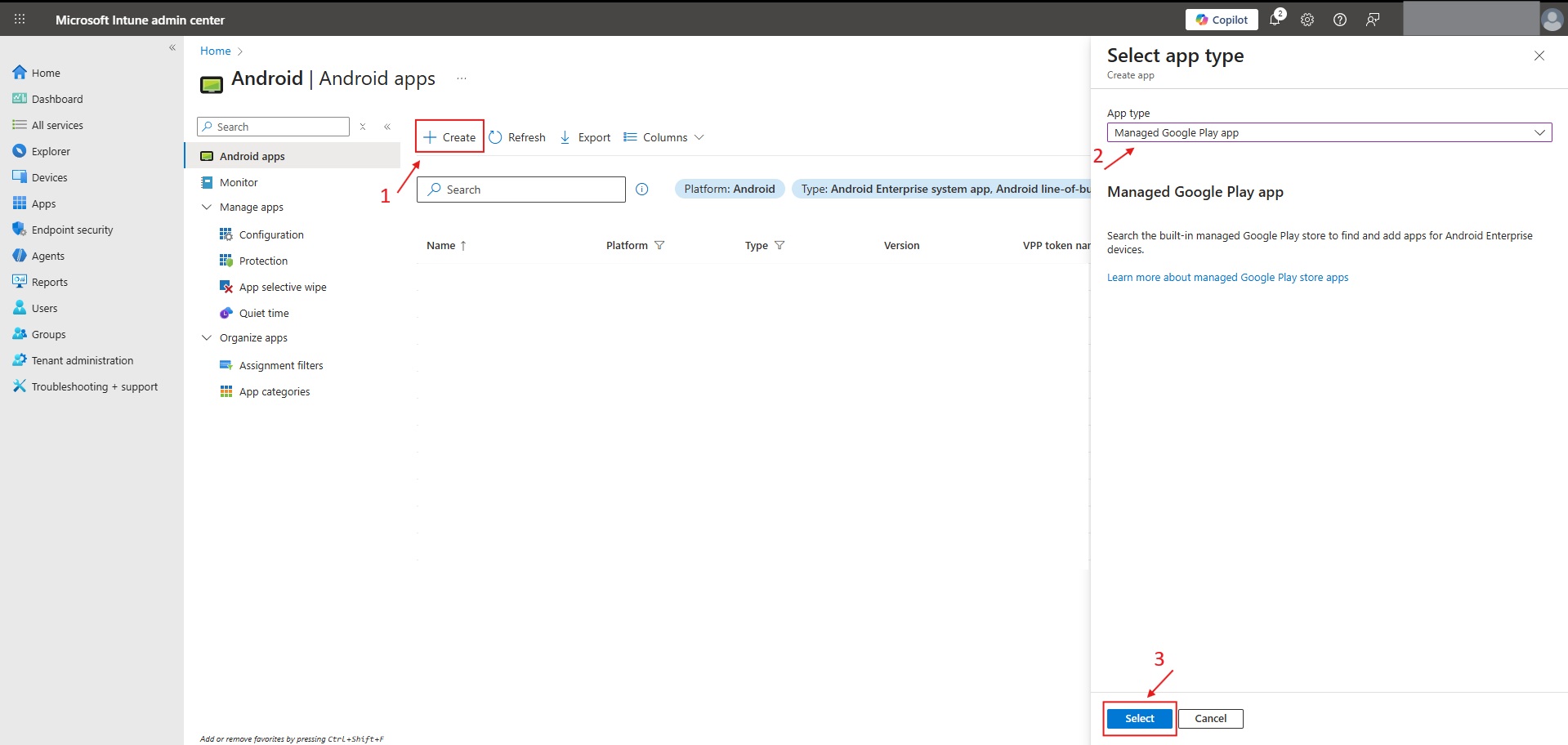
Go to Apps > Android > Create.
Under Store app, select Managed Google Play app, then choose Select.
Search for IDmelon Authenticator (
com.vancosys.authenticator.business) and select it.Approve the app and select Sync to sync it into Intune, then select Refresh to see it in the app list.
Open the app, go to Properties > Assignments > Edit, and add the device group you created in Enroll Shared Devices in Intune under Required.
On dedicated devices, only apps assigned as Required are installed. An app assigned as Available never appears, because there is no user to install it from the store.
Step 2 — Create the Shared Mobile API key
The API key links the app to your IDmelon workspace. Create it before you build the configuration policy.
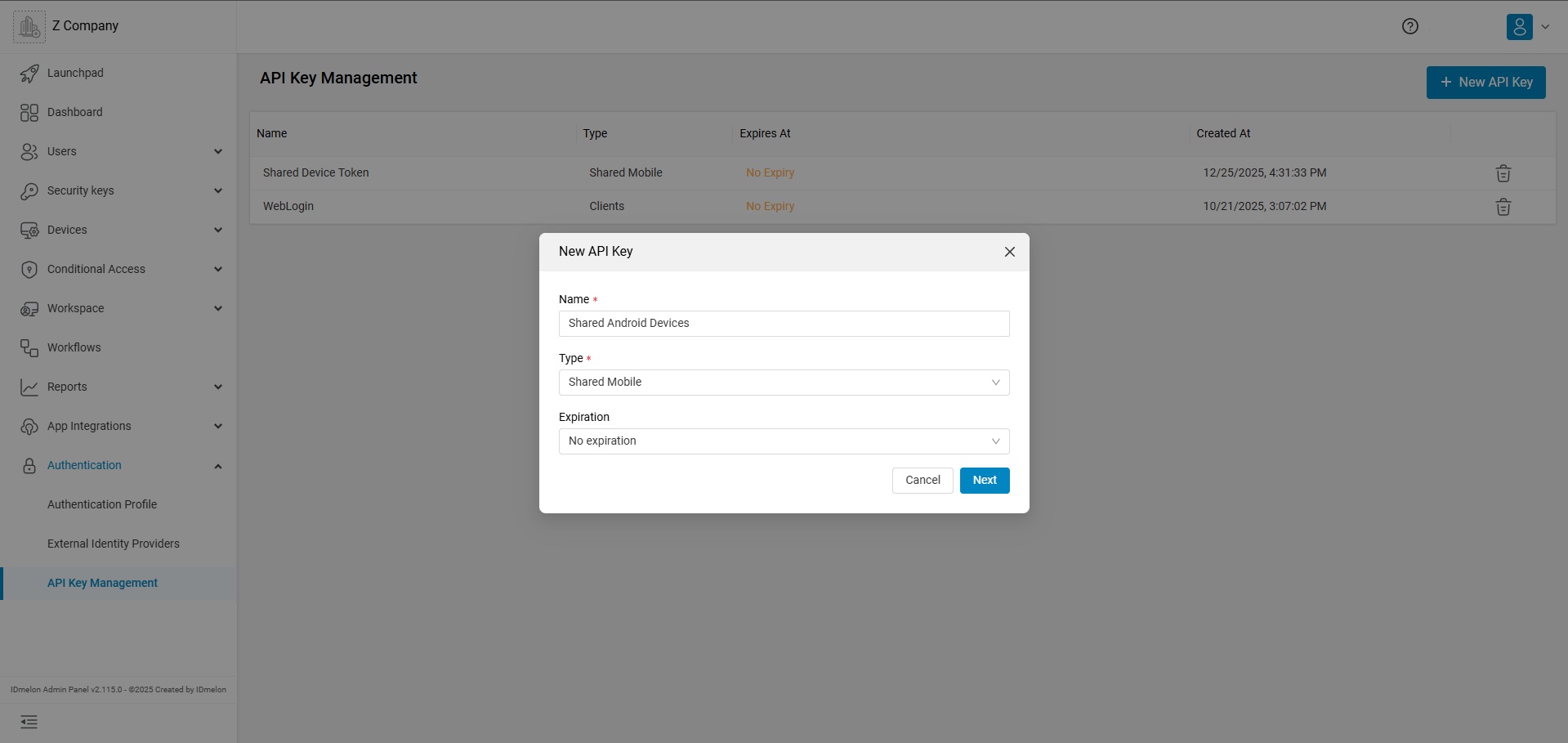
Log in to the IDmelon Panel: https://panel.idmelon.com.
Go to App Integrations > Authentication > API Key Management.
Click + New API Key.
Configure the key settings:
Name: Enter a recognizable name, for example
Shared Android Devices.Type: Select Shared Mobile.
Expiration: Set an expiration date according to your security policy.
Create the key and copy the value.
Keep this key secure and store it before you close the dialog — it allows the app to authenticate with your workspace, and it may not be displayed again. For more information, see API Key Management.
Step 3 — Create the app configuration policy
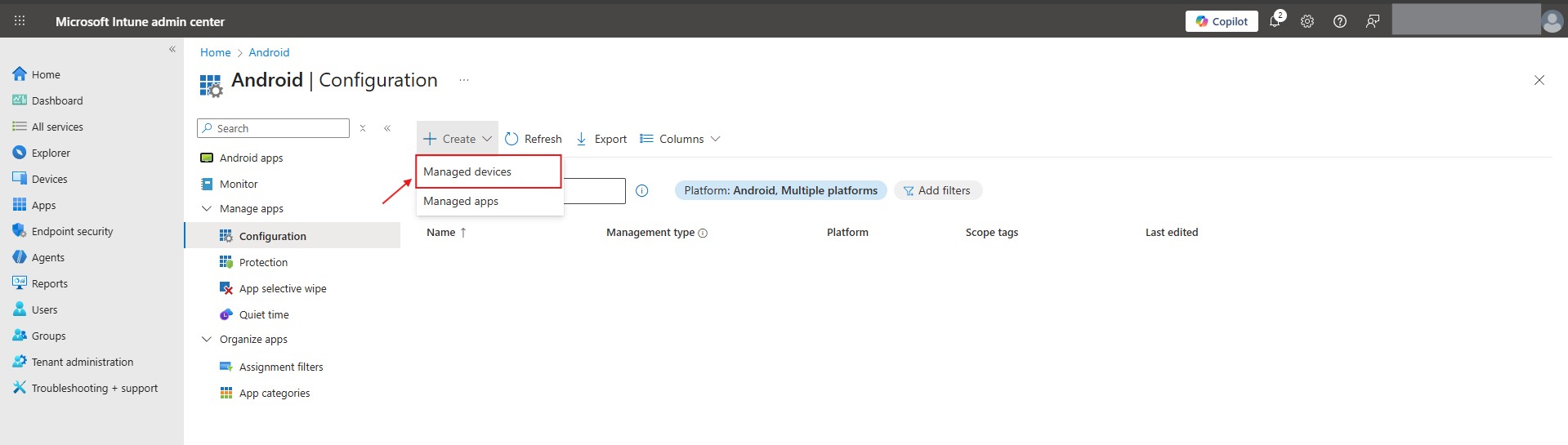
Go to Apps > Configuration > Create > Managed devices.
Basics:
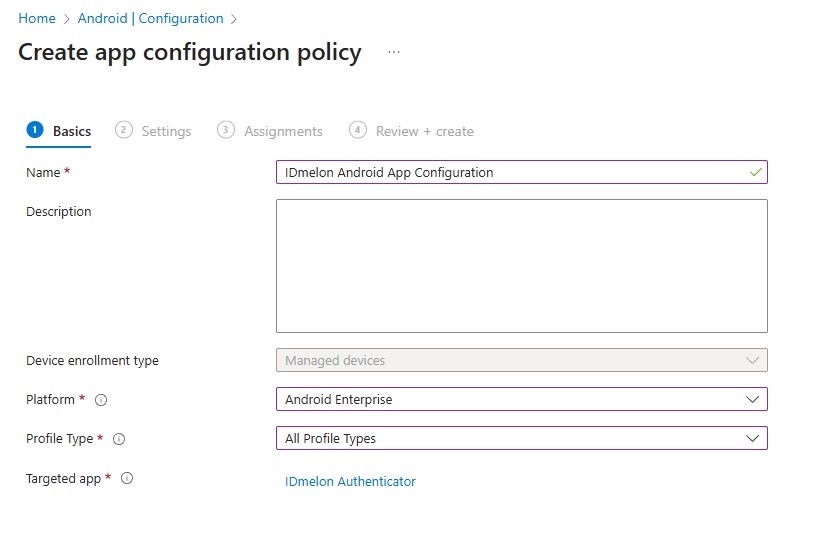
Name:
IDmelon Android App Configuration.Device enrollment type: Managed devices.
Platform: Android Enterprise.
Profile Type: All Profile Types, or the type that matches your deployment.
Targeted app: Select IDmelon Authenticator.
Permissions — on the Settings page, select Add and pre-set the app’s runtime permissions so that users are not interrupted by prompts on a shared device. Add these three and set each one to Auto grant:
Camera
Post notifications
Bluetooth connect
As of Android 12, Microsoft does not support Auto grant for the camera permission on corporate-owned dedicated devices, so that prompt still appears on the device. Accept it once during staging, before you hand the device over.
Settings:
Set Configuration settings format to Use configuration designer.
Select Add and pick the keys you need. At minimum, select
api_keyandshared_device_mode. Add any optional keys your deployment requires, for exampleshared_login_method,shortcut_list,auto_logout,use_msal,azure_client_id, andazure_tenant_id.Enter the values described in the IDmelon Authenticator configuration section below.
If a key does not appear in the designer, switch Configuration settings format to Enter JSON data and supply the same keys there.
Credential provider — enable it on the Settings page. Android blocks third-party credential providers by default, so without it the app cannot sign users in to native apps and websites with their passkeys on Android 14 and later. On earlier versions, passkeys are unavailable and users sign in with password autofill instead.
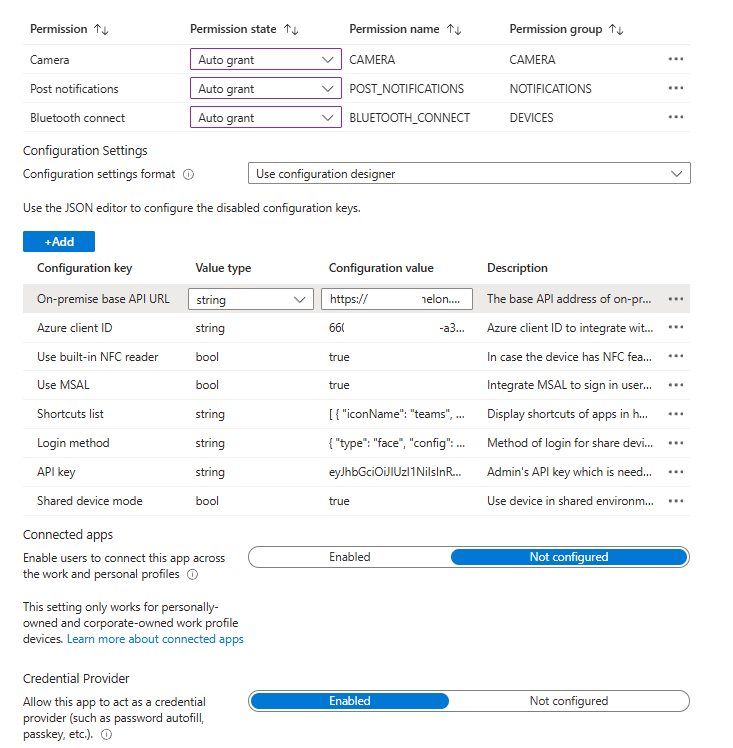
Assignments — assign the policy to the same device group you used for the app in Step 1.
Review and create.
Use literal values rather than Intune’s user-based variables (such as user principal name or mail). A dedicated device is not associated with a user, so those variables have nothing to resolve to.
IDmelon Authenticator configuration
To enable shared functionality and link the app to your workspace, you must apply a Managed Configuration using the
parameters below. Only shared_device_mode and api_key are required; the remaining keys are optional and depend on
your deployment.
| Key | Type | Required | Description |
|---|---|---|---|
shared_device_mode | Boolean | Yes | Set to true. Enables multi-user optimization and session clearing. |
api_key | String | Yes | Your unique Shared Mobile API key for workspace authentication. See Step 2. |
shared_login_method | String (JSON) | No | Defines how the shared-device user signs in — by badge or by face — and, for badge, which readers are accepted and which card identifier is read. See Shared login method. |
shortcut_list | String (JSON) | No | App and website shortcuts displayed on the home screen. See Home screen shortcuts. |
open_url_after_login | String | No | A URL that opens automatically as soon as a user signs in. |
base_api_url | String | No | The base API address of your on-premise server. |
self_service_url | String | No | Address of the self-service page to open when a tapped badge is not enrolled. See Self-Service Enrollment Flow. |
auto_logout | Integer | No | Automatically signs the user out after a fixed time, in minutes (e.g., 60 signs the user out after one hour). |
use_msal | Boolean | No | Uses MSAL to sign the user in to Microsoft apps immediately after they sign in to IDmelon Authenticator. See MSAL setup. |
azure_client_id | String | Conditional | Required when use_msal is true. The Application (client) ID from your Microsoft Entra app registration. See MSAL setup. |
azure_tenant_id | String | Conditional | Required when your Entra app registration is single tenant. The Directory (tenant) ID of your tenant, or one of common, organizations, consumers. Defaults to common when left empty. See Choosing the supported account type. |
Shared login method
The shared_login_method key defines how a user signs in on the shared device. Two methods are supported.
Badge — the user signs in by tapping their badge. On its own, this accepts every supported reader and reads the card serial:
{
    "type": "badge"
}
Add model to accept a single kind of reader, and config to read HID PACS identifiers instead of the card serial:
{
    "type": "badge",
    "model": "smart_card",
    "config": {
        "type": "Seos",
        "id_type": "PACSD"
    }
}
For every reader, card type, and identifier these settings support, see Badge Readers and Cards.
Face — the user signs in with face authentication. Provide the connection details of your Matcher Server in
config:
{
    "type": "face",
    "config": {
        "base_url": "https://your-matcher-server.com",
        "api_key": "your-matcher-server-api-key"
    }
}
base_url— the base URL of your Matcher Server.api_key— the API key the app uses to authenticate with the Matcher Server. This is not the same key as the Shared Mobile API key from Step 2.
Home screen shortcuts
The shortcut_list key displays app and website shortcuts on the home screen. Each shortcut can point to a website or
an
Android native application through its URL scheme. Provide a JSON array of objects, each with iconName, title, and
url:
[
    {
        "iconName": "teams.microsoft.com",
        "title": "Teams",
        "url": "msteams://"
    },
    {
        "iconName": "github.com",
        "title": "Github",
        "url": "https://github.com"
    },
    {
        "iconName": "zoom.us",
        "title": "Zoom",
        "url": "launch://us.zoom.videomeetings"
    }
]
iconName— the website domain or image URL.title— the label shown under the icon.url— a website URL (for example,https://github.com), an Android app URL scheme (for example,msteams://), or a package-based app launch URI using thelaunch://scheme (for example,launch://us.zoom.videomeetings).
Any app you target with a shortcut must also be installed on the device. Assign it as Required to the same device group, the same way you assigned IDmelon Authenticator in Step 1.
Signing in to Microsoft apps with MSAL
Set use_msal to true to sign users in to Microsoft apps (such as Teams and Outlook) automatically, right after they
sign in to IDmelon Authenticator.
When use_msal is true, azure_client_id is mandatory. This value is the Application (client) ID of a
Microsoft Entra app registration that you create for IDmelon Authenticator. Depending on the account type you choose
for that registration, you also need azure_tenant_id. The next section walks through creating it.
Registering the Android app in Microsoft Entra
Sign in to the Microsoft Entra admin center.
If you manage more than one tenant, switch to the tenant used by your shared device deployment.
Go to Entra ID > App registrations and click New registration.
Enter a recognizable name such as
IDmelon-Authenticator-Shared-Android.Under Supported account types, select the option that matches your tenant policy. For most shared device deployments this is Single tenant only, which is also the default. Note which option you choose — it decides the value you set for
azure_tenant_id. See Choosing the supported account type.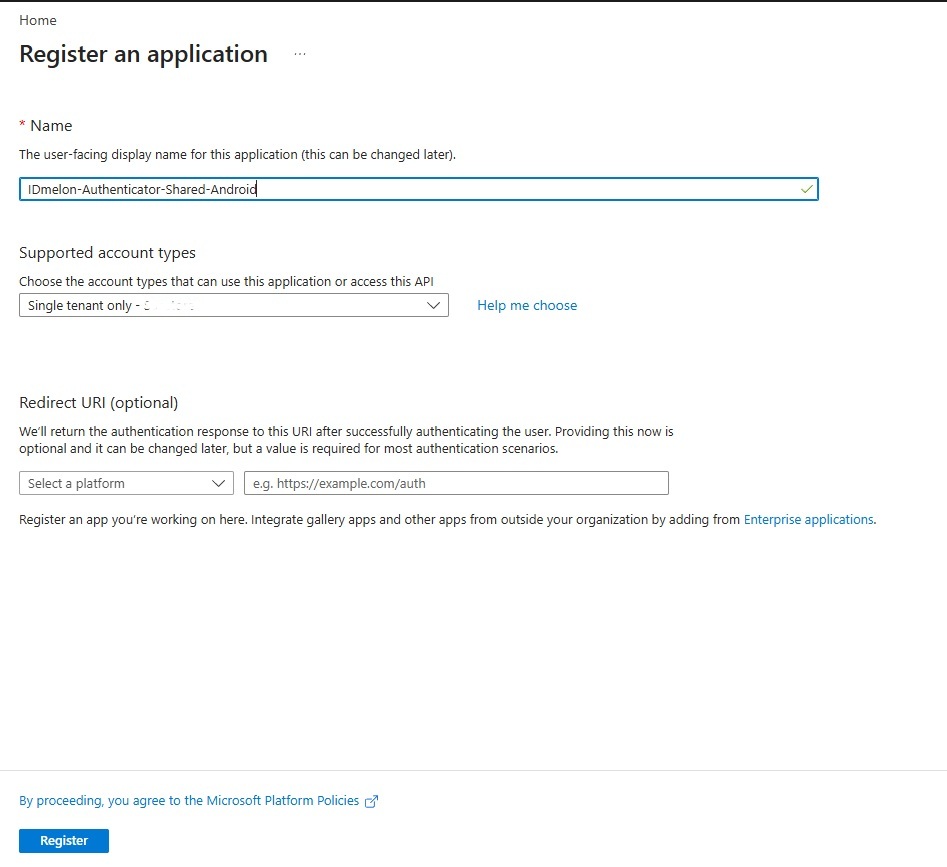
Click Register.
On the registered application, navigate to Authentication > Add a Redirect URI, and then continue with the remaining steps.
Select Android and enter the following values:
Package name:
com.vancosys.authenticator.businessSignature hash:
w6OyxDHFH36OaPPikqYmsRzWAFo=
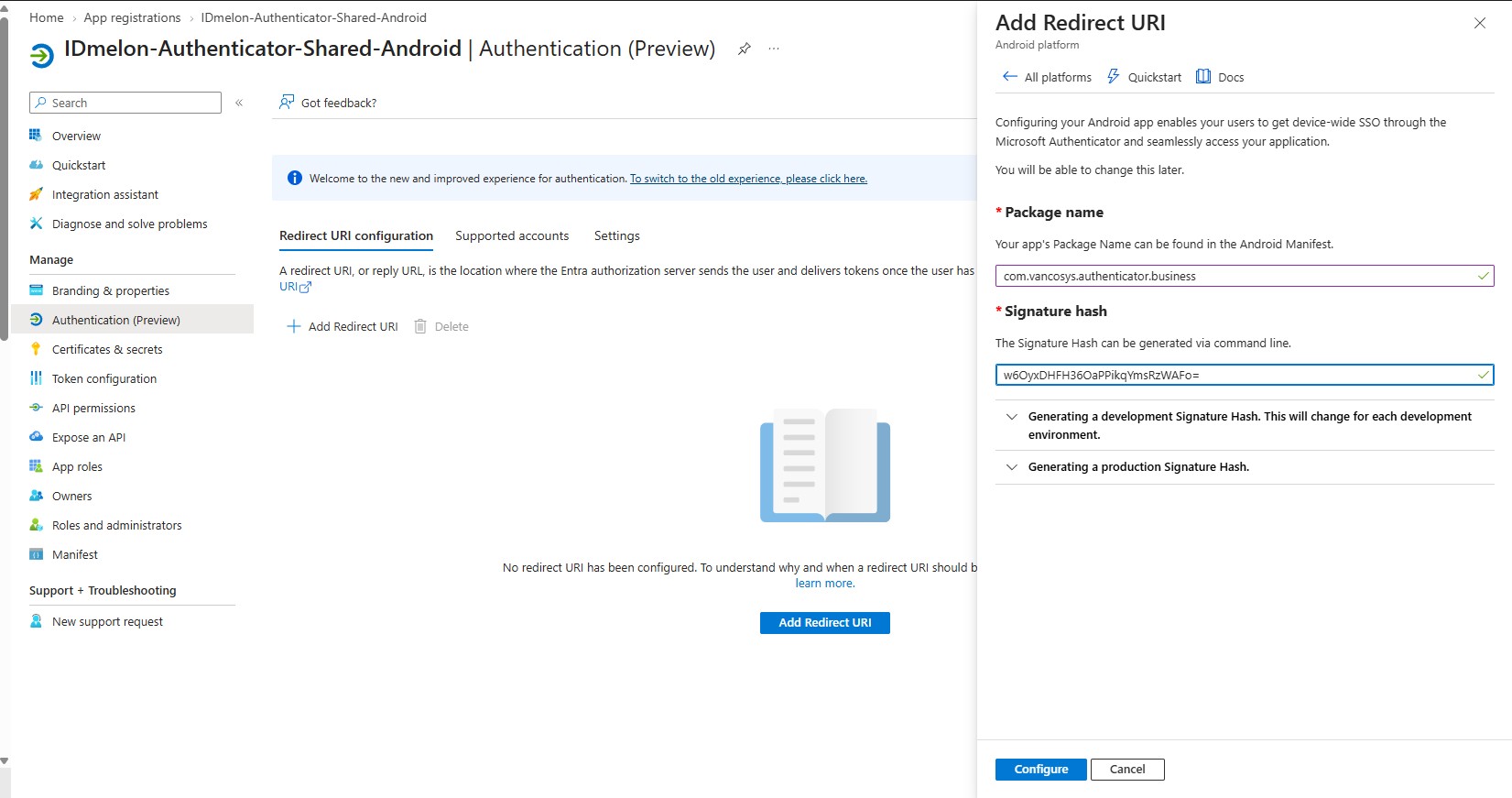
Click Configure. Microsoft Entra generates the redirect URI for the app automatically.
Go to API permissions and confirm that the delegated User.Read permission for Microsoft Graph is present. If it is missing, click Add a permission > Microsoft Graph > Delegated permissions, select User.Read, and add it.
Click Grant admin consent for the tenant. This approves the permissions above once on behalf of every user, so nobody is interrupted by a consent dialog at first sign-in — on a shared device that prompt would otherwise appear for each new person who signs in.
From the Overview page, copy the Application (client) ID. If you registered the app as single tenant, also copy the Directory (tenant) ID shown directly below it — a GUID such as
3f7a2c19-8b64-4de1-9a05-1c2d6e8f7b30. The same value is available at any time under Entra ID > Overview.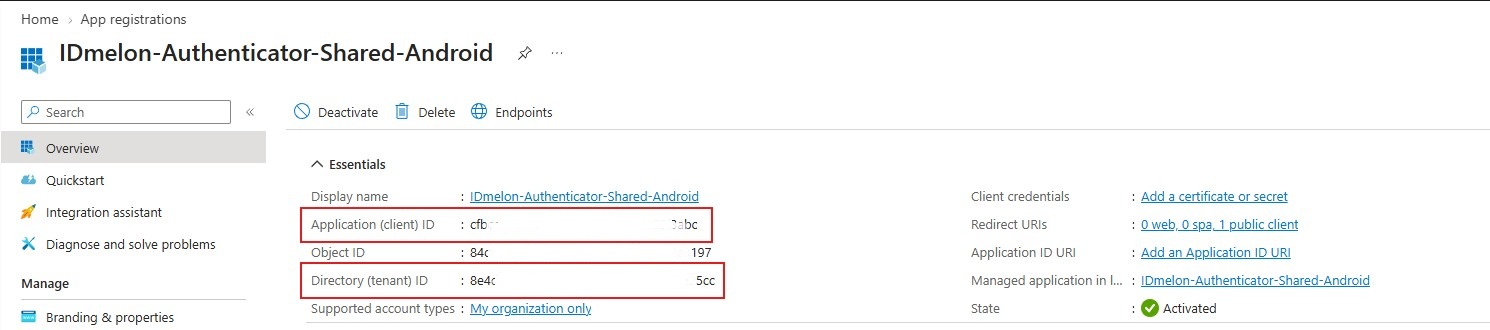
Place the copied Application (client) ID into the azure_client_id key in your managed app configuration, put the
Directory (tenant) ID into azure_tenant_id, and set use_msal to true. Use the values from your own Entra app
registration — do not reuse the example values.
Choosing the supported account type
Supported account types on the registration page controls which accounts Entra will let sign in. Each option maps to
a different azure_tenant_id value, and the two must agree — the registration and the app configuration are describing
the same audience from opposite ends.
| Supported account types | Set azure_tenant_id to | Who can sign in |
|---|---|---|
| Single tenant only — your organization | Your Directory (tenant) ID, or a verified domain like contoso.onmicrosoft.com | Only accounts in your own tenant |
| Multiple Entra ID tenants | organizations | Work or school accounts from any tenant |
| Any Entra ID Tenant + Personal Microsoft accounts | common, or leave the key empty | Work, school, and personal Microsoft accounts |
| Personal accounts only | consumers | Personal Microsoft accounts only |
If you chose Single tenant only,
azure_tenant_idis mandatory. Left empty, the app falls back tocommon, and Entra rejects a single tenant application on that endpoint with errorAADSTS50194— sign-in fails with “not configured as a multi-tenant application”. This is the most common MSAL misconfiguration, because Single tenant only is the default on the registration page.
Pinning the app to one tenant also excludes guest (B2B) accounts invited from other tenants. If your shared devices must
sign in guests, register the app under Multiple Entra ID tenants and set azure_tenant_id to organizations
instead.
Some tenants still show the earlier wording for these options — for example Accounts in this organizational directory only in place of Single tenant only. The mapping above is unchanged.
Validate on a test device
Run through this list on one enrolled device before you roll out to the rest of the group.
In Intune
- Open Apps > All Apps > IDmelon Authenticator > Device install status and confirm the device reports Installed.
- Open Apps > Configuration, select your policy, and confirm the device is listed as having received it.
On the device
- Open IDmelon Authenticator. It should start in shared mode, showing the shared sign-in screen rather than a personal setup flow.
- Sign in with the configured login method — tap a badge, or complete face authentication.
- Confirm the signed-in identity appears, along with the shortcut tiles from
shortcut_list. - Open a shortcut and confirm the target app or site launches.
- If
use_msalistrue, confirm the Microsoft app opens without a second full sign-in. - On Android 14 or later, open an app or website that accepts passkeys and confirm IDmelon Authenticator is offered as the credential provider.
- If
auto_logoutis set, leave the device idle and confirm the session ends after the configured number of minutes. - Sign out and confirm the next user starts from a clean session.
Next step
The app is deployed and configured. To control which apps the device exposes, and to lock it into a kiosk, continue with Home Screen and Kiosk Experience.
Troubleshooting
| Symptom | What to check |
|---|---|
| The app never installs on the device | The assignment must be Required, and it must target a device group that the device actually belongs to. Confirm the app was synced from Managed Google Play. |
| The app installs but does not start in shared mode | shared_device_mode must be Boolean true, and the configuration policy must target the same device group as the app. |
| The app starts in shared mode but does not activate | Check the Shared Mobile API key: correct type, not expired, and copied without stray whitespace. |
| A permission prompt appears on the shared device | Pre-set the permission to Auto grant in the configuration policy. The camera permission cannot be auto-granted on dedicated devices from Android 12, so accept it once during staging. |
| Badge taps are not detected, or show an error | Check that model in shared_login_method accepts the reader in use, and that the reader and card are set up as described in Badge Readers and Cards. |
| Face login fails to reach the Matcher Server | Verify base_url and api_key inside shared_login_method.config, and that the device network can reach the Matcher Server. |
| A tapped badge belongs to a user who is not enrolled | Set self_service_url so the device opens your self-service enrollment page instead of failing. |
| Microsoft apps ask for credentials again after sign-in | Verify use_msal is true and azure_client_id matches your own Entra app registration, including the package name and signature hash on the Android platform entry. |
MSAL sign-in fails with AADSTS50194, or “not configured as a multi-tenant application” | The registration is Single tenant only but azure_tenant_id is empty or set to common. Set it to your Directory (tenant) ID. See Choosing the supported account type. |
MSAL sign-in fails with AADSTS50020 for some users | Those accounts are guests (B2B) from another tenant, and azure_tenant_id is pinned to a single tenant. Register the app for Multiple Entra ID tenants and use organizations. |
| The Microsoft account picker offers personal accounts | azure_tenant_id is empty or common, which admits personal Microsoft accounts. Set it to your Directory (tenant) ID, or to organizations for work and school accounts only. |
| A shortcut tile does nothing | The target app must be installed on the device, and the URL scheme must be correct. |
| Passkeys do not work in apps or websites | The device must run Android 14 or later, and Credential provider in the configuration policy must allow IDmelon Authenticator. Android blocks third-party providers until you do. On Android 13 and earlier, users sign in with password autofill instead. |
| Changes to the policy do not reach the device | Configuration is read when the app starts. Sync the device from Intune, then force-stop and reopen IDmelon Authenticator. |