Configure Shared Mode with Intune
This document provides instructions for IT administrators to deploy and configure the IDmelon Authenticator app on Android Enterprise devices using Microsoft Intune, specifically optimized for Shared Device Mode.
Prerequisites
- A Microsoft Intune license and administrative access to the Microsoft Intune admin center.
- Android Enterprise enrolled devices (Dedicated, Fully Managed, or Corporate-owned with Work Profile).
- The IDmelon Authenticator app added to your Managed Google Play Store.
- An active administrator account for the IDmelon Panel.
Generating the API Key
Before configuring Intune, you must generate a unique API key from the IDmelon Panel to link the mobile app to your organization.
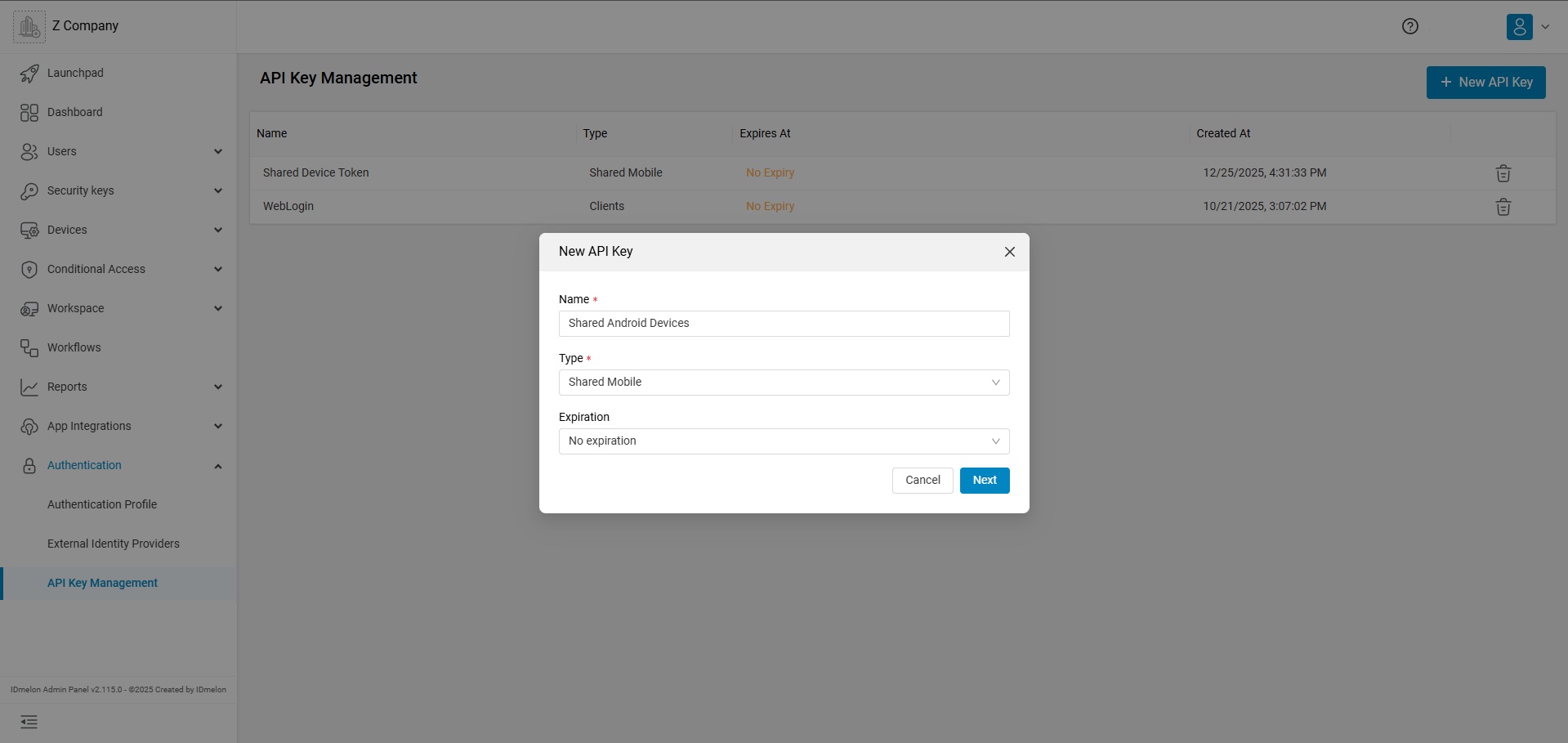
Log in to the IDmelon Panel: https://panel.idmelon.com.
Navigate to Authentication > API Key Management in the left-hand sidebar.
Click the + New API Key button.
Configure the key settings:
Name: Enter a recognizable name (e.g., “Shared Android Devices”).
Type: Select Shared Mobile.
Expiration: Set an appropriate expiration date according to your security policy.
Click Save/Generate and copy the API Key string. You will need this for the Intune configuration in the next step.
Keep this key secure. It allows the app to authenticate with your workspace.
Configuration Details
To enable shared functionality and link the app to your workspace, you must apply a Managed Configuration using the following parameters:
| Key | Type | Value | Description |
|---|---|---|---|
| shared_device_mode | Boolean | true | Enables multi-user optimization and session clearing. |
| api_key | String | eyJhbGciOiJIUz… | Your unique API key for workspace authentication. |
| auth_url | String | https://panel.idmelon.com/auth/sign-in?workspace=YOUR_WORKSPACE_ID | The specific sign-in endpoint for your workspace. |
Step-by-Step Setup Instructions
Add IDmelon Authenticator to Intune
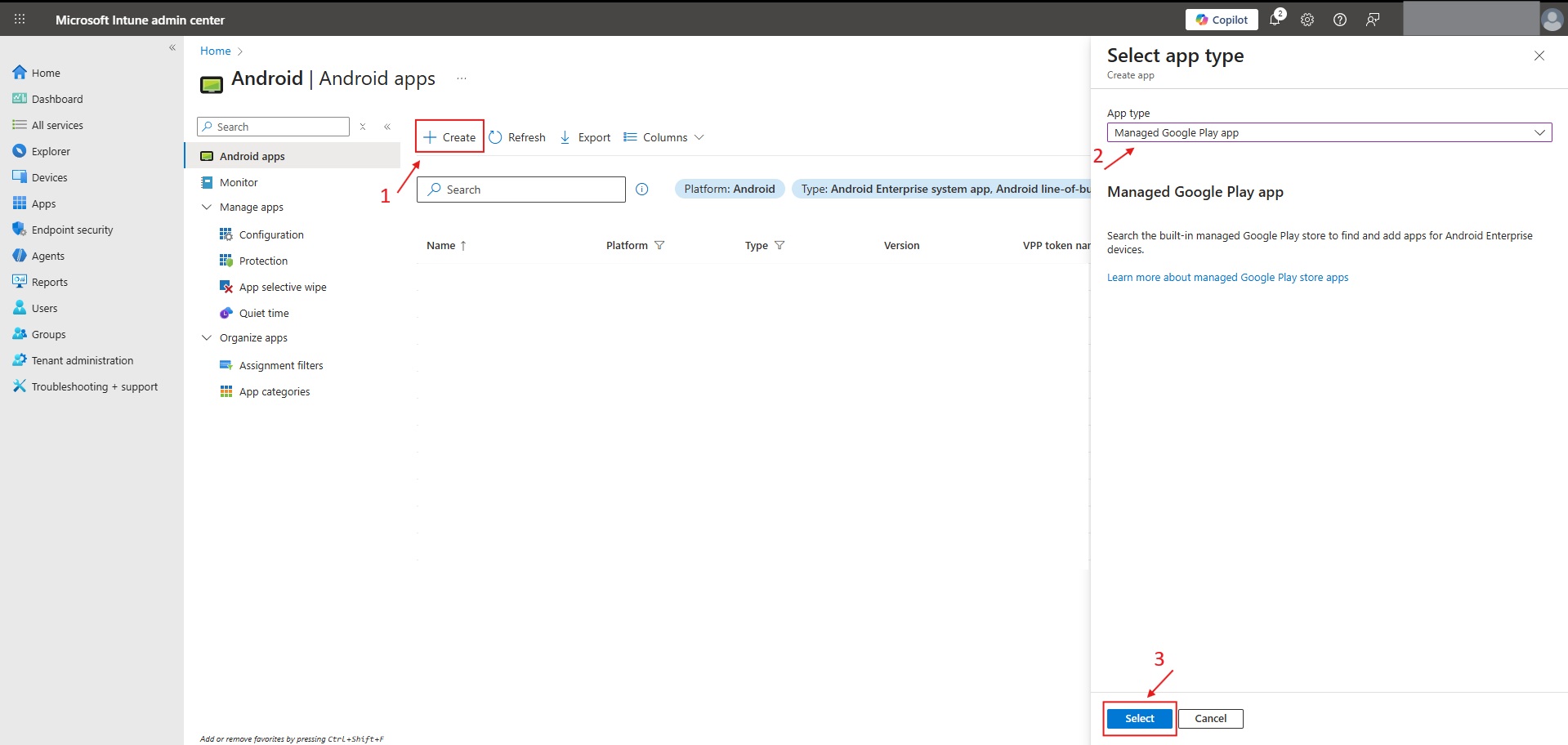
Navigate to Apps > Android > Create.
Select Managed Google Play app as the App type.
Search for IDmelon Authenticator (com.vancosys.authenticator.business).
Approve and sync the app to your Intune environment.
Click on Refresh, Select the app and assign it as Required for desired users/groups.
Create the App Configuration Policy
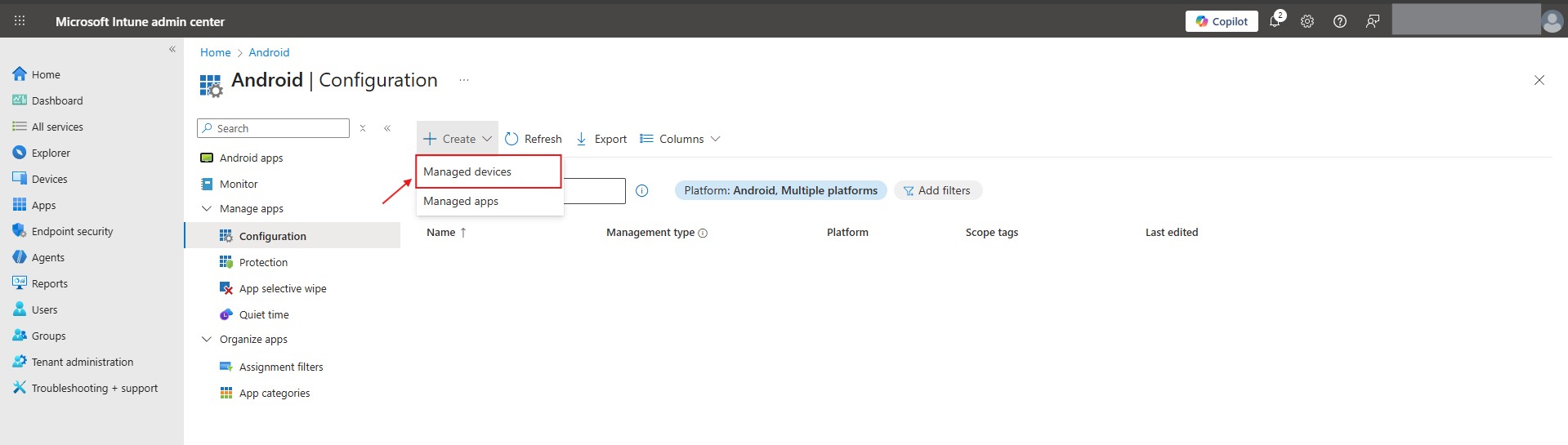
Go to Apps > Android > Configuration > Create > Managed devices.
Basics:
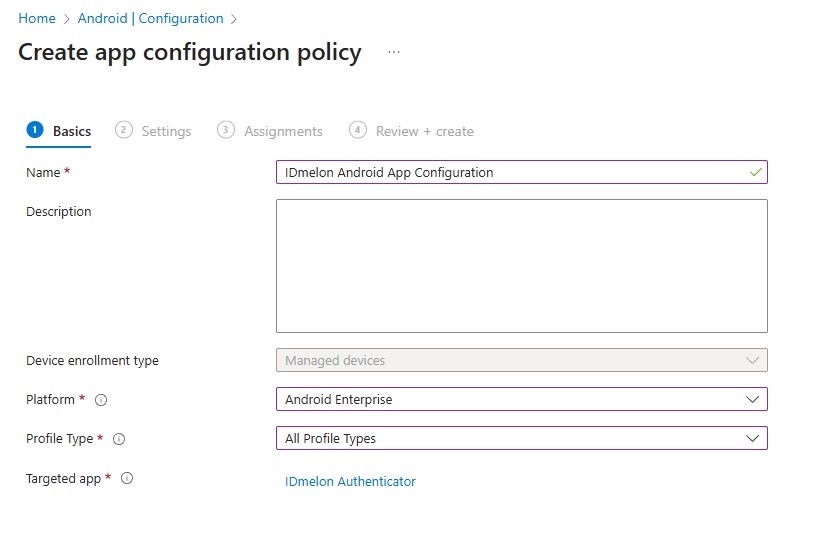
Name: IDmelon Android App Configuration.
Platform: Android Enterprise.
Profile Type: All Profile Types (or specific to your deployment).
Targeted App: Select IDmelon Authenticator.
Settings:
Set Configuration settings format to Use configuration designer.
Click Add to pick the variables. Select
api_key,shared_device_mode, andauth_url.Enter the values provided in the table above.
Deployment (Assignments)
Under the Assignments tab, include the Device Groups that represent your shared hardware.
Review and Create.