Web Environment
For web applications that do not support passkeys, users are able to use the tap-to-login solution with the IDmelon card reader driver, IDmelon WebLogin browser extension, and a web password which can be assigned to the card owner from the IDmelon panel or onboarding from the desired web application.
Install and Configure the WebLogin Extension
The following steps are performed by the end user, or by desktop support on the user’s behalf. Microsoft Edge is used throughout this guide.
Install the Extension in Microsoft Edge
Download the extension from the IDmelon downloads page > Workflow and Automation > WebLogin Extension.
- Install the IDmelon WebLogin extension in Microsoft Edge.
- Pin the extension to teh toolbar so its status icon is always visible.
Allow the Extension in InPrivate Mode
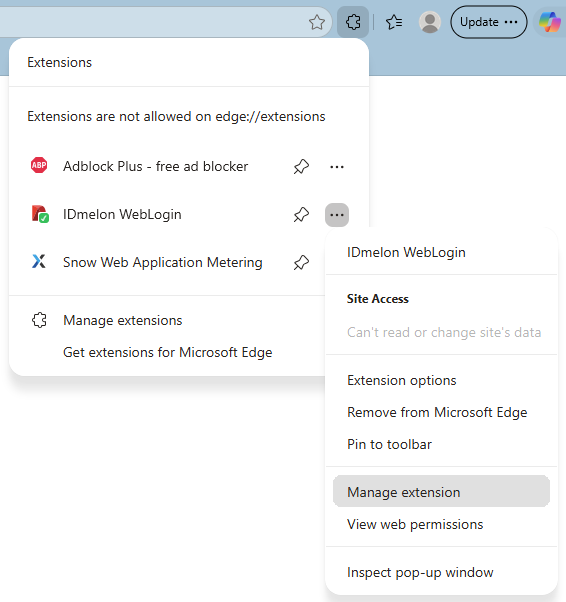
Open the Extensions menu in the toolbar, click on the three dots (…) next to IDmelon WebLogin, and select Manage extension.
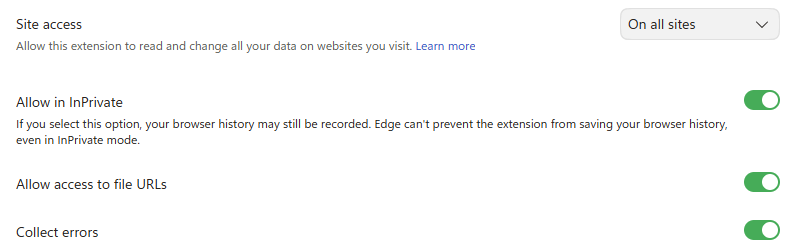
On the extension details page, turn on Allow in InPrivate and, if your applications require it, Allow access to file URLs. Leave Site access set to On all sites so WebLogin can detect sign-in forms wherever they appear.
Confirm the Card Reader is Connected
Click the IDmelon WebLogin icon in the toolbar. Under Reader Driver Connection Status you should see a green check mark and the word Connected. The footer should also confirm that the extension is connected to your organization’s server.
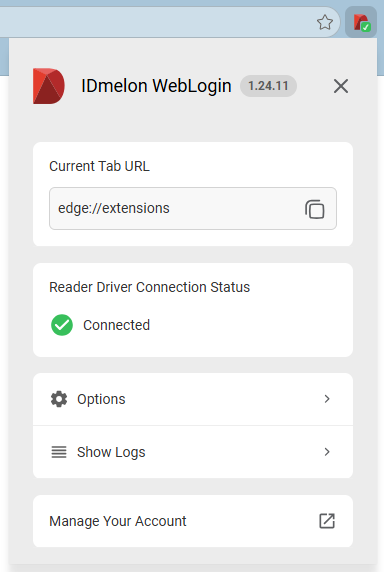
If the status is not green: check that the reader is plugged in, that the IDmelon Reader Driver is installed and running, and that the driver has been pointed at the driver has been pointed at the correct server (US, EU, on-prem).
First-Time Credential Onboarding
Each application credential is onboarded once. After that, the user never types the username or password again.
Navigate to the sign-in page of the target web application.
Click into the username field. Because no credential has been onboarded for this site yet, the IDmelon WebLogin dialog opens automatically.
Enter the username and password for the application.
Leave Require User Verification enabled and enter the PIN of your security key, then click Submit.
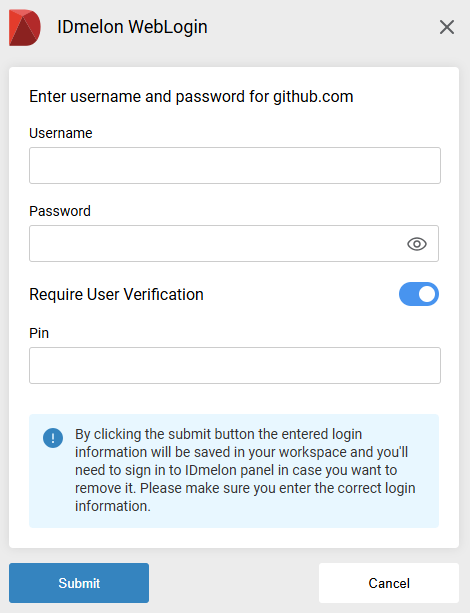
What happens next. The credential is saved to the user’s IDmelon workspace and bound to the security key. To remove it later, sign in to the IDmelon panel — it cannot be deleted from the browser. Enter the credentials carefully, because an incorrect value has to be removed from the panel before it can be replaced.
Everyday Use – Tap to Log In
Once the credential is onboarded, signing in takes two actions.
Open the application’s sign-in page and click into the username field.
Tap your contactless card on the reader.
Enter your security key PIN when prompted and click OK.
The username and password fields are populated automatically and the form is submitted. This is how IDmelon delivers passwordless sign-in for applications that do not support passkeys — the password still exists, but the user never sees it, types it, or needs to remember it.