Add a Custom OpenID Connect IdP
In this document you are going to set up a custom OpenID Connect IdP in IDmelon. Use this path when your provider is not one of the Featured Applications (for example Entra ID or Nametag). IDmelon is the relying party.
By default, users are matched by the email claim. The user must already exist in IDmelon with that email.
Initialize IDmelon Configuration as SP
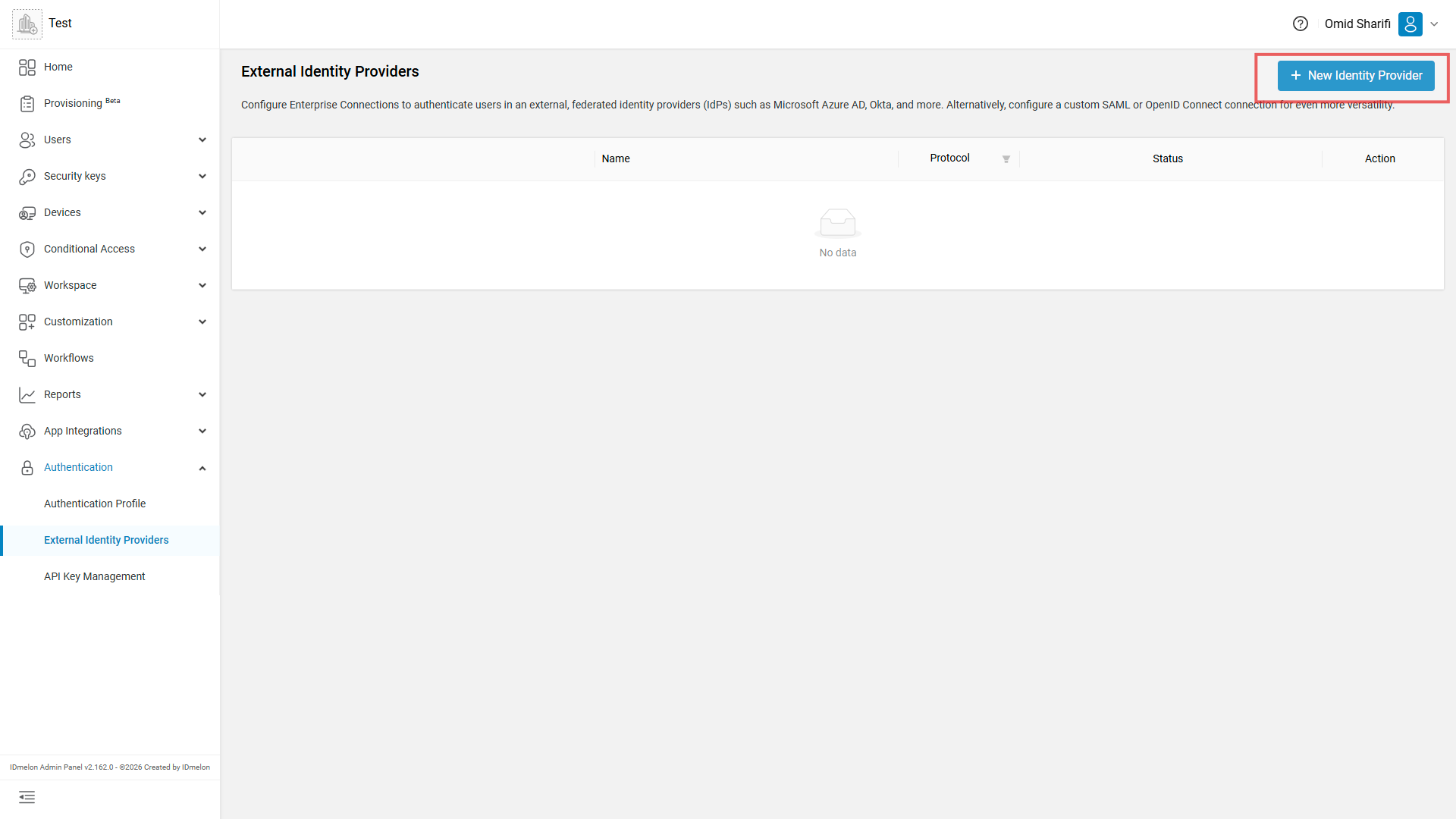
Log in to the IDmelon panel. In the left menu open Authentication, then External Identity Providers.
Click + New Identity Provider.
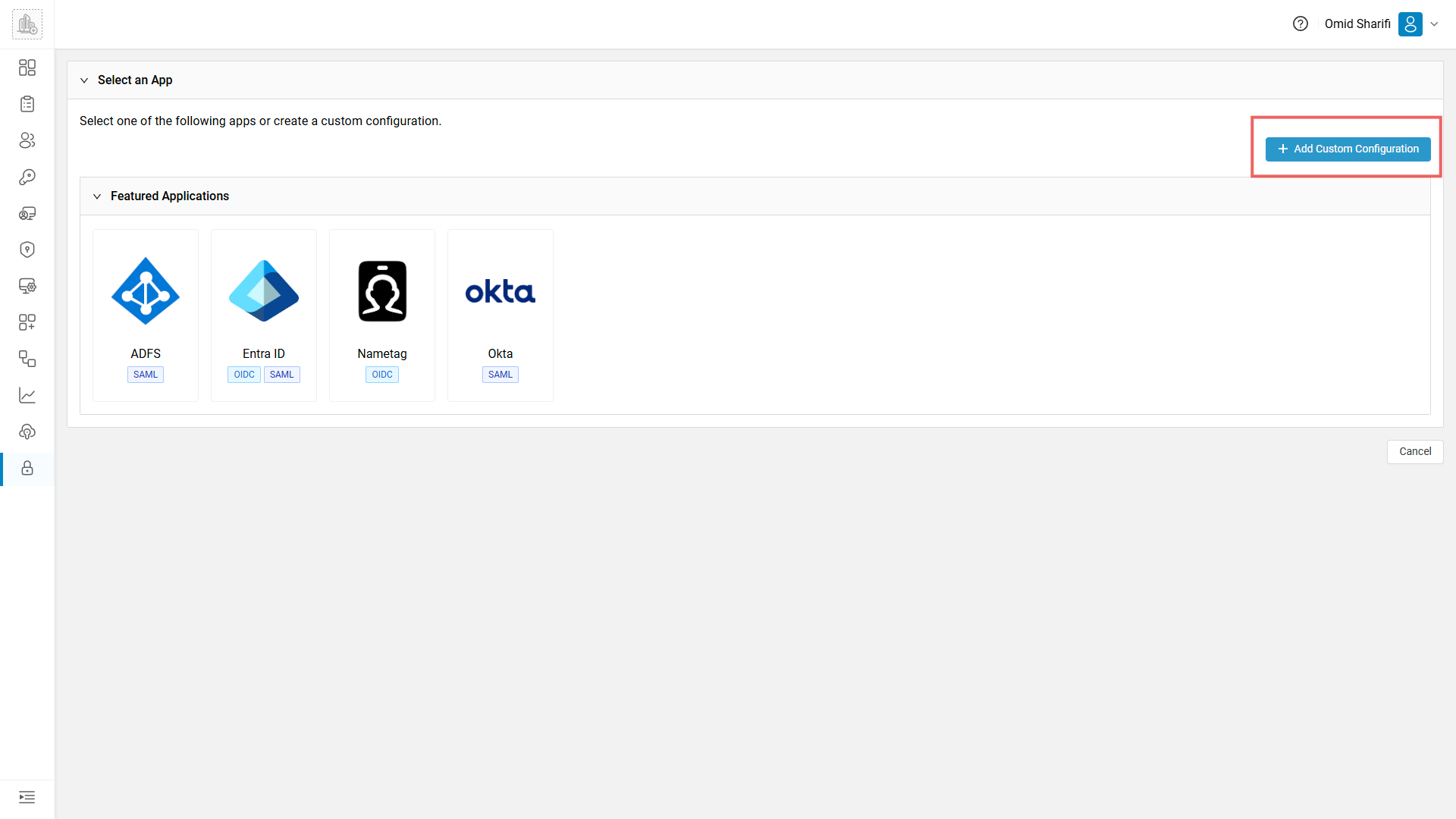
The next screen is Select an App. Do not click a Featured Applications card. Click + Add Custom Configuration.
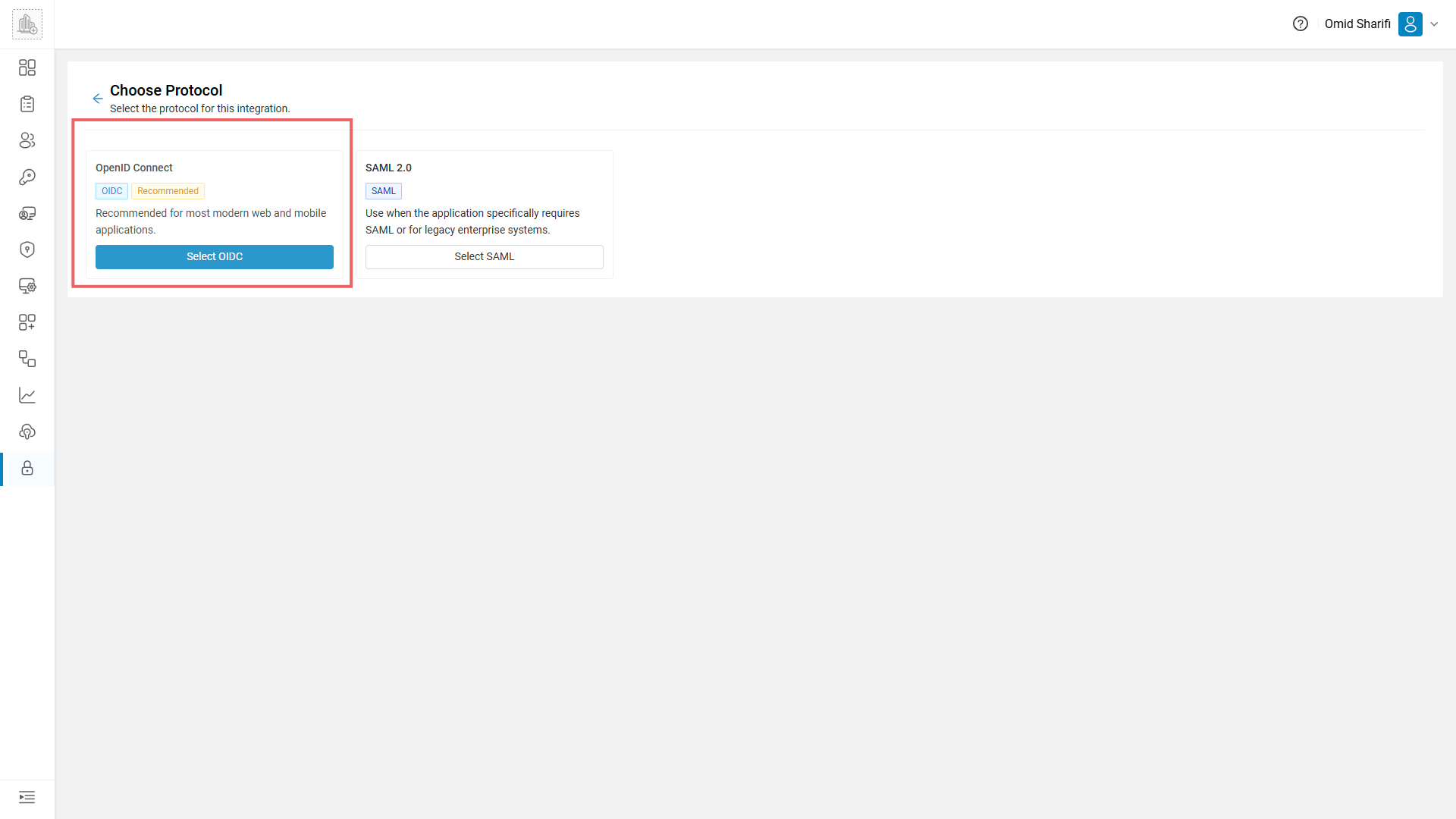
Choose Protocol opens. Select OpenID Connect. The card is tagged OIDC and Recommended. Click Select OIDC. Do not click Select SAML.
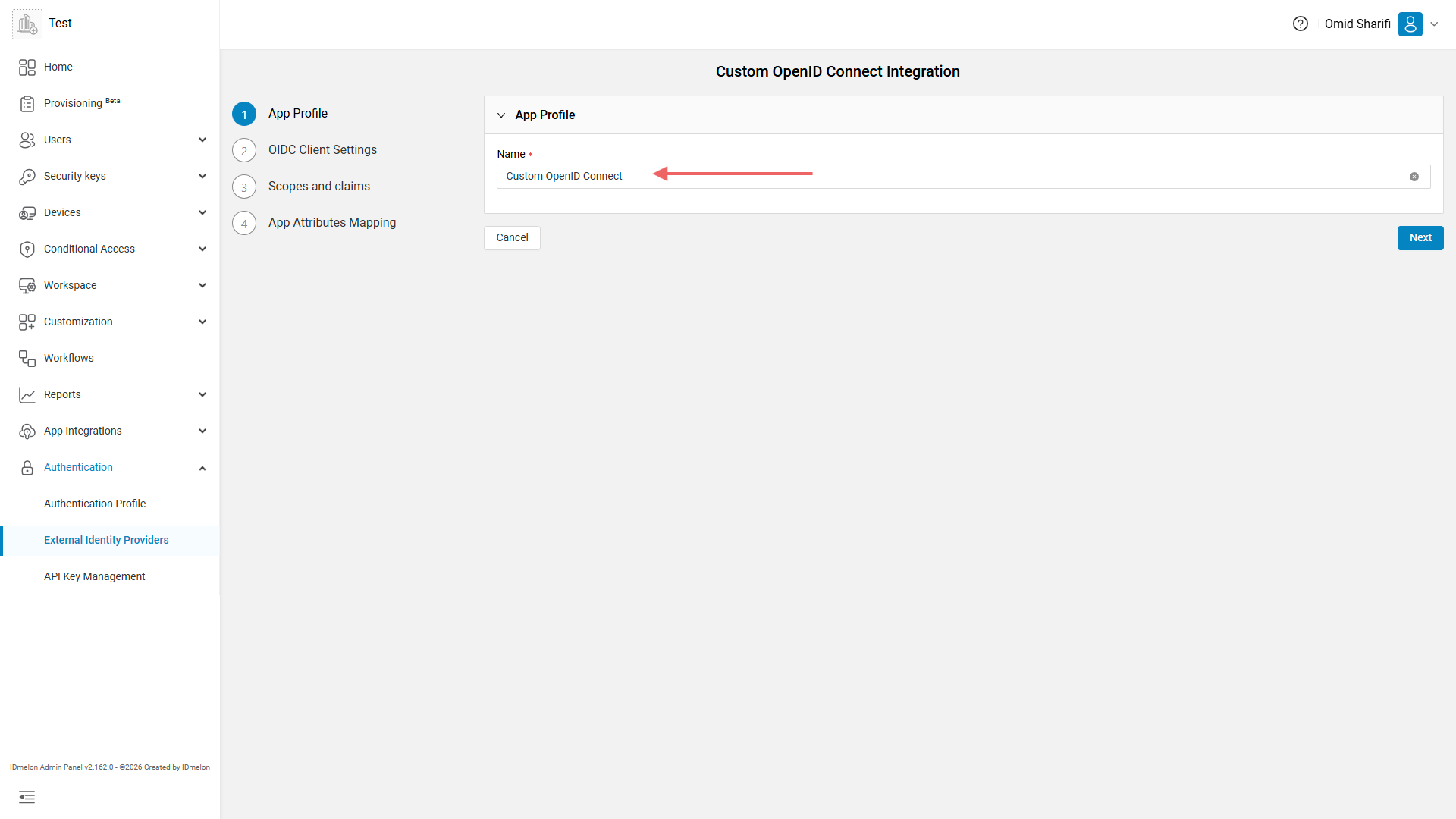
The wizard title is Custom OpenID Connect Integration. The steps are App Profile, OIDC Client Settings, Scopes and claims, and App Attributes Mapping.
On App Profile, Name is already Custom OpenID Connect. Change it to a label you recognize, or leave it, then click Next.
OIDC Client Settings
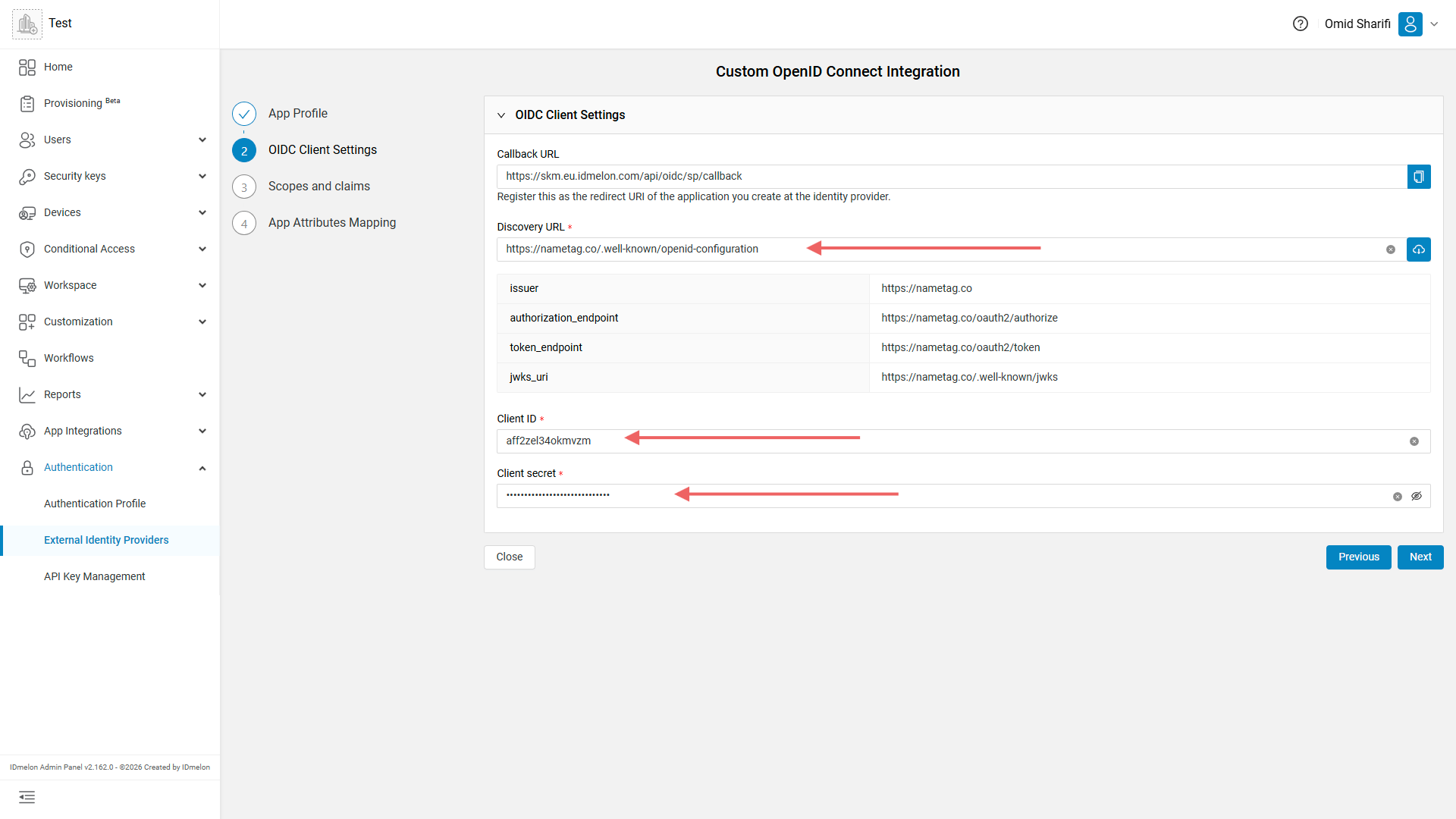
OIDC Client Settings opens. Copy Callback URL with the copy button. Register that exact value as the redirect URI (or callback URL) of the OIDC application you create at your identity provider. The host depends on your environment. The path is /api/oidc/sp/callback.
Discovery URL starts empty. Paste your provider’s OpenID Connect discovery document URL, then click the fetch button at the end of the field. A typical path ends with /.well-known/openid-configuration. IDmelon fills the issuer and endpoint fields from that document. Do not type the endpoints by hand.
Paste the Client ID and Client secret from the application you registered at the identity provider, then click Next.
Scopes and claims
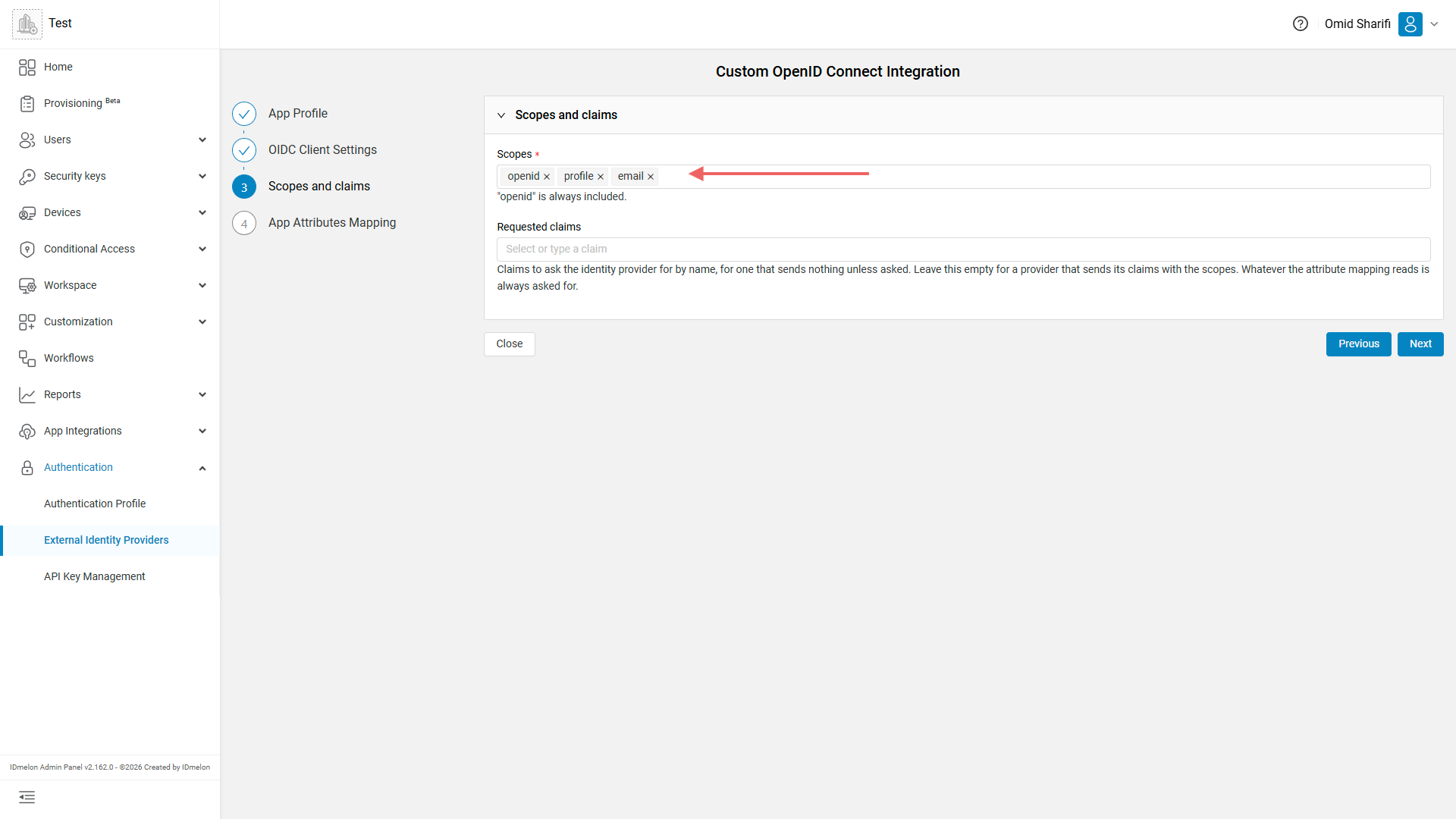
On Scopes and claims:
- Scopes: leave
openid,profile, andemail, or adjust to what your provider accepts."openid"is always included. - Requested claims: leave empty if the provider sends claims with the scopes. If it only returns a claim when asked for by name, add that claim here. Whatever the attribute mapping reads is always asked for.
Click Next.
App Attributes Mapping
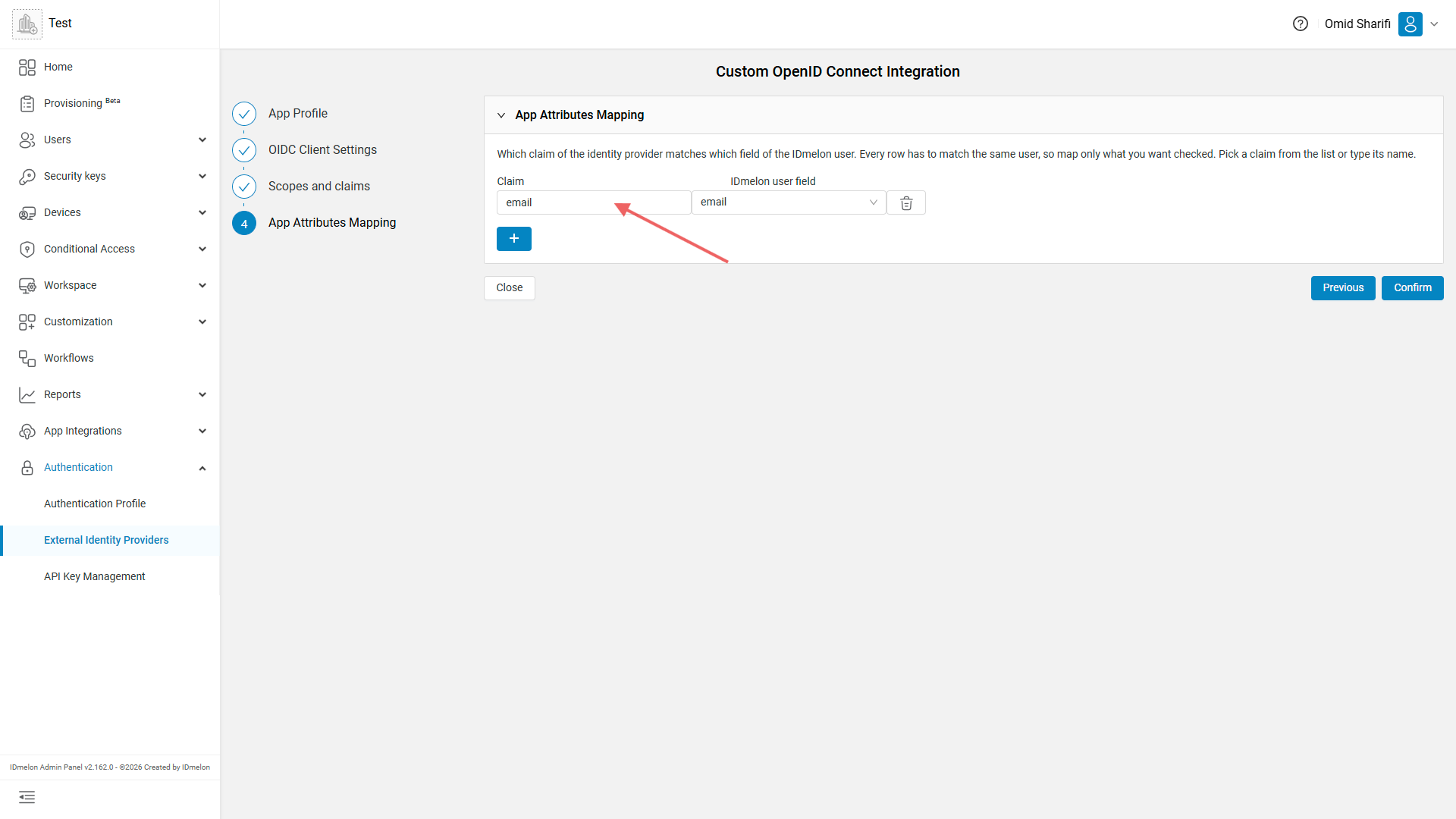
On App Attributes Mapping, keep the default row unless your provider uses a different claim for the user’s email, then click Confirm:
| Claim | IDmelon user field |
|---|---|
email | email |
You can add more rows with + if you need other fields checked. Every mapped row has to match the same IDmelon user.
You return to External Identity Providers. The new row shows your chosen name, protocol OIDC, and status Ready.
Open Authentication > Authentication Profile and select External in Identity Provider. Save if the control is enabled.
Users can then sign in through your custom OpenID Connect provider. After they authenticate, the provider sends the browser to the callback URL you registered.