Microsoft Entra ID
This document guides you through setting up IDmelon as an external IdP for Entra ID.
IDmelon Configuration as IDP
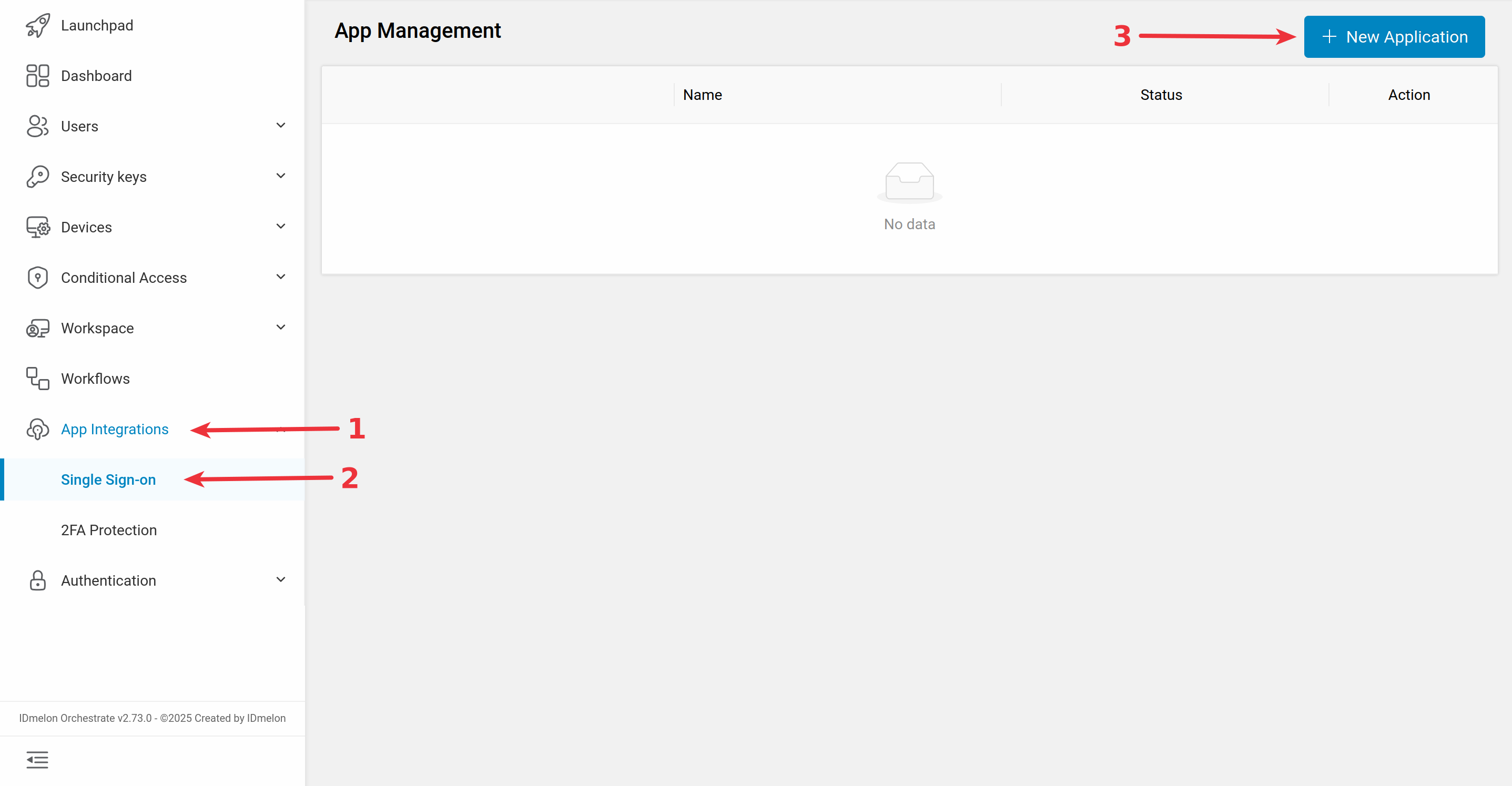
Log in to the IDmelon panel, navigate to the App Integration > Single Sign-On section, and click New Application:
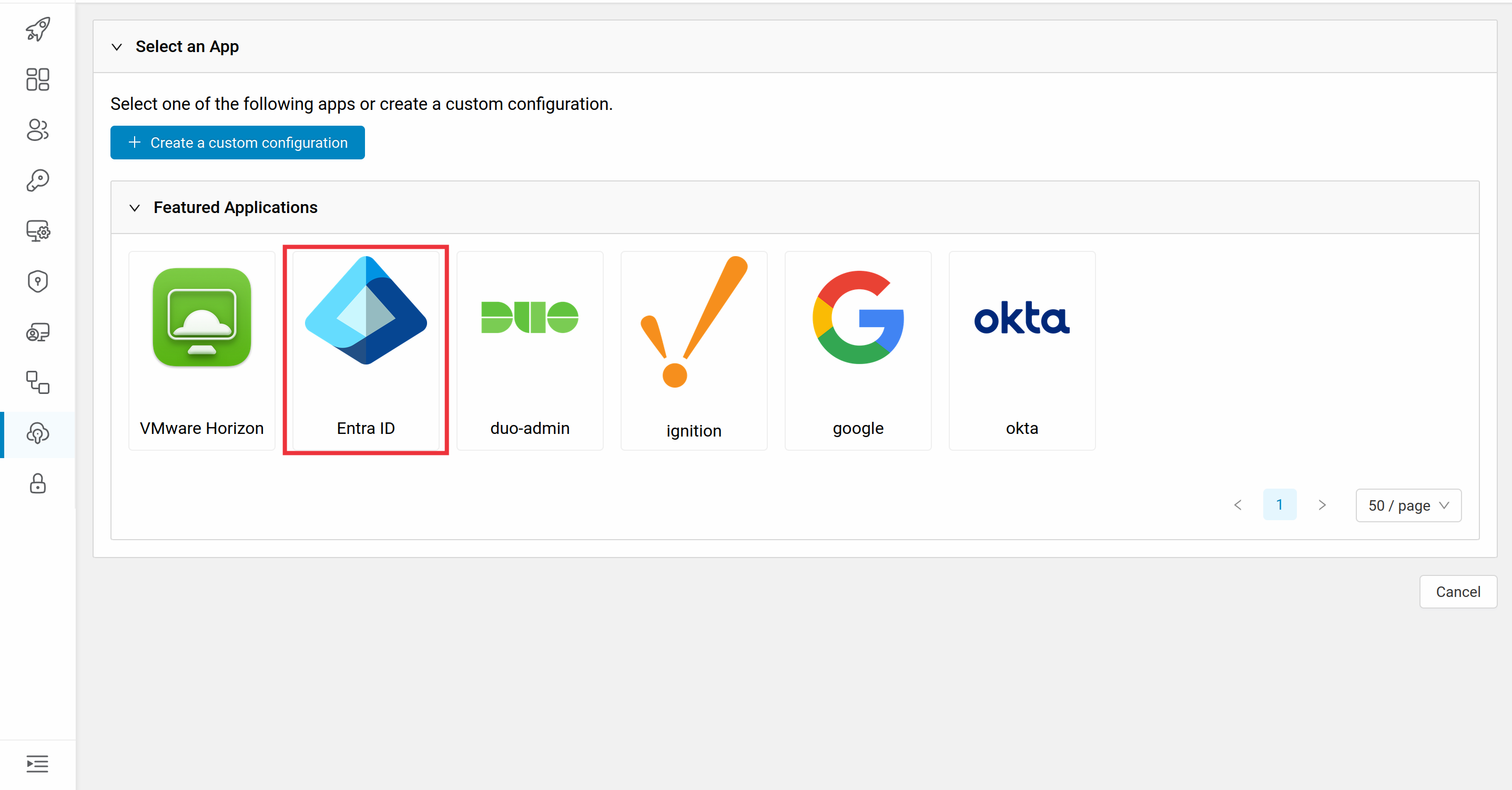
Then select Entra ID as service provider:
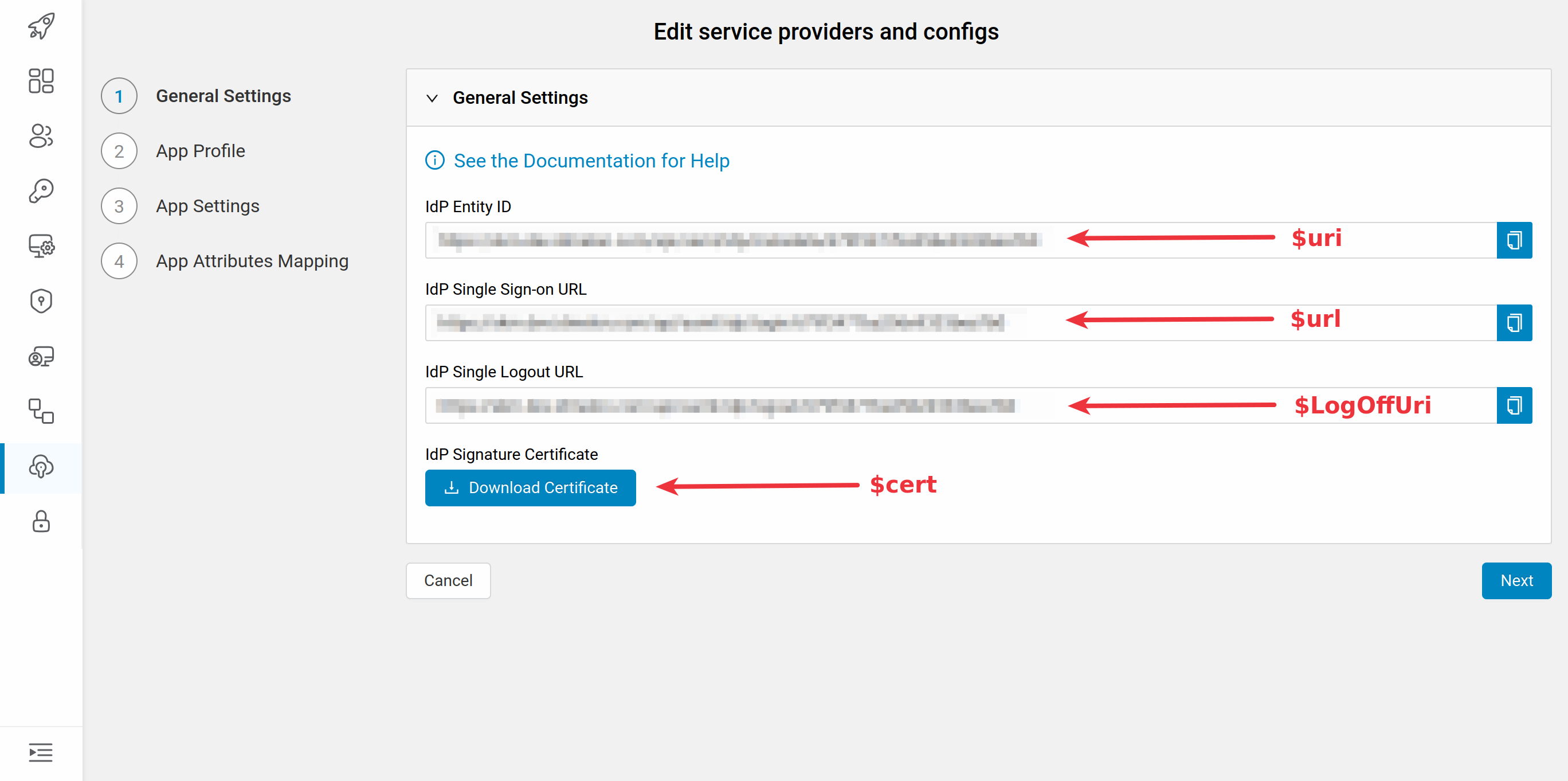
You will need the values provided in the newly opened window to set up EntraID as SP:
Note: All following commands are required to run in Windows PowerShell.
Configuring EntraID as SP
To configure Entra ID, you need to use the Connect-MgGraph command. If it’s not installed on your system, use the following instruction as an Administrator user:
Install-Module Microsoft.Graph -Scope CurrentUser
Connect to Microsoft Graph using the following command. This command will attempt to sign in to Azure. The first time you run it, a dialog will appear showing a warning containing Microsoft links. Add all these links to the Windows trust list, then follow the login steps to complete the connection.
Connect-MgGraph -Scopes "Domain.ReadWrite.All","User.ReadWrite.All","Directory.Read.All"
Check domains and authentication type using the following command:
Get-MgDomain | Select-Object Id, IsVerified, IsDefault, AuthenticationType
If the domain’s AuthenticationType is “Managed”, you don’t have an active federation record and should create one. If it is “Federated”, you should update the existing record. For this purpose, first create an IdP signature in Base64 format. IDmelon provides a pem file, so you can convert it to Base64 format using the following instructions:
# Assuming your .pem file is saved at this path
$certPath = "C:\Path\To\PEM_File\idp_certificate_sample.pem"

# Read the file content, filter out BEGIN/END lines, and join the remaining lines into a single string
$certBase64 = (Get-Content $certPath | Where-Object {
    $_ -notlike "-----BEGIN CERTIFICATE-----" -and
    $_ -notlike "-----END CERTIFICATE-----"
}) -join ""

# Display the result to ensure it's a single line
Write-Host "Base64 String: $($certBase64)"
Create Federation Record
To create a federation configuration, execute the following script in Windows PowerShell. All variables should be set with valid data to run successfully.
$dom        = "yourdomain.com"   # verified domain
$uri        = "https://skm.idmelon.com/api/saml/idp/metadata/sample"    # example
$url        = "https://skm.idmelon.com/api/saml/idp/login/sample"       # SAML endpoint for login
$logouturl  = "https://panel.idmelon.com/auth/logout?state=logout"      # logout endpoint
$certBase64 = "signiture-sample"   # your IdP signing cert content

# required extra parameters for Graph
$protocol   = "saml"
$mfaMode    = "acceptIfMfaDoneByFederatedIdp"   # required, see below

New-MgDomainFederationConfiguration -DomainId $dom `
  -DisplayName $dom `
  -IssuerUri $uri `
  -PassiveSignInUri $url `
  -SignOutUri $logouturl `
  -SigningCertificate $certBase64 `
  -PreferredAuthenticationProtocol $protocol `
  -FederatedIdpMfaBehavior $mfaMode `
  -IsSignedAuthenticationRequestRequired:$false
Update Federation Record
If your authentication type is “Federated” and you need to update the record, execute the following script. All variables should be set with valid data to run successfully.
$dom        = "yourdomain.com"   # verified domain
$uri        = "https://skm.idmelon.com/api/saml/idp/metadata/sample"    # example
$url        = "https://skm.idmelon.com/api/saml/idp/login/sample"       # SAML endpoint for login
$logouturl  = "https://panel.idmelon.com/auth/logout?state=logout"      # logout endpoint
$certBase64 = "signiture-sample"   # your IdP signing cert content

$fed = Get-MgDomainFederationConfiguration -DomainId $dom | Select-Object -First 1
Update-MgDomainFederationConfiguration -DomainId $dom -InternalDomainFederationId $fed.Id `
  -IssuerUri $uri `
  -PassiveSignInUri $url `
  -SignOutUri $logouturl `
  -SigningCertificate $certBase64 `
Verify Configuration
Now verify the change by executing the following command:
Get-MgDomain -DomainId $dom | Select-Object Id, AuthenticationType, IsVerified
You should now see:
Id            AuthenticationType IsVerified
------------- ------------------ ----------
yourdomain.com Federated         True
You can also confirm the new configuration:
Get-MgDomainFederationConfiguration -DomainId $dom | Format-List DisplayName,IssuerUri,PassiveSignInUri,PreferredAuthenticationProtocol
Show All Federated Users
If you want to see all users for whom federation is set, execute the following script:
# Step 1: Connect to Microsoft Graph with the required scopes
Connect-MgGraph -Scopes "User.Read.All", "Directory.Read.All"

# Step 2: Retrieve all users and filter those with a non-null OnPremisesImmutableId
$users = Get-MgUser -All -Property UserPrincipalName, OnPremisesImmutableId

# Step 3: Filter users who have OnPremisesImmutableId set (Federated users)
$federatedUsers = $users | Where-Object { $_.OnPremisesImmutableId }

# Step 4: Print the list of federated users
$federatedUsers | Select-Object UserPrincipalName, OnPremisesImmutableId | Format-Table -AutoSize
Revert Federation to Managed Authentication
To revert federation and switch the domain back to “Managed” authentication, you need to remove the federation configuration. First, retrieve the federation configuration for the domain:
$dom = "yourdomain.com"   # Replace with your federated domain

# Get the federation configuration for the domain
$federationConfig = Get-MgDomainFederationConfiguration -DomainId $dom | Select-Object -First 1
Then remove the domain federation configuration to revert to Managed authentication:
# Remove the domain federation configuration to revert to Managed authentication
Remove-MgDomainFederationConfiguration -DomainId $dom -InternalDomainFederationId $federationConfig.Id
Verify that the domain has been reverted to Managed authentication:
Get-MgDomain -DomainId $dom | Select-Object Id, AuthenticationType, IsVerified
You should now see:
Id            AuthenticationType IsVerified
------------- ------------------ ----------
yourdomain.com Managed          True
Passwordless Configuration
To configure passwordless authentication:
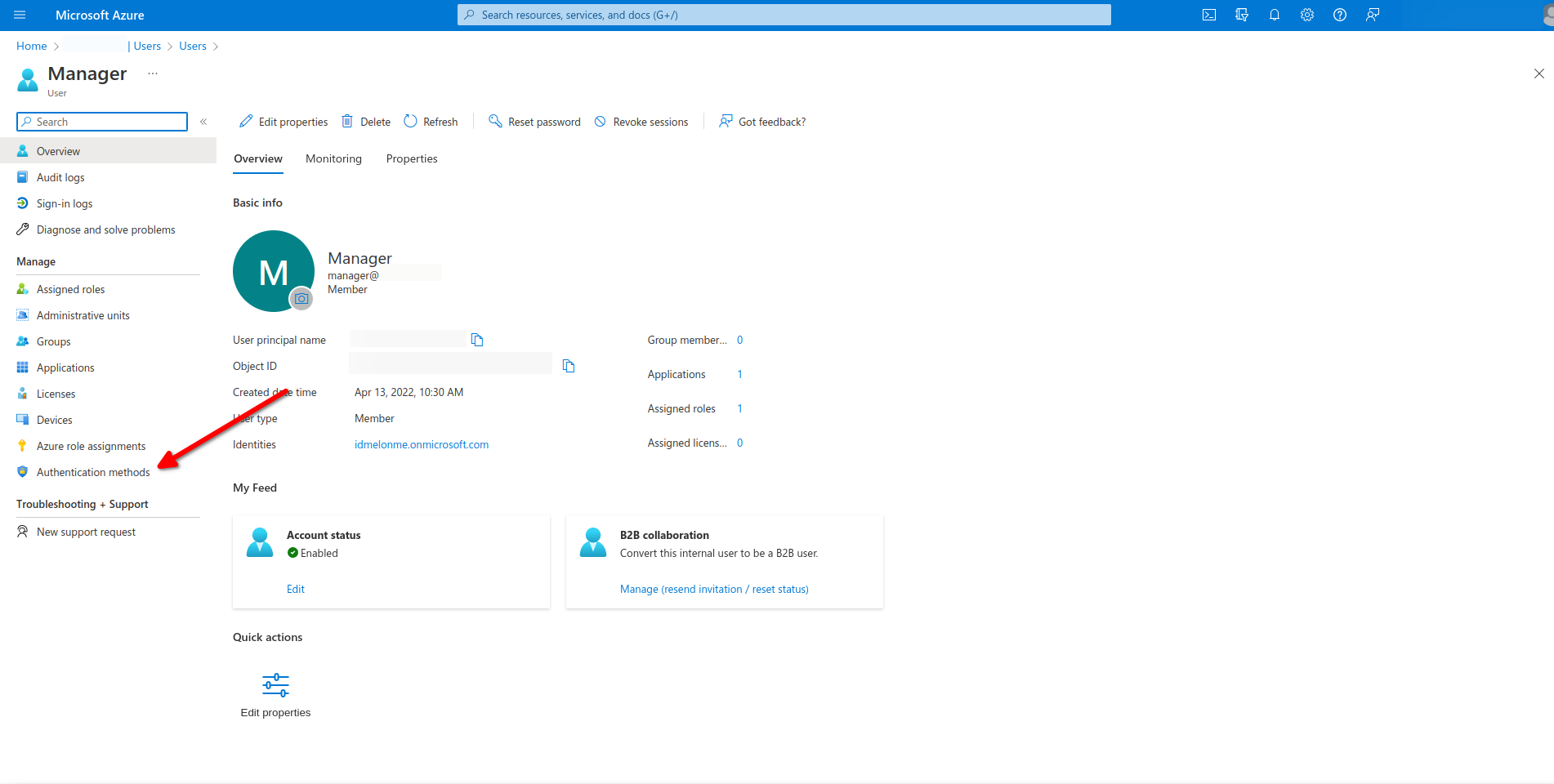
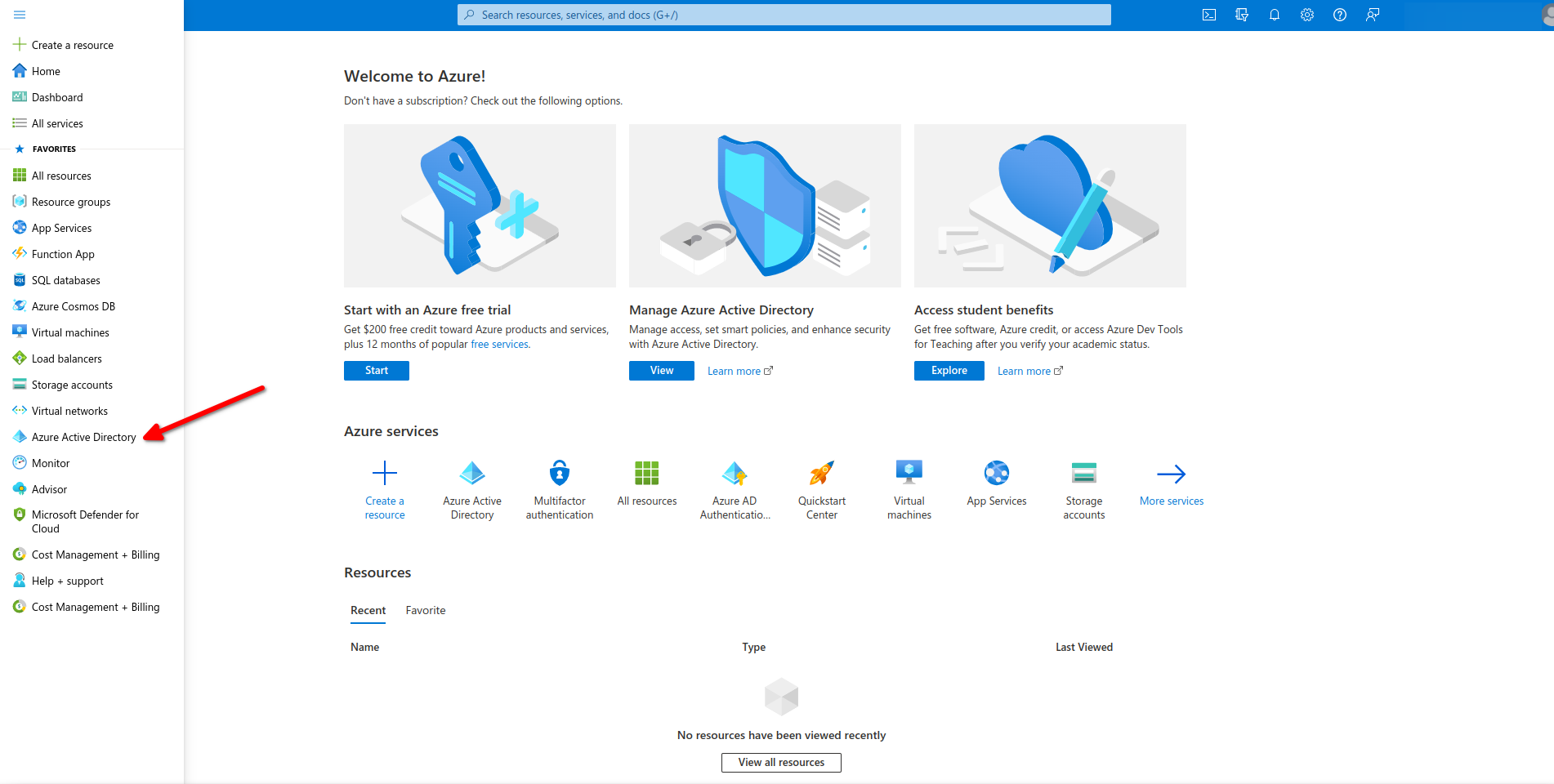
- Open Azure directory admin.
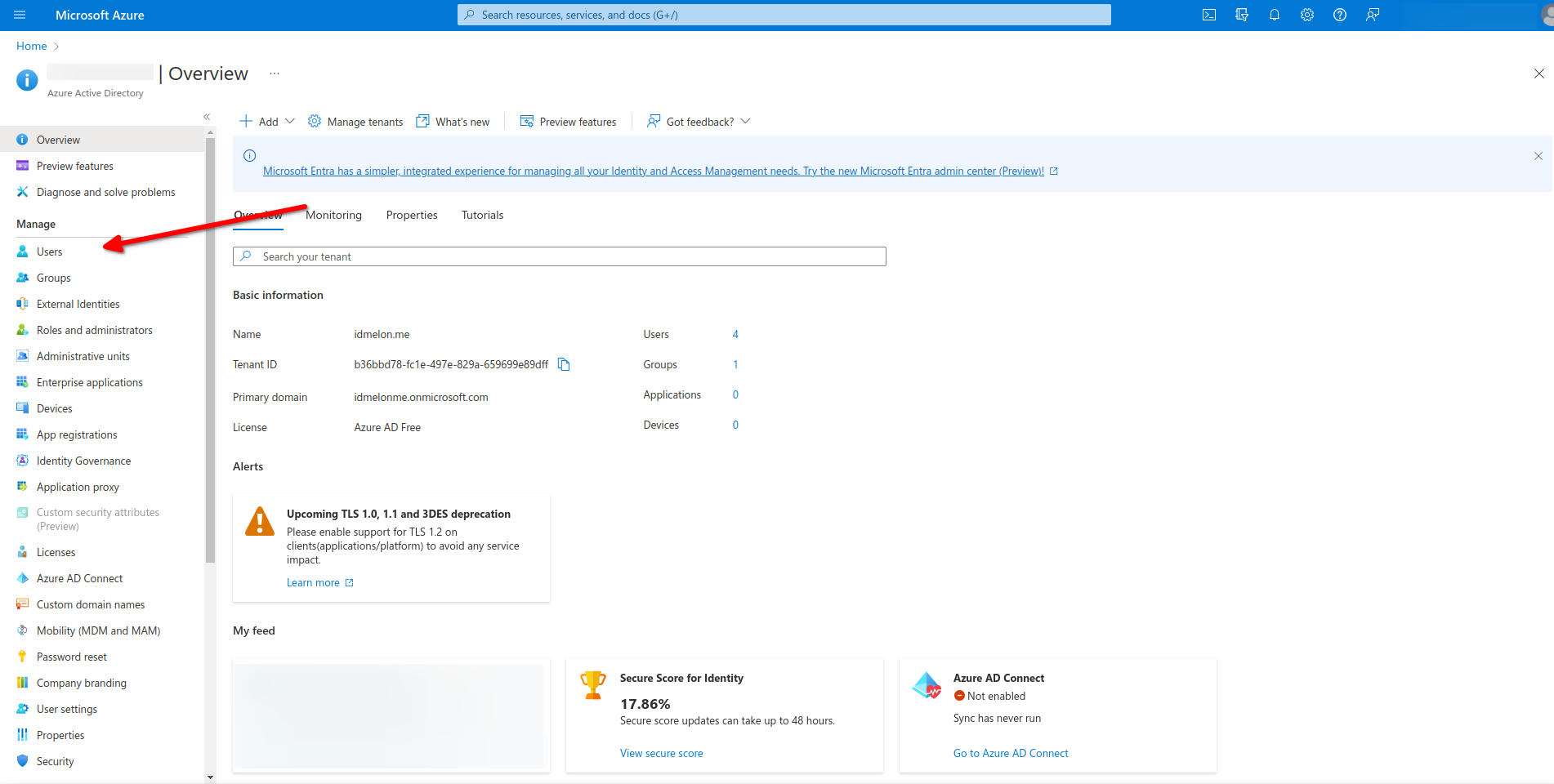
- Click on Users.
Choose a user.
Click on Authentication methods.
Delete the Authentication method option.